
How to Share Your Monitor on Skype
Are you tired of trying to explain complex computer issues over the phone? Do you wish there was a way to share your screen with friends or family members who are trying to help you troubleshoot problems? Look no further than Skype, the popular video conferencing service.
Sharing Your Monitor on Skype: A Step-by-step Guide
Sharing your monitor on Skype is easier than you think. Here’s how:
Sharing Your Monitor on Skype From a PC or Mac
To share your monitor on Skype from a PC or Mac, follow these steps:
- Launch Skype: Open Skype on your computer and sign in with your Microsoft account.
- Start a Call: Click the “Call” button to initiate a call with the person you want to share your screen with.
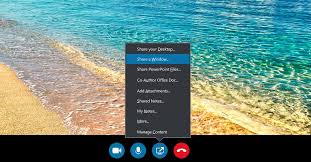
- Share Your Screen: Once the other person has accepted your call, click the “Share My Screen” button (represented by a monitor icon) in the bottom right corner of the Skype window.
- Choose What to Share: Select whether you want to share your entire desktop or a specific window/application.
Sharing Your Monitor on Skype From an App
If you prefer to use the Skype app on your smartphone or tablet, follow these steps:
- Launch The Skype App: Open the Skype app on your device and sign in with your Microsoft account.
- Start a Call: Click the “Call” button to initiate a call with the person you want to share your screen with.
- Share Your Screen: Tap the “Share My Screen” option (represented by a monitor icon) in the bottom menu bar.
- Initiate Sharing: Confirm that you want to share your screen and it will be shared with the other party.
If you’re unable to share your monitor on Skype, try these troubleshooting steps:
- Ensure you’re using the latest version of Skype.
- Check that you’ve granted permission for Skype to access your camera and microphone (on Mac).
- Restart Skype and try again.
Why Share Your Monitor on Skype?
Sharing your monitor on Skype can be a game-changer when it comes to troubleshooting computer problems. It allows you to share your screen with others, making it easier to explain complex issues or demonstrate solutions.
Benefits of Sharing Your Monitor on Skype
- Faster Troubleshooting: Share your screen and help others understand complex problems in real-time.
- More Effective Communication: Avoid misunderstandings by sharing visual information and demonstrations.
- Increased Productivity: Work collaboratively with others, even if you’re not in the same physical location.
Conclusion
Sharing your monitor on Skype is a simple yet powerful tool for improving communication and collaboration. By following these steps, you can share your screen with others and make it easier to troubleshoot complex computer problems.
Frequently Asked Questions (FAQs)
- Q: How do I Share my Monitor on Skype?
A: Share your monitor by clicking the “Share My Screen” button in Skype or tapping the “Share My Screen” option in the Skype app. - Q: What if I’m Using an Older Version of Skype?
A: Ensure you’re using the latest version of Skype to access sharing functionality. - Q: Why Can’t I Share my Monitor on Skype From a Mac?
A: Check that you’ve granted permission for Skype to access your camera and microphone, then restart Skype and try again.
Stay connected with loved ones, work remotely with colleagues, or collaborate with friends – the possibilities are endless when you know how to share your monitor on Skype.


