
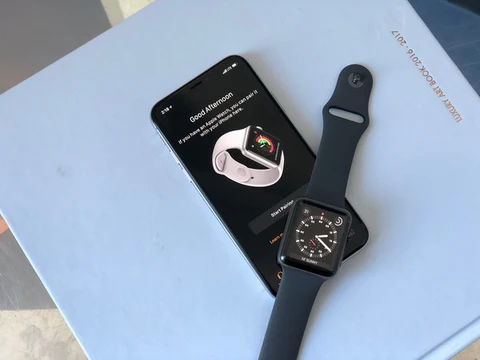
How to Match Apple Watch to New Iphone: A Step-by-step Guide
Are you excited to get your new iPhone, but wondering how to match it with your Apple Watch? Don’t worry, we’ve got you covered! In this article, we’ll guide you through a step-by-step process on how to match your Apple Watch to your new iPhone.
Before You Begin: Important Preliminary Operations
Before diving into the matching process, make sure you have:
- The Latest Software Updates: Ensure that both your Apple Watch and iPhone are running the latest software versions.
- A Stable Internet Connection: A Wi-Fi or cellular network is required for the matching process.
- Access to Your ID Apple Account: Make sure you have access to your ID Apple account associated with your Apple Watch and iPhone.
Why Match Your Apple Watch to New Iphone?
Matching your Apple Watch to your new iPhone ensures that:
- Your Watch Data is Synchronized: Your Apple Watch data, including fitness tracking, notifications, and more, will be synced with your iPhone.
- You Can Use Features Like Handoff: With the matching process, you’ll be able to use features like Handoff, which allows you to start something on one device and pick it up where you left off on another.
Step 1: Prepare Your Devices
To match your Apple Watch to your new iPhone:
- Unpair Your Apple Watch From Old Iphone: If you’re upgrading from an older iPhone, unpair your Apple Watch by going to Settings > General > Reset > Erase All Content and Settings.
- Backup Your Devices: Make sure to backup both your Apple Watch and iPhone using iCloud or iTunes.
Step 2: Match Your Apple Watch to New Iphone
- Put on Your Apple Watch: Put on your Apple Watch and unlock it.
- Open The Apple Watch App: Open the Apple Watch app on your new iPhone.
- Tap on “Match a New Apple Watch”: Tap on “Match a new Apple Watch” in the app.
- Choose to Match Using Wi-fi or Bluetooth: Choose whether you want to match your Apple Watch using Wi-Fi or Bluetooth.
- Enter The Code From Your Apple Watch: Enter the code displayed on your Apple Watch into the iPhone app.
Troubleshooting: What to Do if You Encounter Problems
If you encounter any issues during the matching process, try:
- Restarting Both Devices: Restart both your Apple Watch and iPhone.
- Checking For Software Updates: Ensure that both devices are running the latest software versions.
- Contacting Apple Support: Reach out to Apple Support for further assistance.
Conclusion
Matching your Apple Watch to your new iPhone is a straightforward process that ensures seamless integration between your devices. By following these steps, you’ll be able to enjoy features like Handoff and synchronize your watch data with ease.
Frequently Asked Questions (FAQs)
- Q: How do I Match my Apple Watch to Two Iphones?
A: Unfortunately, it’s not possible to match an Apple Watch to more than one iPhone at a time. - Q: Can I Still Use my Apple Watch if I’ve Lost Access to my ID Apple Account?
A: If you’ve lost access to your ID Apple account, you may need to reset your device or contact Apple Support for assistance. - Q: What Happens if I Encounter Issues During The Matching Process?
A: If you experience any problems during the matching process, try restarting both devices and checking for software updates.
Additional Resources
For more information on matching your Apple Watch to your new iPhone, visit Apple’s official website or contact Apple Support directly.


