
How to Create a Youtube Thumbnail: A Step-by-step Guide
Are you tired of creating bland thumbnails that don’t grab the attention of your audience? Do you want to create eye-catching thumbnails that make viewers curious about your video? Look no further! In this article, we’ll show you how to create a stunning YouTube thumbnail using various tools and software.
Why Is a Thumbnail Important For Your Video?
A thumbnail is the first thing viewers see when they come across your video on YouTube. It’s what makes them decide whether or not to click on your video. A good thumbnail can make all the difference in getting more views, likes, and engagement on your video.
Choosing The Right Tool For The Job
There are several tools you can use to create a YouTube thumbnail. Some of the most popular ones include:
- Adobe Photoshop: This is one of the most powerful graphic design software available. With its vast array of features and tools, you can create stunning thumbnails with ease.
- Gimp: This is a free and open-source image editing software that’s perfect for beginners. It has many of the same features as Adobe Photoshop but at a fraction of the cost.
- Canva: This is an online graphic design platform that’s perfect for non-designers. With its user-friendly interface and vast template library, you can create professional-looking thumbnails in minutes.
Step-by-step Guide to Creating a Thumbnail
In this section, we’ll take a closer look at how to create a thumbnail using each of the tools mentioned above.
Using Adobe Photoshop
To create a thumbnail using Adobe Photoshop, follow these steps:
- Open Adobe Photoshop: Open Adobe Photoshop on your computer and create a new document.
- Set The Dimensions: Set the dimensions of your thumbnail to 1280 x 720 pixels (minimum width of 640 pixels).
- Choose The Format: Choose a JPEG or PNG format for your thumbnail.
- Add Images: Add images to your thumbnail by selecting them from your computer or camera roll.
- Resize And Crop: Resize and crop your image to fit the dimensions of your thumbnail.
- Save as Jpeg or Png: Save your thumbnail as a JPEG or PNG file.
Using Gimp
To create a thumbnail using GIMP, follow these steps:
- Open Gimp: Open GIMP on your computer and create a new document.
- Set The Dimensions: Set the dimensions of your thumbnail to 1280 x 720 pixels (minimum width of 640 pixels).
- Choose The Format: Choose a JPEG or PNG format for your thumbnail.
- Add Images: Add images to your thumbnail by selecting them from your computer or camera roll.
- Resize And Crop: Resize and crop your image to fit the dimensions of your thumbnail.
- Save as Jpeg or Png: Save your thumbnail as a JPEG or PNG file.
Using Canva
To create a thumbnail using Canva, follow these steps:
- Open Canva: Open Canva on your computer or mobile device and sign up for an account if you don’t already have one.
- Choose a Template: Choose a template from the Canva library that’s similar to what you want your thumbnail to look like.
- Customize: Customize your template by adding images, text, and other design elements as needed.
- Save as Jpeg or Png: Save your thumbnail as a JPEG or PNG file.
Tips For Creating a Great Thumbnail
Here are some tips to keep in mind when creating a great thumbnail:
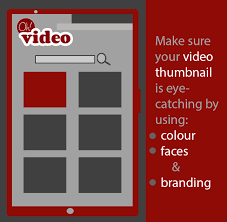
- Use Bright Colors: Bright colors can grab the attention of viewers and make them more likely to click on your video.
- Use Eye-catching Graphics: Use eye-catching graphics, such as images or animations, to make your thumbnail stand out.
- Keep it Simple: Keep your thumbnail simple and easy to understand. Avoid cluttering it with too much text or information.
- Make Sure It’s Relevant: Make sure your thumbnail is relevant to the content of your video.
Conclusion
Creating a great YouTube thumbnail can be a challenge, but with these steps and tips, you’ll be well on your way to creating thumbnails that grab the attention of your audience. Remember to choose the right tool for the job, follow the steps outlined above, and keep in mind the tips we provided. Happy creating!
Frequently Asked Questions (FAQs)
- What Are The Dimensions For a Youtube Thumbnail?
The dimensions for a YouTube thumbnail are 1280 x 720 pixels (minimum width of 640 pixels). - What Format Should I Save my Thumbnail As?
You can save your thumbnail as either JPEG or PNG. - How do I Add Images to my Thumbnail?
To add images to your thumbnail, select them from your computer or camera roll and drag them into the design area. - Can I Resize And Crop my Image?
Yes, you can resize and crop your image to fit the dimensions of your thumbnail. - What’s The Best Tool For Creating a Youtube Thumbnail?
The best tool for creating a YouTube thumbnail is Adobe Photoshop, but GIMP and Canva are also great options.
Additional Resources
If you’re interested in learning more about creating thumbnails or graphic design in general, here are some additional resources to check out:
- Adobe Photoshop Tutorials: Check out these Adobe Photoshop tutorials on YouTube for tips and tricks on how to create stunning graphics.
- Gimp Tutorials: Check out these GIMP tutorials on YouTube for tips and tricks on how to create stunning graphics.
- Canva Tutorials: Check out these Canva tutorials on YouTube for tips and tricks on how to create stunning graphics.
Bonus Tips
Here are some bonus tips to keep in mind when creating a thumbnail:
- Make it Consistent: Make sure your thumbnail is consistent with the branding of your channel or video.
- Use Animations: Use animations to make your thumbnail more engaging and dynamic.
- Keep it Short And Sweet: Keep your thumbnail short and sweet. Avoid cluttering it with too much text or information.
- Make Sure It’s Relevant: Make sure your thumbnail is relevant to the content of your video.
I hope this article has been helpful in showing you how to create a great YouTube thumbnail using various tools and software. Good luck with your video creation!


