
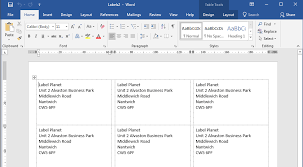
How to Create Labels With Word: A Step-by-step Guide
Are you looking for a way to create custom labels using Microsoft Word? Look no further! In this article, we will guide you through the process of creating labels with Word on your computer, online, and even on your smartphone or tablet.
Why Use Word to Create Labels?
Before we dive into the step-by-step instructions, let’s quickly discuss why using Word is a great option for creating labels. Word is an incredibly versatile program that can handle a wide range of tasks, including document creation, formatting, and printing. With Word, you can create custom labels in minutes, which makes it perfect for various applications such as:
- Labeling folders or files
- Creating gift tags or party favors
- Making custom stickers or decals
Creating Labels With Word on Your Computer
To get started, follow these steps:
Step 1: Open Microsoft Word
Click on the Start button and select Microsoft Word from the list of installed programs.
Step 2: Create a New Document
Once Word is open, click on the “File” menu and select “New” to create a new document.
Step 3: Select The Letter Tab
In the top navigation bar, click on the “Letter” tab. This will take you to the letter-writing tools in Word.
Step 4: Choose The Label Option
Click on the “Labels” button in the middle of the screen. This will bring up a new window with label options.
Step 5: Select Your Label Type And Size
In this window, select the type and size of label you want to create. You can choose from various pre-designed templates or customize your own.
Step 6: Add Your Text And Images
Once you’ve selected your label type and size, add your text and images as desired. Use the formatting tools in Word to adjust font, color, and more.
Step 7: Print Your Labels
When you’re finished designing your labels, click on the “Print” button to print them out.
Creating Labels With Word Online
If you don’t have Microsoft Word installed on your computer or prefer to use a web-based version, follow these steps:
- Go to the Microsoft Office website and sign in with your account.
- Click on the “Word” icon to open the online version of Word.
- Follow the same steps as above (Steps 2-7) to create and print your labels.
Creating Labels With Word on Your Smartphone or Tablet
If you prefer to use a mobile device, follow these steps:
- Download the Microsoft Word app from the App Store (for iOS devices) or Google Play Store (for Android devices).
- Open the app and sign in with your account.
- Follow the same steps as above (Steps 2-7) to create and print your labels.
Tips And Tricks
Here are some additional tips to keep in mind when creating labels with Word:
- Use pre-designed templates to save time and effort.
- Experiment with different font styles, colors, and sizes to make your labels stand out.
- Don’t forget to add any necessary images or graphics to enhance the visual appeal of your labels.
Conclusion
Creating labels with Microsoft Word is a straightforward process that can be completed in just minutes. Whether you’re using the desktop version or the online version, this guide has walked you through each step to ensure success. With these steps and tips, you’ll be creating custom labels like a pro in no time!
Frequently Asked Questions (FAQs)
Q: What are some common uses for custom labels?
A: Custom labels can be used for various purposes such as labeling folders or files, creating gift tags or party favors, making custom stickers or decals, and more.
Q: Can I use pre-designed templates in Word to save time?
A: Yes! Word offers a wide range of pre-designed templates that you can use to create your custom labels quickly and easily.
Q: How do I add images or graphics to my labels?
A: Simply click on the “Insert” tab in Word, select “Picture,” and choose from your computer’s files or online sources such as Google Images.
Q: Can I print multiple copies of a label at once?
A: Yes! Word allows you to print multiple copies of a label by selecting the number of copies you want to print when prompted during the printing process.
Q: Is there a limit to how many labels I can create with Word?
A: No, there is no limit to how many labels you can create with Microsoft Word. The more creative and imaginative your designs are, the better!
Q: Can I use Word on my smartphone or tablet to create custom labels?
A: Yes! Microsoft offers a mobile version of Word that allows you to create and print custom labels directly from your device.
Q: What if I need help creating custom labels with Word?
A: Don’t worry – we’re here to help! Our support team is available 24/7 to answer any questions or concerns you may have about using Microsoft Word for label creation.


