
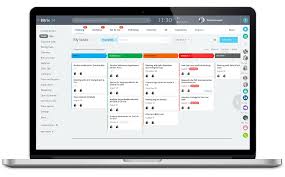
Instruments For Smart Working And Remote Work: Bitrix24
Are you an entrepreneur or a business owner looking for a solution to enhance smart working and remote work? Do you want to assign instruments that favor communication and collaboration at a distance, as well as task management and blueprint management? If your answer is yes, then you should try out Bitrix24. It’s a platform that offers a wide range of tools for the management of each aspect of business work.
Understanding Bitrix24
Bitrix24 is an all-in-one platform that provides instruments to facilitate smart working and remote work. The platform is available as a web application and can be accessed through various devices, including computers and mobile devices. One of its main features is a CRM (Customer Relationship Management) system that allows for the automation of sales processes.
Creating a New Account
To start using Bitrix24’s instruments for smart working and remote work, you need to create a new account. The platform offers a free plan that provides access to a wide range of tools, including collaboration and communication features. However, if you want more advanced features, such as the ability to sell products online or gain professional assistance, then you may want to consider upgrading to one of the paid plans.
Types of Plans
Bitrix24 offers several types of plans, each with its own set of features. The basic plan is free and provides access to a wide range of tools, including collaboration and communication features. However, if you want more advanced features, such as the ability to sell products online or gain professional assistance, then you may want to consider upgrading to one of the paid plans.
Creating a New Account on Bitrix24
To create a new account on Bitrix24, follow these steps:
- Click on the “Sign up” button on the top right corner of the page.
- Fill in your email address and password.
- Choose your plan (free or paid).
- Click on the “Create account” button.
Bitrix24: A Complete Guide
This guide will walk you through each aspect of Bitrix24, including its instruments for smart working and remote work.
Table 1: Types of Plans
| Type | Features |
|---|---|
| Free | Basic collaboration and communication features, task management, CRM, and document sharing. |
| Basic | Advanced collaboration and communication features, task management, CRM, and document sharing. Additionally includes the ability to sell products online and gain professional assistance. |
| Standard | Advanced collaboration and communication features, task management, CRM, and document sharing. Additionally includes marketing automation and sales intelligence features. |
| Professional | Advanced collaboration and communication features, task management, CRM, and document sharing. Additionally includes advanced marketing automation and sales intelligence features, as well as data encryption and user access management. |
| Enterprise | The most advanced plan, including a dedicated database and server, data encryption, dynamic pricing, and user access management. |
Creating a New Task
To create a new task on Bitrix24, follow these steps:
- Click on the “Tasks” tab.
- Click on the “New task” button.
- Fill in the task details (name, description, deadline, responsible person).
- Add participants and observers if necessary.
- Click on the “Add task” button.
Creating a New Blueprint
To create a new blueprint on Bitrix24, follow these steps:
- Click on the “Blueprints” tab.
- Click on the “New blueprint” button.
- Choose the type of blueprint you want to create (Cluster of work or Task).
- Fill in the blueprint details (name, description, topic, icon).
- Choose who can see the blueprint and its contents.
- Add tasks and events if necessary.
Bitrix24’s Instruments For Smart Working
Bitrix24 offers a wide range of instruments to facilitate smart working and remote work. These include:
- Crm: A complete CRM system that allows for automation of sales processes, customer relationship management, and data analysis.
- Task Management: A tool for creating and managing tasks, deadlines, and responsible persons.
- Blueprints: A feature for creating clusters of work or task blueprints, which can be used to manage multiple tasks and projects.
- Collaboration: A platform for real-time communication and collaboration between team members, including chat, videoconferences, document sharing, and calendar management.
- Human Resource Management: A tool for managing employee schedules, creating organizational charts, and assigning employees to specific roles.
Conclusion
Bitrix24 is a comprehensive platform that offers a wide range of instruments for smart working and remote work. Whether you’re looking to manage tasks, collaborate with team members, or automate sales processes, Bitrix24 has the tools and features you need to succeed.
Faqs
- What are the different types of plans available on Bitrix24?
Answer: There are five types of plans available: Free, Basic, Standard, Professional, and Enterprise. - How do I create a new task on Bitrix24?
Answer: To create a new task, click on the “Tasks” tab and then click on the “New task” button. - What is the difference between a cluster of work and a task blueprint on Bitrix24?
Answer: A cluster of work is a group of tasks that are related to each other, while a task blueprint is a template for creating new tasks. - How do I collaborate with team members on Bitrix24?
Answer: To collaborate with team members, click on the “Collaboration” tab and use the chat, videoconference, document sharing, or calendar management features. - Can I automate sales processes using Bitrix24’s CRM feature?
Answer: Yes, you can automate sales processes using Bitrix24’s CRM feature by creating rules and automating tasks based on specific conditions. - How do I manage employee schedules and organizational charts on Bitrix24?
Answer: To manage employee schedules and organizational charts, click on the “Company” tab and use the “Weather and reports” feature.
Table 2: [The Title of this Table]
| The Column Name | Description |
|---|---|
| Column1 | Description of Column 1 |
| Column2 | Description of Column 2 |
| Column3 | Description of Column 3 |
bold The Heading
The Title of this Table


