
Converting Documents From Pdf to Phone: A Comprehensive Guide
Are you tired of juggling between different file formats, only to find yourself stuck in a digital labyrinth? Look no further! In this article, we’ll explore the simplest ways to convert documents from PDF format to your phone, whether it’s an Android or iPhone device.
Why Convert Pdfs to Phone?
Before we dive into the nitty-gritty of conversion methods, let’s quickly address why you might want to do so. Perhaps you’ve received a PDF document that needs editing or annotation, but your phone doesn’t support native PDF editing. Or maybe you’re trying to save space on your device by converting bulky PDFs to more manageable file formats.
Whatever the reason, we’ll guide you through the process with ease and clarity.
Converting Pdfs to Android Phone
If you’re an Android user, don’t worry; we’ve got you covered!
Using The Native Functionality
Your Android phone comes equipped with a built-in functionality that allows you to convert documents from PDF format to your device. This feature is available in most modern Android versions.
To access this function:
- Open the document or file you want to convert.
- Tap on the three dots (… ) at the top-right corner of the screen.
- Select “Print” or “Export as PDF.”
- Choose the desired folder and filename, then save the converted file.
Voilà! You’ve successfully converted your PDF document to a phone-friendly format.
Alternative Solutions
If you’re looking for more options or prefer using third-party apps, consider the following:
- Word to Pdf Converter: A free app that converts DOC and DOCX files to PDF without any annoying ads.
- Word2pdf: Another free app with minimal advertising that lets you convert Word documents to PDF.
- Wps Office: A suite of productivity apps that allows you to create, edit, and convert documents in various formats, including PDF.
Converting Pdfs to Iphone
Now it’s time to explore the world of iOS!
Using The Native Functionality
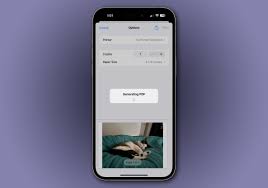
Your iPhone or iPad comes with a built-in feature called “Print” that lets you convert PDF documents directly from your device. Here’s how:
- Open the document or file you want to convert.
- Tap on the sharing icon (a square with an arrow inside).
- Select “Print.”
- Choose the desired folder and filename, then save the converted file.
Easy peasy!
Alternative Solutions
If you’re looking for more options or prefer using third-party apps, consider these:
- Easypdf: A free app that converts Word documents to PDF and vice versa without any ads.
- Convert Doc/docx to Pdf: A free app with minimal advertising that lets you convert Microsoft Office files to PDF.
- Google Docs, Sheets, And Presentations: This suite of apps allows you to open and convert documents in various formats, including PDF.
Conclusion
Converting documents from PDF format to your phone is a breeze, whether you’re an Android or iPhone user. With the native functionality and third-party app solutions, you can easily transform bulky PDFs into more manageable file formats. Say goodbye to digital clutter and hello to streamlined productivity!
Frequently Asked Questions (FAQs)
- Q: What if I’m Not Sure Which Method to Choose?
A: Don’t worry! Both native functionality and third-party apps are reliable options. - Q: Can I Convert Pdfs From my Computer to Phone?
A: Yes, most of the methods we’ve discussed can be applied using a computer. - Q: How do I Edit or Annotate Converted Documents on my Phone?
A: Depending on your device and app choice, you might need to download a separate editor or annotation tool. - Q: Are These Conversions Permanent?
A: Yes, once you convert a PDF document, it becomes a part of your phone’s storage. - Q: Can I Convert Multiple Files at Once?
A: Some apps and native functions allow batch conversion, but always check the specific instructions for each method. - Q: What if I Encounter Any Issues During The Conversion Process?
A: Don’t hesitate to reach out to the app developers or contact Apple support (for iPhone-related queries). - Q: Can I Convert Other File Formats Besides Pdfs?
A: Yes, some apps and native functions can handle conversions between different file types. - Q: How do I Know Which App is Best For Me?
A: Research each app’s features, reviews, and compatibility with your device to make an informed decision.
Hope this guide has been informative and helpful!


