
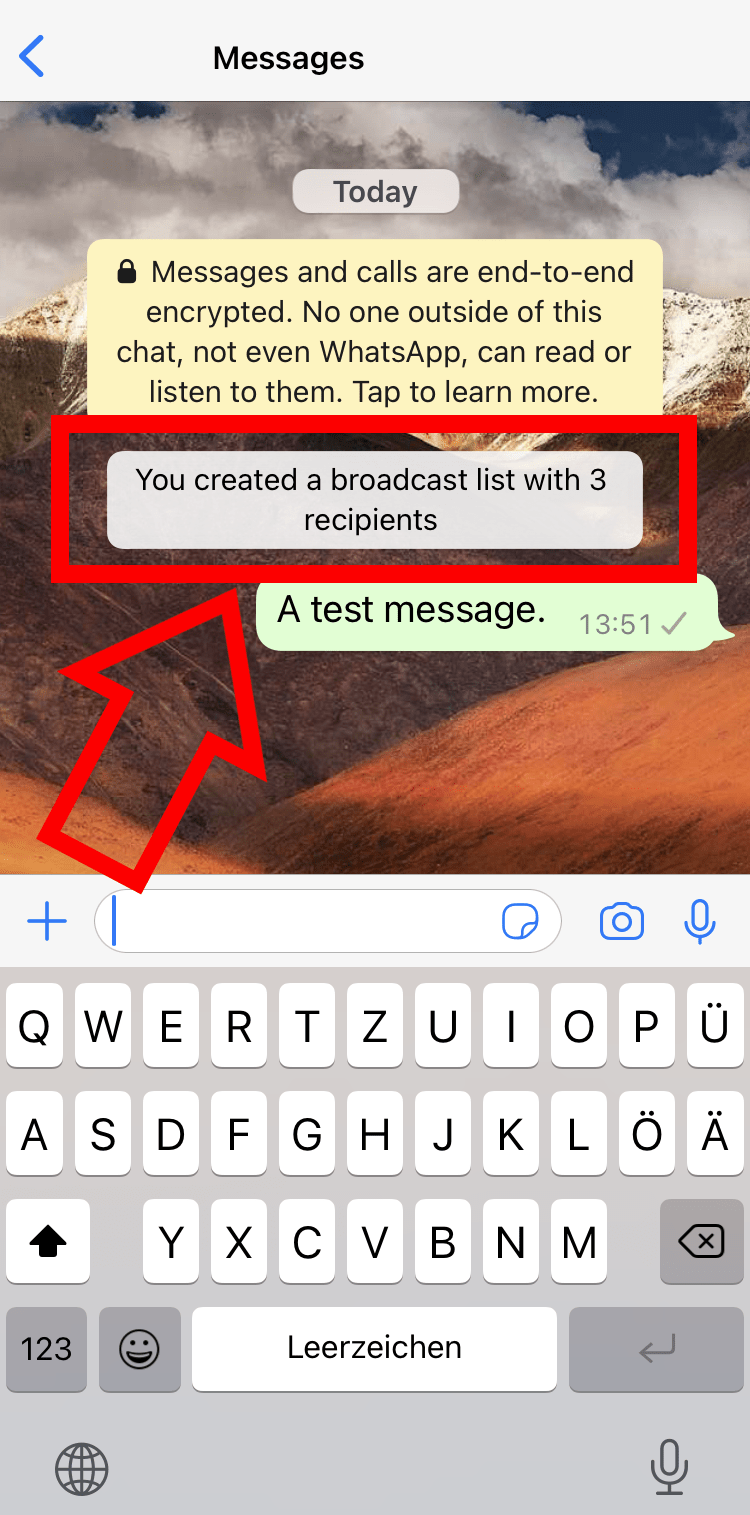
How to Find The List Broadcast on Whatsapp
Are you looking for a way to broadcast messages to multiple contacts at once, but not sure how to find the list broadcast feature on WhatsApp? You’re in luck! In this article, we’ll guide you through the steps to find and use the list broadcast feature on WhatsApp.
What is List Broadcast on Whatsapp?
List broadcast on WhatsApp allows you to create a list of contacts that can receive messages from you. This feature is especially useful for events, announcements, or when you need to communicate with multiple people at once. With list broadcast, you can forward messages to all the contacts in your list without having to repeat the same message multiple times.
Finding List Broadcast on Whatsapp Android
To find the list broadcast feature on WhatsApp Android:
- Open the WhatsApp app and tap on the chat tab.
- Scroll down to find a conversation with a grey icon featuring a megaphone at the top.
- If you know the name of the list, tap on the search icon (magnifying glass) and type in the name of the list.
- Alternatively, go to the chats section, tap on the “File” tab, and then select “Chat” to find the list broadcast feature.
Finding List Broadcast on Whatsapp Iphone
To find the list broadcast feature on WhatsApp iPhone:
- Open the WhatsApp app and tap on the settings icon (gear).
- Select the “Lists” option.
- You’ll see a list of all your created lists, including those you’ve shared with others.
- Tap on the “New list” button to create a new list or select an existing one to view its contents.
Finding List Broadcast on Whatsapp Desktop
Unfortunately, the list broadcast feature is not available on WhatsApp desktop. However, you can still access it by using the mobile app on your Android or iPhone device.
Can I Use List Broadcast on Whatsapp Web?
No, unfortunately, the list broadcast feature is not available on WhatsApp web. You won’t be able to create new lists or view existing ones using the web version of WhatsApp.
Using List Broadcast on Whatsapp
Now that you’ve found the list broadcast feature, here’s how to use it:
- Create a new list by tapping on the “New list” button.
- Add contacts to your list by selecting them from your address book or sharing the list with others.
- Compose a message and forward it to all the contacts in your list.
Tips And Tricks
Here are some additional tips for using the list broadcast feature:
- Use list broadcast for events, announcements, or when you need to communicate with multiple people at once.
- You can add or remove contacts from your list as needed.
- List broadcast messages will have a megaphone icon next to them, indicating that they’ve been sent to a group of people.
Conclusion
Finding and using the list broadcast feature on WhatsApp is easy! With this guide, you should be able to find and use this feature on both Android and iPhone devices. Remember to follow best practices when using list broadcast, such as being mindful of spam filters and ensuring that your messages are clear and concise.
Frequently Asked Questions (FAQs)
Q: What is the purpose of the list broadcast feature?
A: The list broadcast feature allows you to create a list of contacts that can receive messages from you.
Q: How do I find the list broadcast feature on WhatsApp Android?
A: Go to the chat tab, scroll down to find a conversation with a grey icon featuring a megaphone at the top.
Q: Can I use list broadcast on WhatsApp desktop?
A: No, unfortunately, the list broadcast feature is not available on WhatsApp desktop.
Q: How do I add contacts to my list?
A: Select them from your address book or share the list with others.
Q: What happens when I send a message using list broadcast?
A: The message will be forwarded to all the contacts in your list, and they’ll receive it as if it were sent directly by you.
Q: Can I remove contacts from my list?
A: Yes, you can add or remove contacts from your list as needed.


