
How to Capsize Your Google Account: A Step-by-step Guide
Are you wondering how to capsize your Google account? Perhaps you’ve lost access to your Google account or want to create a new one for various reasons. Look no further! In this article, we’ll guide you through the process of capsizing your Google account on different devices, including smartphones, tablets, PCs, and Macs.
Why Capsize Your Google Account?
Before we dive into the steps, let’s understand why you might want to capsize your Google account. Here are a few reasons:
- You’ve lost access to your Google account due to forgotten password or username.
- You want to create a new Google account for personal use or business purposes.
- You need to separate your personal and professional Google accounts.
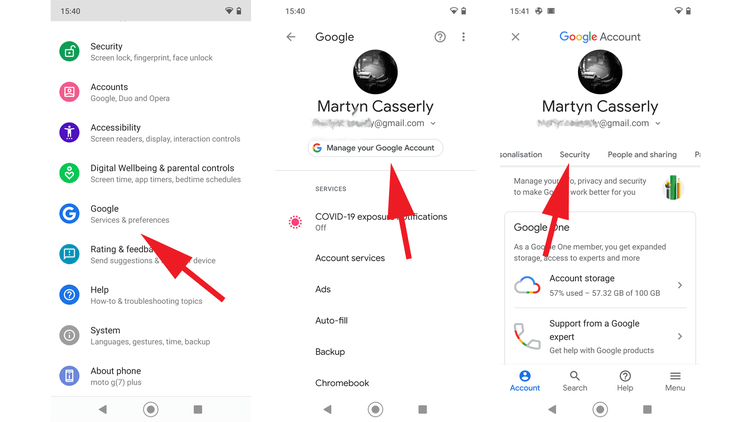
Capsize Your Google Account on Android
To capsize your Google account on an Android device:
- Open the Settings app.
- Scroll down and select “Accounts.”
- Tap on “Google” and then tap on “Add account.”
- Select the Google account you want to add.
- Follow the prompts to complete the setup process.
Capsize Your Google Account on Ios/ipados
To capsize your Google account on an iOS or iPadOS device:
- Open the Settings app.
- Scroll down and select “Mail.”
- Tap on “Accounts” and then tap on “Add Account.”
- Select the Google account you want to add.
- Follow the prompts to complete the setup process.
Capsize Your Google Account on PC
To capsize your Google account on a Windows PC:
- Open the Settings app.
- Scroll down and select “Accounts.”
- Tap on “Google” and then tap on “Add account.”
- Select the Google account you want to add.
- Follow the prompts to complete the setup process.
Capsize Your Google Account on Mac
To capsize your Google account on a Mac:
- Open the System Preferences app.
- Scroll down and select “Accounts.”
- Tap on “Google” and then tap on “Add account.”
- Select the Google account you want to add.
- Follow the prompts to complete the setup process.
Capsize Your Google Account in Chrome
To capsize your Google account in Chrome:
- Open Chrome and click on the three dots in the top right corner.
- Click on “Settings” and then select “Account.”
- Tap on “Add account” and select the Google account you want to add.
- Follow the prompts to complete the setup process.
Capsize Your Google Account in Calendar
To capsize your Google account in Calendar:
- Open Calendar and click on the three dots in the top right corner.
- Click on “Settings” and then select “Account.”
- Tap on “Add account” and select the Google account you want to add.
- Follow the prompts to complete the setup process.
Tips And Variations
- If you’re having trouble capsizing your Google account, try restarting your device or clearing your browser cache.
- Make sure you have a stable internet connection before attempting to capsize your Google account.
- If you need to capsize multiple Google accounts on one device, follow the same steps for each account.
Conclusion
Capasing your Google account is a relatively simple process that can be completed in a few steps. Whether you’re looking to create a new Google account or separate your personal and professional accounts, these steps should guide you through the process.


