
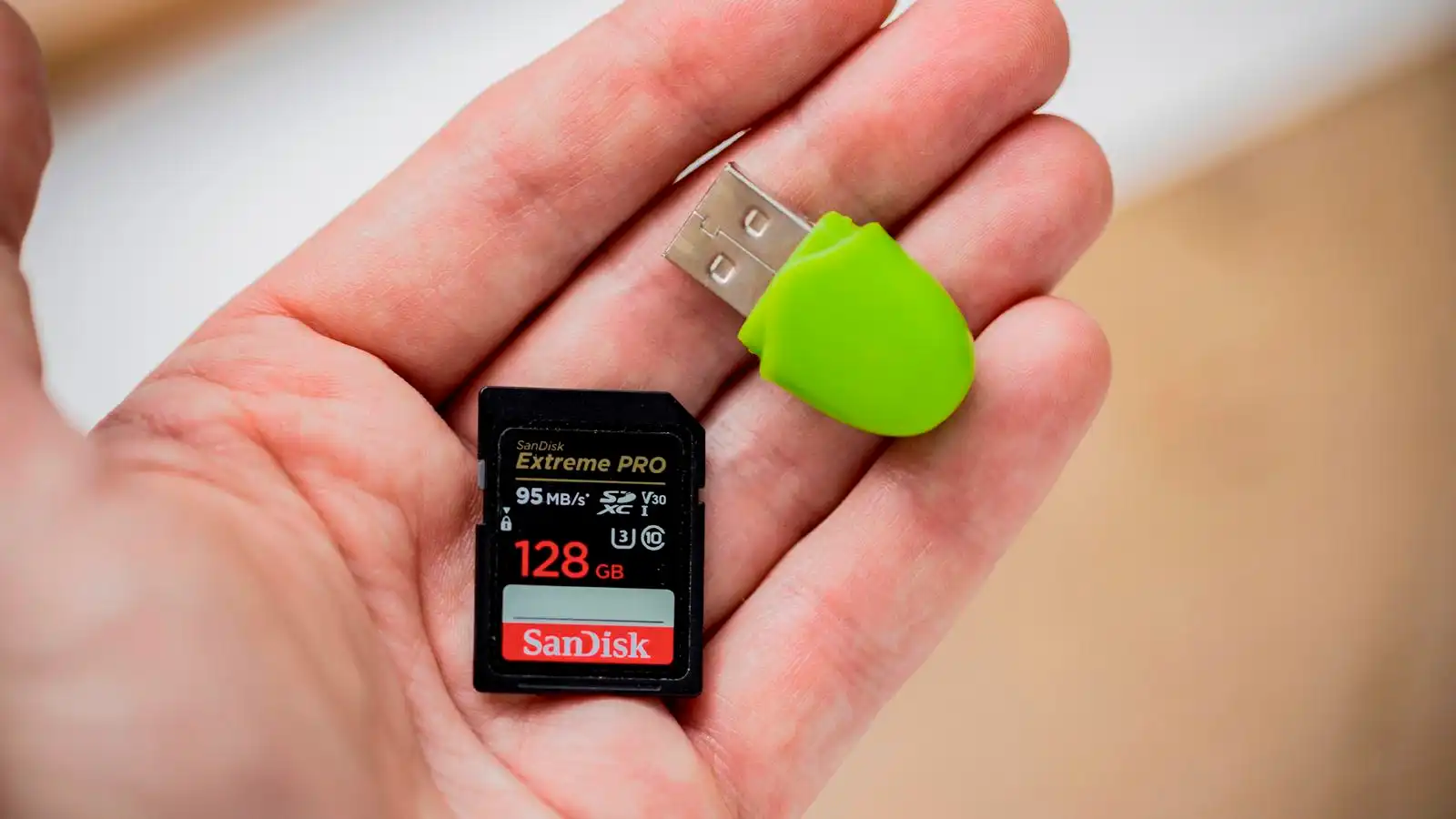
How to Open a Usb Flash Drive on Your PC or Other Devices
Are you having trouble opening your USB flash drive on your computer or other devices? Do not worry, we have got you covered! In this article, we will guide you through the process of opening and using a USB flash drive on various devices, including Windows 11, Windows 10, macOS, Android, iOS/iPadOS, PS4, and PS5.
Why Can’t I Open My Usb Flash Drive?
There are several reasons why you may not be able to open your USB flash drive. Some of the most common issues include:
- The device is not recognized by the operating system
- The USB driver is not installed or updated
- The file system on the USB drive is not compatible with the device
- The USB drive is damaged or corrupted
How to Open a Usb Flash Drive on Windows 11
To open a USB flash drive on Windows 11, follow these steps:
- Insert the USB drive into an available USB port on your computer.
- Wait for the AutoPlay window to appear. If it doesn’t appear, click on the Start button and select Settings > Devices > Bluetooth and devices > AutoPlay.
- Make sure that the Use AutoPlay for all devices option is selected.
- Click on the Open folder to view files option.
How to Open a Usb Flash Drive on Windows 10
The process of opening a USB flash drive on Windows 10 is similar to that on Windows 11. Follow these steps:
- Insert the USB drive into an available USB port on your computer.
- Wait for the AutoPlay window to appear. If it doesn’t appear, click on the Start button and select Settings > Devices > Bluetooth and devices > AutoPlay.
- Make sure that the Use AutoPlay for all devices option is selected.
- Click on the Open folder to view files option.
How to Open a Usb Flash Drive on Macos
To open a USB flash drive on macOS, follow these steps:
- Insert the USB drive into an available USB port on your Mac.
- Wait for the Finder window to appear.
- Double-click on the USB drive icon in the Finder window.
- If you don’t see the USB drive icon, click on the Go menu and select Go to Folder > /Volumes.
How to Open a Usb Flash Drive on Android
To open a USB flash drive on an Android device, follow these steps:
- Insert the USB drive into an available USB port on your device using a USB OTG adapter.
- Wait for the notification window to appear.
- Click on the Files app and select the USB drive icon.
- If you don’t see the USB drive icon, go to Settings > Storage > USB storage.
How to Open a Usb Flash Drive on Ios/ipados
To open a USB flash drive on an iOS or iPadOS device, follow these steps:
- Insert the USB drive into an available Lightning port on your device using a Lightning adapter.
- Wait for the Files app to appear.
- Click on the USB drive icon in the Files app.
- If you don’t see the USB drive icon, go to Settings > General > About.
How to Open a Usb Flash Drive on Ps4 And Ps5
To open a USB flash drive on a PS4 or PS5 console, follow these steps:
- Insert the USB drive into an available USB port on your console.
- Wait for the File Explorer window to appear.
- Select the USB drive icon in the File Explorer window.
- If you don’t see the USB drive icon, go to Settings > Devices > USB storage.
How to Open a Damaged or Corrupted Usb Flash Drive
If your USB flash drive is damaged or corrupted, follow these steps:
- On Windows, go to Control Panel > Device Manager and select the USB driver for your device. Right-click on it and select Update driver.
- On macOS, go to System Preferences > Storage > Manage.
- On Android, go to Settings > Storage > USB storage and select the USB drive icon.
- On iOS/iPadOS, go to Settings > General > About.
Conclusion
Opening a USB flash drive on various devices can be a bit tricky, but with these steps, you should be able to access your files easily. Remember to check for any errors or issues with your device before attempting to open the USB drive.
Faqs
- Q: Why Can’t I See my Usb Drive on my Computer?
A: Make sure that the AutoPlay window is not disabled and that the Use AutoPlay for all devices option is selected. - Q: How do I Fix a Damaged or Corrupted Usb Flash Drive?
A: Try updating the USB driver on Windows, checking for errors on macOS, or resetting the device on Android or iOS/iPadOS. - Q: Can I Use my Usb Flash Drive on Multiple Devices?
A: Yes, as long as the file system on the USB drive is compatible with each device. - Q: How do I Transfer Files From a Usb Flash Drive to Another Device?
A: Use the Files app on Android or iOS/iPadOS, or the File Explorer window on Windows or macOS. - Q: Can I Use my Usb Flash Drive as an External Hard Drive?
A: Yes, as long as the USB drive meets the requirements for mass storage (at least 250GB of total capacity and a peripheral of mass USB 3.0 Or superior). - Q: How do I Recover Files From a Damaged or Corrupted Usb Flash Drive?
A: Try using data recovery software or consulting a professional. - Q: Can I Use my Usb Flash Drive on Other Devices, Such as Game Consoles or Smart Tvs?
A: Check the compatibility of your device with the file system used by the USB drive and follow the manufacturer’s instructions for connecting external storage. - Q: How do I Format a Damaged or Corrupted Usb Flash Drive?
A: Use the built-in formatting tools on Windows, macOS, or Android, or consult a professional.
Note: The information provided in this article is for general purposes only and may not be applicable to your specific situation. Consult a professional if you need further assistance with opening or using a USB flash drive.


