
How Google Calendar Has Revolutionized The Way We Manage Our Time
In today’s fast-paced world, managing our time effectively has become a vital skill. Gone are the days of carrying around bulky calendars and to-do lists; with the advent of digital technology, we now have access to a wide range of tools that can help us stay organized and focused. One such tool is Google Calendar, which has revolutionized the way we manage our time.
What is Google Calendar?
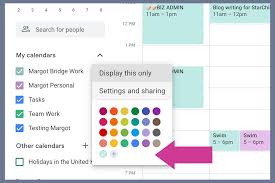
Google Calendar is a free online calendar service provided by Google. It allows users to create and manage their own calendars, set reminders, and share events with others. With Google Calendar, you can easily schedule appointments, meetings, and events, and receive notifications when they are approaching.
How Does Google Calendar Work?
Using Google Calendar is incredibly easy. Simply sign in to your Google account, navigate to the Google Calendar page, and start creating your own calendar. You can add events, set reminders, and share calendars with others. Google Calendar also allows you to sync your calendar across all your devices, ensuring that you always have access to your schedule.
Creating an Event on Google Calendar
To create a new event on Google Calendar, follow these simple steps:
- Open your Google Calendar page.
- Click on the “+” button in the top right corner of the screen.
- Choose the type of event you want to create (e.G., Reminder, activity, or event).
- Fill out the required details, such as title, date, time, and location.
- Set reminders and notifications as needed.
- Share the event with others by clicking on the “Share” button.
Creating a New Calendar
If you want to create a new calendar in Google Calendar, follow these steps:
- Open your Google Calendar page.
- Click on the three horizontal lines in the top left corner of the screen.
- Select “Settings.”
- Click on the “Add calendar” button.
- Enter a name for your new calendar and click “Create.”
Sharing Your Calendar With Others
Google Calendar allows you to share your calendars with others, making it easy to collaborate and coordinate events. To share your calendar, follow these steps:
- Open your Google Calendar page.
- Click on the three horizontal lines in the top left corner of the screen.
- Select “Settings.”
- Click on the “Sharing” tab.
- Enter the email addresses of the people you want to share your calendar with.
- Set the permissions for each person (e.G., Read-only or edit).
Synchronizing Google Calendar With Your Devices
To sync your Google Calendar with your devices, follow these steps:
- Download and install the Google Calendar app on your device (Android or iOS/iPadOS).
- Open the app and sign in to your Google account.
- The events from your Google Calendar will automatically be synced with your device.
Exporting And Importing Events
If you want to export events from Google Calendar, follow these steps:
- Open your Google Calendar page.
- Click on the three horizontal lines in the top left corner of the screen.
- Select “Settings.”
- Click on the “Import and export” tab.
- Choose the file format you want to export (e.G., .Ics or .Csv).
- Download the file.
Troubleshooting Common Issues
If you encounter any issues with Google Calendar, refer to the troubleshooting section of the Google Calendar help center. You can also contact Google support through various channels, including email and phone support.
Conclusion
Google Calendar has revolutionized the way we manage our time, making it easy to schedule appointments, meetings, and events, and share them with others. With its user-friendly interface and seamless syncing capabilities, Google Calendar is an essential tool for anyone looking to stay organized and focused in today’s fast-paced world.
Frequently Asked Questions
- Q: How do I Create a New Calendar on Google Calendar?
A: To create a new calendar on Google Calendar, click on the three horizontal lines in the top left corner of the screen, select “Settings,” then click on the “Add calendar” button. - Q: How do I Share my Calendar With Others?
A: To share your calendar with others, open your Google Calendar page, click on the three horizontal lines in the top left corner of the screen, select “Settings,” then click on the “Sharing” tab and enter the email addresses of the people you want to share your calendar with. - Q: How do I Sync my Google Calendar With my Devices?
A: To sync your Google Calendar with your devices, download and install the Google Calendar app on your device (Android or iOS/iPadOS), open the app, sign in to your Google account, and the events from your Google Calendar will automatically be synced with your device. - Q: How do I Export Events From Google Calendar?
A: To export events from Google Calendar, open your Google Calendar page, click on the three horizontal lines in the top left corner of the screen, select “Settings,” then click on the “Import and export” tab and choose the file format you want to export (e.G., .Ics or .Csv). - Q: How do I Import Events Into Google Calendar?
A: To import events into Google Calendar, open your Google Calendar page, click on the three horizontal lines in the top left corner of the screen, select “Settings,” then click on the “Import and export” tab, choose the file format you want to import (e.G., .Ics or .Csv), and upload the file. - Q: How do I Troubleshoot Common Issues With Google Calendar?
A: To troubleshoot common issues with Google Calendar, refer to the troubleshooting section of the Google Calendar help center or contact Google support through various channels, including email and phone support. - Q: Can I Use Google Calendar on Multiple Devices?
A: Yes, you can use Google Calendar on multiple devices by syncing your account across all devices. - Q: Is Google Calendar Free to Use?
A: Yes, Google Calendar is a free service provided by Google.


