
Connecting Wireless Headphones to Your Tv: A Step-by-step Guide
Are you tired of being disturbed by the sound of your wireless headphones while watching TV? Do you want to enjoy your favorite shows or movies with crystal-clear audio without any distractions? Look no further! In this article, we will guide you through the process of connecting wireless headphones to your TV, exploring different types of headphones and TVs, and providing tips for a seamless listening experience.
Understanding Wireless Headphones
Wireless headphones come in two main categories: RF (Radio Frequency) and Bluetooth. RF headphones use a transmitter to connect to the TV, while Bluetooth headphones use a wireless technology to connect directly to the TV or another device.
RF Headphones: A Simple Connection
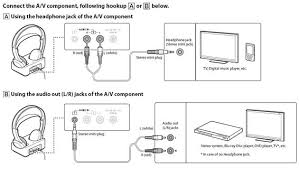
If your TV has an RF input, you can easily connect RF headphones using a transmitter. Here’s how:
- Insert the battery into the speaker (usually the left one).
- Connect the transmitter to the TV via the 3.5Mm jack.
- Position the headphones on the same channel as the transmitter.
- Turn on the TV and adjust the volume to a comfortable level.
Bluetooth Headphones: A Wireless Connection
If your TV has Bluetooth built-in or you have a Bluetooth adapter, connecting Bluetooth headphones is even easier:
- Put the headphones in pairing mode (usually by pressing and holding a button).
- Access the TV’s settings menu and select Bluetooth.
- Select the headphones from the list of available devices.
- Once paired, the audio will automatically switch to the headphones.
Connecting Wireless Headphones to Specific Tvs
Samsung Tvs
To connect wireless headphones to Samsung TVs:
- Press the Home/Smart Hub button on your remote control.
- Highlight the Settings icon and press OK.
- Select Sound > Output Audio.
- Choose Bluetooth from the list of available devices.
Philips Tvs
For Philips TVs with a proprietary operating system:
- Press the Gear symbol on your remote control to access settings.
- Select Wireless & Networks.
- Choose Bluetooth.
- Follow the prompts to pair the headphones.
LG Tvs
To connect wireless headphones to LG TVs:
- Press the Home button on your remote control.
- Highlight the Settings icon and press OK.
- Select Audio.
- Choose LG Sound Sync/Bluetooth from the menu.
Hisense Tvs
For Hisense TVs with Google TV or Android TV:
- Press the Home button on your remote control.
- Highlight the Settings icon and press OK.
- Select Audio.
- Choose Bluetooth from the list of available devices.
Connecting Wireless Headphones to Tvs Without Bluetooth
If your TV doesn’t have Bluetooth built-in, you can still connect wireless headphones using an RF transmitter or a Bluetooth adapter:
- RF Transmitter: Insert the battery into the speaker, position it on the same channel as the transmitter, and turn on the TV.
- Bluetooth Adapter: Connect the adapter to the TV via the 3.5Mm jack, put the headphones in pairing mode, and follow the prompts to pair them with the adapter.
Tips For a Seamless Listening Experience
- Make sure the headphones are fully charged before use.
- Position the transmitter or adapter correctly to ensure a stable connection.
- Adjust the volume to a comfortable level to avoid distractions.
- If you experience any issues, try restarting the TV or headphones and retrying the connection.
Conclusion
Connecting wireless headphones to your TV is easier than ever. Whether you prefer RF or Bluetooth technology, we’ve provided step-by-step guides for various types of TVs and headphones. With these tips and tricks, you’ll be enjoying crystal-clear audio without any distractions in no time!
Frequently Asked Questions (FAQs)
- Q: What Type of Headphones do I Need to Connect to my Tv?
A: You can use either RF or Bluetooth headphones, depending on your TV’s capabilities. - Q: How Far Away From The TV Can I be When Using Wireless Headphones?
A: The range varies depending on the technology used (RF typically 100 meters, Bluetooth around 10 meters). - Q: Can I Connect Multiple Wireless Headphones to my TV at Once?
A: It depends on the specific technology and device; some may support multiple connections. -
Q: Will Connecting Wireless Headphones Affect my Tv’s Audio Output?
A: No, wireless headphones will not interfere with your TV’s audio output; they’ll simply take over as the primary audio source. -
Q: Can I Use Wireless Headphones to Watch TV in Another Room?
A: Yes, if you have a TV with Bluetooth or RF capabilities and a corresponding transmitter or adapter. - Q: Are There Any Specific Settings I Need to Adjust on my TV For Wireless Headphone Connectivity?
A: Yes, consult your TV’s user manual for specific instructions on enabling Bluetooth or setting up an RF connection. -
Q: Will Connecting Wireless Headphones Drain The Battery Faster Than Usual?
A: It depends on the specific headphones and usage; however, most modern devices have built-in power-saving features to minimize battery drain. -
Q: Can I Use Wireless Headphones With a Soundbar or Home Theater System?
A: Yes, but ensure that your TV is configured to send audio signals to the soundbar or home theater system while using wireless headphones.
We hope this article has helped you understand how to connect wireless headphones to your TV, whether it’s an RF transmitter or Bluetooth technology. Happy listening!


