
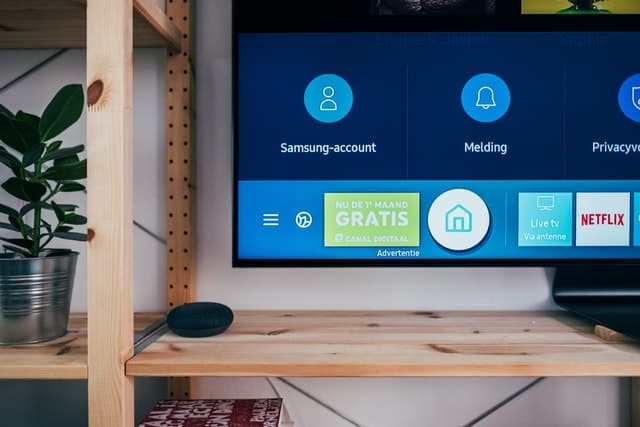
How to Synchronize TV Channels on a Samsung Smart TV
Are you struggling to find your favorite channels on your new Samsung smart TV? You’re not alone! Many users face this issue when setting up their TV, but fear not, we’ve got the solution for you.
In this article, we’ll guide you through the steps to synchronize TV channels on your Samsung smart TV. We’ll cover both automatic and manual methods, so you can choose the one that suits you best.
Understanding TV Channel Synchronization
Before we dive into the procedures, let’s understand what channel synchronization means. In simple terms, it’s the process of tuning your TV to receive digital terrestrial signals from various channels. This ensures that you can watch your favorite programs and shows without any interruptions or issues with signal reception.
Method 1: Automatic Channel Synchronization
The automatic method is the most straightforward way to synchronize channels on your Samsung smart TV. Here’s how to do it:
- Turn on Your TV: Make sure your TV is turned on, and you’re in the home screen.
- Access The Menu: Use the remote control to navigate to the “Settings” or “Menu” option.
- Select Channel or Transmission: Choose the “Channel” or “Transmission” option from the settings menu.
- Choose Automatic Synchronization: Select the “Automatic Synchronization” or “Synchronize Channels Automatically” option.
- Follow The Prompts: The TV will guide you through the process, asking for your confirmation and any necessary input (such as a PIN code).
- Wait For The Process to Complete: The TV will scan for available channels and store them in its memory.
Method 2: Manual Channel Synchronization
If the automatic method doesn’t work or you prefer to do it manually, here’s how to synchronize channels on your Samsung smart TV:
- Access The Settings Menu: Go to the “Settings” or “Menu” option.
- Select Transmission or Channel: Choose the “Transmission” or “Channel” option from the settings menu.
- Choose Manual Synchronization: Select the “Manual Synchronization” or “Synchronize Channels Manually” option.
- Enter The Correct Frequencies: Use the remote control to enter the correct frequencies for each channel you want to synchronize.
- Save And Update Channels: Once you’ve entered all the necessary information, save and update the channels.
Troubleshooting Tips
If you encounter any issues or problems while synchronizing channels on your Samsung smart TV, try these troubleshooting tips:
- Check if your antenna is properly positioned and connected to the TV.
- Ensure that you’re using the correct frequencies for each channel.
- Restart your TV and try the synchronization process again.
Using a Satellite Dish (Parabola Satellitare)
If you live in an area with poor or no digital terrestrial signal, consider using a satellite dish. Here’s how to synchronize channels on your Samsung smart TV using a satellite dish:
- Connect The Satellite Dish: Attach the satellite dish to your TV and connect it according to the manufacturer’s instructions.
- Access The Settings Menu: Go to the “Settings” or “Menu” option.
- Select Transmission or Channel: Choose the “Transmission” or “Channel” option from the settings menu.
- Choose Manual Synchronization: Select the “Manual Synchronization” or “Synchronize Channels Manually” option.
- Enter The Correct Frequencies: Use the remote control to enter the correct frequencies for each channel you want to synchronize.
Additional Tips And Resources
For more information on synchronizing channels on your Samsung smart TV, check out these additional resources:
- Visit the Samsung website for detailed instructions and troubleshooting tips.
- Check online forums and communities for discussions and solutions from other users who may be experiencing similar issues.
By following these steps and tips, you should be able to successfully synchronize TV channels on your Samsung smart TV. Happy watching!


