
How to Get Dark a Sito: A Guide to Blocking Unwanted Websites on Pc, Smartphone, And Tablet
Are you tired of distractions while working or studying? Do you want to block unwanted websites on your computer, smartphone, or tablet? Look no further! In this article, we will guide you through the process of blocking unwanted websites on various devices and operating systems.
Why Block Unwanted Websites?
Blocking unwanted websites can be beneficial in several ways. It helps you stay focused while working or studying, reduces distractions, and limits access to inappropriate content. By implementing parental controls, you can ensure a safer online experience for yourself and your family members.
Windows: Blocking Unwanted Websites
On Windows 10, you can block unwanted websites using the built-in feature called Family Safety. To do this:
- Click on the Start button and select Settings.
- In the Settings window, click on Account > Family & other users.
- Add a new user account for your child and invite them to join.
- Go to the Family Safety section and click on Manage settings online.
- Set up filters for websites and search engines that are not suitable for children.
On Windows 11, follow these steps:
- Click on the Start button and select Settings.
- In the Settings window, click on Account > Family.
- Add a new user account for your child and invite them to join.
- Go to the Family section and click on Manage settings online.
- Set up filters for websites and search engines that are not suitable for children.
Mac: Blocking Unwanted Websites
On Macs, you can use Apple’s built-in parental control system called Screen Time. To do this:
- Click on the Apple menu and select System Preferences.
- In the System Preferences window, click on Screen Time.
- Add a new user account for your child and invite them to join.
- Set up limits for websites and apps that are not suitable for children.
Android: Blocking Unwanted Websites
On Android devices, you can use various third-party apps to block unwanted websites. One popular app is Stay Focused. To do this:
- Download and install the Stay Focused app from the Google Play Store.
- Open the app and set up a new account for your child.
- Block specific websites and apps that are not suitable for children.
Iphone And Ipad: Blocking Unwanted Websites
On iOS devices, you can use Apple’s built-in Screen Time feature to block unwanted websites. To do this:
- Go to Settings > Screen Time.
- Add a new user account for your child and invite them to join.
- Set up limits for websites and apps that are not suitable for children.
Chrome: Blocking Unwanted Websites
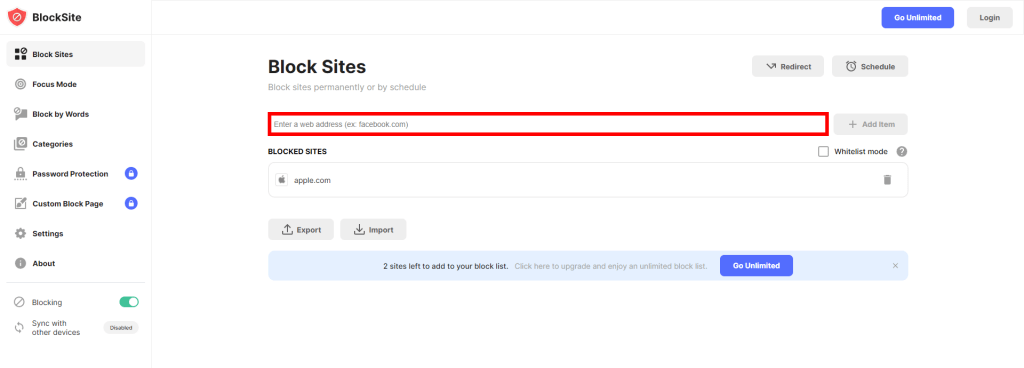
On Google Chrome, you can use an extension called Block Site to block unwanted websites. To do this:
- Go to the Chrome Web Store and search for Block Site.
- Click on the Add to Chrome button.
- Set up filters for websites that are not suitable for children.
Conclusion
Blocking unwanted websites is a simple yet effective way to reduce distractions, limit access to inappropriate content, and ensure a safer online experience. By following the steps outlined in this article, you can block unwanted websites on various devices and operating systems.
Faqs
- What is The Best Way to Block Unwanted Websites?
The best way to block unwanted websites depends on your device and operating system. However, using built-in parental control features like Family Safety (Windows) or Screen Time (Mac/iOS) is usually the most effective method. - Can I Block Specific Websites on Multiple Devices?
Yes, you can block specific websites on multiple devices by setting up filters for those websites on each device’s respective parental control feature. - How do I Know Which Websites to Block?
You can research and identify websites that are not suitable for children or that may be distracting. You can also use built-in features like Google’s SafeSearch to help filter out unwanted content. - Can I Block All Websites on a Device?
Yes, you can block all websites on a device by setting up a blanket restriction using the device’s parental control feature. - Will Blocking Websites Affect my Browsing Experience?
Blocking websites will not significantly affect your browsing experience. You will still be able to access all websites that are not blocked. - Can I Unblock Blocked Websites Later?
Yes, you can unblock blocked websites by removing the restrictions set up on each device’s parental control feature. - How do I Know if my Child is Accessing Blocked Websites?
You can monitor your child’s online activity using built-in features like Screen Time or Google’s Family Link to ensure they are not accessing blocked websites. - Can I Block Social Media Websites?
Yes, you can block social media websites by adding them to the list of restricted websites on each device’s parental control feature.
Remember to always follow the manufacturer’s instructions for blocking unwanted websites on your specific device and operating system.


