
Protecting Your Ipad: A Step-by-step Guide to Securing Your Device
As a responsible iPad user, you want to ensure that your device is protected from unauthorized access and potential security threats. In this article, we’ll walk you through the steps to secure your iPad and protect your personal data.
Why Protect Your Ipad?
Your iPad contains sensitive information, such as photos, videos, and documents, which you wouldn’t want anyone else to access. Moreover, a protected iPad ensures that your device is safeguarded against malware and other online threats.
Method 1: Using The Built-in Photo Vault Feature
The iPad’s built-in Photo app allows you to create a private album, known as the Photo Vault, where you can store sensitive photos and images. To access this feature:
Step 1: Open The Photos App
Open the Photos app on your iPad.
Step 2: Create a New Album
Tap the “+” icon in the top-right corner to create a new album.
Step 3: Select Photos And Videos
Choose the photos and videos you want to add to the private album.
Step 4: Conceal The Photos
Tap on the three dots (⋯) next to each selected item, then tap “Conceal” to hide them from your photo library.
To view the concealed photos:
- Tap the Library tab.
- Tap the Albums tab.
- Select the “Concealed” album.
- Enter your Face ID or Touch ID passcode to access the vault.
Method 2: Using Third-party Apps
If you need more advanced security features, consider using third-party apps like Private Photo Vault and Folder Lock.
Private Photo Vault App
Download and install the Private Photo Vault app from the App Store.
- Tap “Continue” to start the setup process.
- Set a PIN or password to protect your vault.
- Select the photos and videos you want to add to the vault.
- Confirm that you want to conceal them.
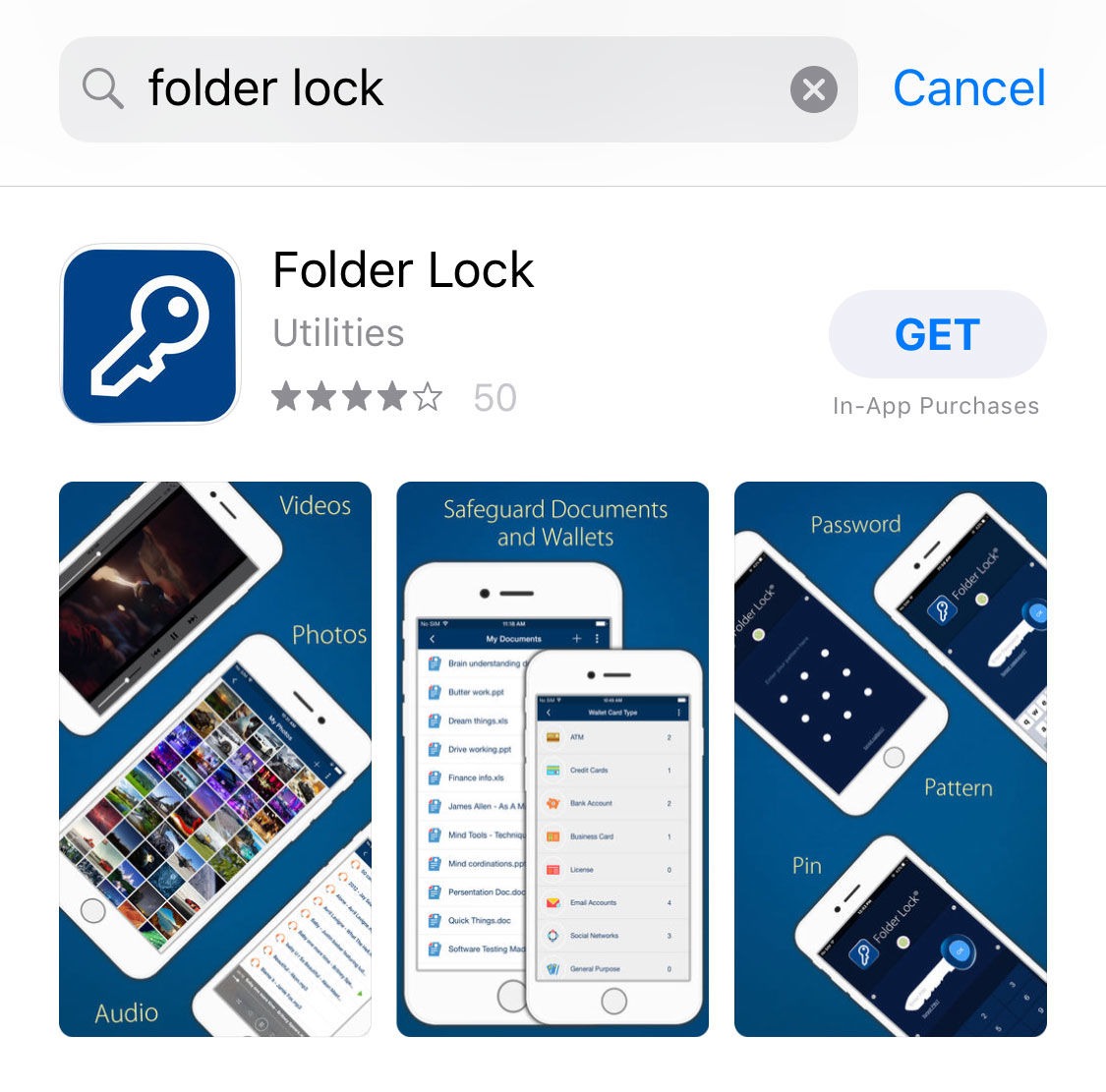
Folder Lock App
Download and install the Folder Lock app from the App Store.
- Tap “Continue” to start the setup process.
- Set a password or PIN to protect your folder.
- Select the files and folders you want to add to the protected area.
- Confirm that you want to lock them.
Additional Tips
To further secure your iPad:
- Regularly update your operating system and apps to ensure you have the latest security patches.
- Use strong passwords or passcodes for all accounts.
- Enable two-factor authentication whenever possible.
- Be cautious when downloading and installing third-party apps, as some may contain malware.
Conclusion
Protecting your iPad is essential to safeguarding your personal data. By following these methods and tips, you can ensure that your device remains secure and private.
Frequently Asked Questions (FAQs)
- Q: How do I protect my iPad from unauthorized access?
A: Use the built-in Photo Vault feature or third-party apps like Private Photo Vault or Folder Lock. - Q: What happens if someone tries to access my protected photos?
A: They will be prompted to enter your Face ID or Touch ID passcode, and if incorrect, they won’t be able to access the content. - Q: Can I use multiple vaults or folders for different types of files?
A: Yes, you can create separate vaults or folders using third-party apps like Private Photo Vault or Folder Lock. - Q: How do I recover my PIN or password if I forget it?
A: Use the recovery process built into the app or consult the manufacturer’s instructions. - Q: Can I transfer files from my computer to my iPad for protection?
A: Yes, use cloud services like iCloud Drive or Google Drive to transfer and store your files on your iPad. - Q: How often should I update my operating system and apps?
A: Regularly check for updates and install them as soon as they become available.
By following these steps and tips, you can ensure that your iPad remains secure and private, protecting your personal data from unauthorized access.


