
How to Set Your Initial Page on Different Browsers: A Step-by-step Guide
Are you tired of manually typing in the address bar every time you want to visit your favorite website? Do you wish there was a way to make it easier to access your preferred website at the start of each browser session? Look no further! In this article, we will guide you through the process of setting your initial page on different browsers, including Google Chrome, Microsoft Edge, Safari, and Firefox.
Why Set Your Initial Page?
Setting your initial page can save you time and effort in the long run. Instead of typing in the address bar every time you want to visit a website, you can simply click on the icon or button that takes you directly to your preferred site. This feature is available on most modern browsers, making it easy to customize your browsing experience.
Setting Your Initial Page on Google Chrome
To set your initial page on Google Chrome, follow these steps:
- Open Google Chrome: Click on the Google Chrome icon to open the browser.
- Click on The Three Dots Menu: Located in the top right corner of the browser window, click on the three dots menu (⋮).
- Select Settings: From the dropdown menu, select “Settings”.
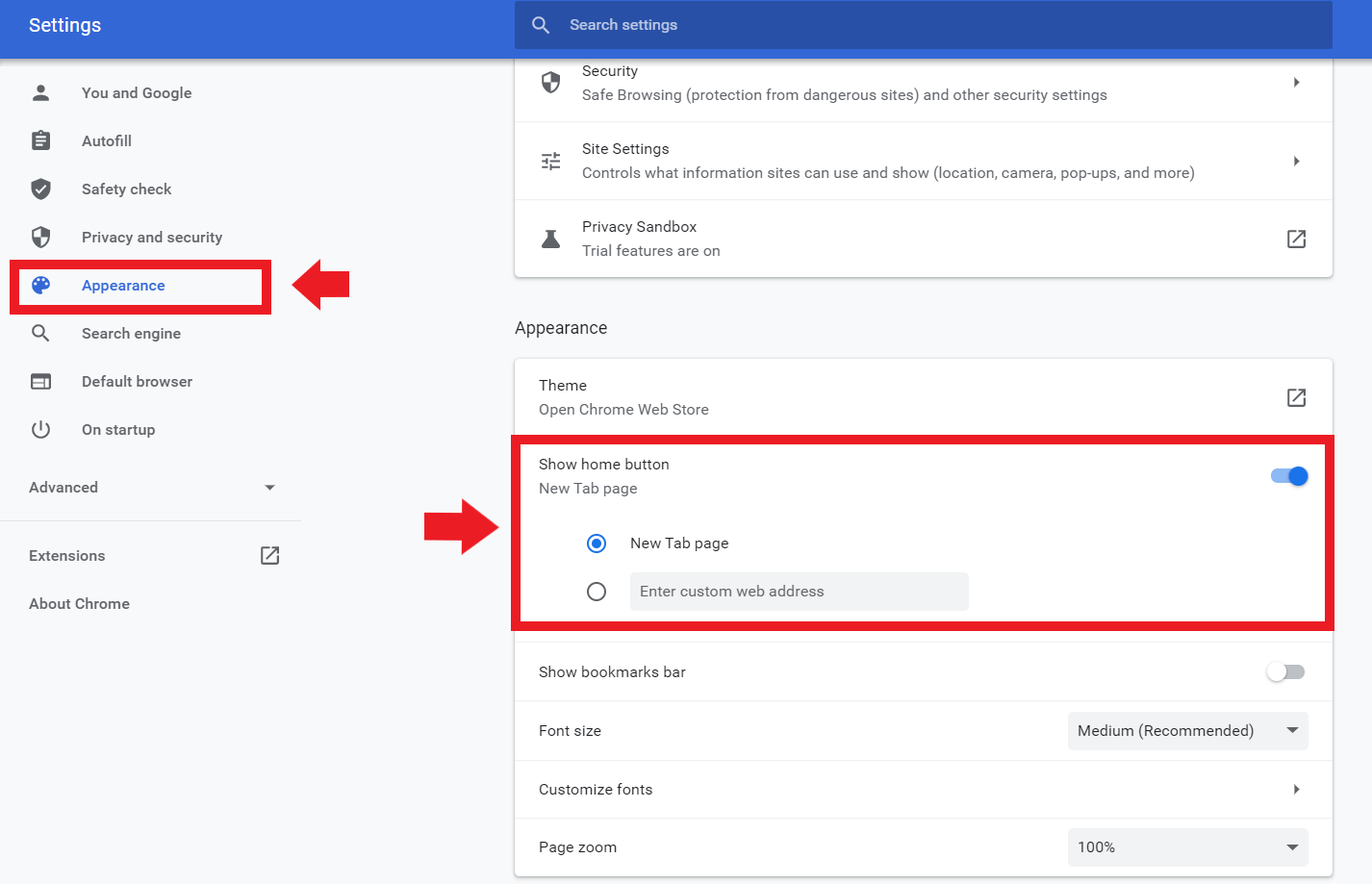
- Navigate to Appearance: Scroll down and click on the “Appearance” tab.
- Enable Home Button: Toggle the switch next to “Home button” to enable it.
- Insert Custom Address: Type in the address of your preferred website in the field labeled “Home page.”
- Save Changes: Click on the “Relaunch” button to save your changes.
Setting Your Initial Page on Microsoft Edge
To set your initial page on Microsoft Edge, follow these steps:
- Open Microsoft Edge: Click on the Microsoft Edge icon to open the browser.
- Click on The Three Dots Menu: Located in the top right corner of the browser window, click on the three dots menu (⋯).
- Select Settings: From the dropdown menu, select “Settings”.
- Navigate to Start, Home And New Tabs: Scroll down and click on the “Start, home and new tabs” tab.
- Enable Home Button: Toggle the switch next to “Home button” to enable it.
- Insert Custom Address: Type in the address of your preferred website in the field labeled “Home page.”
- Save Changes: Click on the “Relaunch” button to save your changes.
Setting Your Initial Page on Safari
To set your initial page on Safari, follow these steps:
- Open Safari: Click on the Safari icon to open the browser.
- Click on The Menu Button: Located in the top left corner of the browser window, click on the menu button (⋯).
- Select Settings: From the dropdown menu, select “Settings”.
- Navigate to General: Scroll down and click on the “General” tab.
- Enable Home Page: Toggle the switch next to “Home page” to enable it.
- Insert Custom Address: Type in the address of your preferred website in the field labeled “Home page.”
- Save Changes: Click on the “Relaunch” button to save your changes.
Setting Your Initial Page on Firefox
To set your initial page on Firefox, follow these steps:
- Open Firefox: Click on the Firefox icon to open the browser.
- Click on The Three Dots Menu: Located in the top right corner of the browser window, click on the three dots menu (≡).
- Select Settings: From the dropdown menu, select “Settings”.
- Navigate to Home Page And New Windows: Scroll down and click on the “Home page and new windows” tab.
- Enable Home Button: Toggle the switch next to “Home button” to enable it.
- Insert Custom Address: Type in the address of your preferred website in the field labeled “Home page.”
- Save Changes: Click on the “Relaunch” button to save your changes.
Conclusion
Setting your initial page on different browsers is a simple process that can save you time and effort in the long run. By following these step-by-step guides, you can customize your browsing experience and make it easier to access your preferred website at the start of each browser session.
Frequently Asked Questions
- Q: What is The Purpose of Setting my Initial Page?
A: Setting your initial page allows you to save time and effort by automatically taking you to your preferred website at the start of each browser session. - Q: Which Browsers Support Setting an Initial Page?
A: Most modern browsers, including Google Chrome, Microsoft Edge, Safari, and Firefox, support setting an initial page. - Q: How do I Set my Initial Page on Google Chrome?
A: To set your initial page on Google Chrome, follow the steps outlined in the “Setting Your Initial Page on Google Chrome” section of this article. - Q: Can I Set my Initial Page on Mobile Devices?
A: Yes, you can set your initial page on most mobile devices using the browser’s settings menu. - Q: What if I Want to Change my Initial Page Later?
A: You can easily change your initial page by following the same steps outlined in this article. - Q: Can I Set Multiple Initial Pages For Different Browsers?
A: Yes, you can set multiple initial pages for different browsers by following the same steps outlined in this article. - Q: What if I’m Using a Browser That Doesn’t Support Setting an Initial Page?
A: If you’re using a browser that doesn’t support setting an initial page, you may want to consider switching to a different browser that does.


