
The Ultimate Guide to Microsoft Defender: Protecting Your Windows Computer
As a computer user, you’re likely aware of the importance of having an antivirus software installed on your system to protect it from malware and other online threats. In this article, we’ll delve into the world of Microsoft Defender, the built-in antivirus software that comes pre-installed with Windows 10 and Windows 11.
What is Microsoft Defender?
Microsoft Defender, previously known as Windows Defender, is a free antivirus software developed by Microsoft to protect your computer from various types of malware, including viruses, spyware, and Trojans. It’s designed to run in the background, constantly monitoring your system for potential threats and taking action to remove them if detected.
Features of Microsoft Defender
Microsoft Defender offers a range of features that make it an effective tool in protecting your computer. Some of its key features include:
- Real-time Protection: Microsoft Defender scans your system for malware in real-time, preventing any potential threats from infecting your computer.
- Cloud-based Protection: Microsoft Defender uses cloud-based data to detect and remove malware, ensuring that your system is protected with the latest security updates.
- Customizable Settings: You can customize the settings of Microsoft Defender to suit your needs, including the types of files and folders that are scanned for malware.
Using Microsoft Defender on Windows 10 And Windows 11
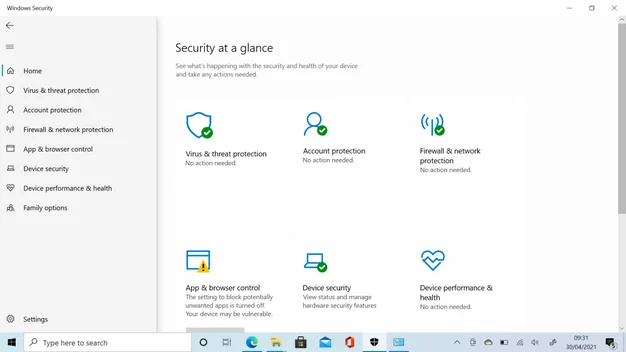
If you’re using Windows 10 or Windows 11, you’ll find that Microsoft Defender is already installed on your system. Here’s how to access and use it:
- Open Settings: Click on the Start button and select Settings.
- Click on Update & Security: In the Settings window, click on Update & Security.
- Select Windows Defender: In the Update & Security window, select Windows Defender.
- Access Microsoft Defender Settings: You can access the settings of Microsoft Defender by clicking on the gear icon in the top-right corner of the screen.
Alternative Antivirus Software
While Microsoft Defender is a great tool for protecting your computer, there are other antivirus software options available that you may find more suitable to your needs. Some popular alternatives include:
- Panda Dome: A cloud-based antivirus software that offers real-time protection and customizable settings.
- Bitdefender: A comprehensive antivirus software that offers advanced features such as anti-phishing and anti-ransomware protection.
- Avast: A free antivirus software that offers a range of features, including real-time protection and malware removal.
Microsoft Defender on Windows 8.1
If you’re using Windows 8.1, You’ll find that Microsoft Defender is not integrated into the operating system’s settings. However, you can still access it by following these steps:
- Open The Start Screen: Press the Windows key + C to open the Charms bar.
- Click on Search: Click on the search icon in the top-right corner of the screen.
- Type “Windows Defender”: Type “Windows Defender” in the search bar and press Enter.
- Access Microsoft Defender Settings: You can access the settings of Microsoft Defender by clicking on the gear icon in the top-right corner of the screen.
Microsoft 365 Antivirus
If you’re a subscriber to Microsoft 365, you’ll find that the antivirus software is already included in your subscription package. The Microsoft 365 antivirus software offers advanced features such as real-time protection and cloud-based data analysis.
Conclusion
In conclusion, Microsoft Defender is a reliable and effective tool for protecting your computer from malware and other online threats. Whether you’re using Windows 10, Windows 11, or Windows 8.1, Microsoft Defender is available to help keep your system safe. However, if you’re not satisfied with the performance of Microsoft Defender, there are alternative antivirus software options available that may better suit your needs.
Frequently Asked Questions (FAQs)
Here are some frequently asked questions about Microsoft Defender:
Q: What is Microsoft Defender?
A: Microsoft Defender is a free antivirus software developed by Microsoft to protect computers from malware and other online threats.
Q: Is Microsoft Defender Effective in Protecting my Computer?
A: Yes, Microsoft Defender is an effective tool for protecting your computer from various types of malware.
Q: Can I Customize The Settings of Microsoft Defender?
A: Yes, you can customize the settings of Microsoft Defender to suit your needs.
Q: What Are Some Alternative Antivirus Software Options Available?
A: Some popular alternative antivirus software options include Panda Dome, Bitdefender, and Avast.
Q: Do I Need to Install a Separate Antivirus Software if I’m Using Windows 10 or Windows 11?
A: No, Microsoft Defender is already installed on Windows 10 and Windows 11 systems.
Q: How do I Access The Settings of Microsoft Defender?
A: You can access the settings of Microsoft Defender by clicking on the gear icon in the top-right corner of the screen.
Q: Is Microsoft Defender Available For Windows 8.1?
A: Yes, Microsoft Defender is available for Windows 8.1 Systems, but it’s not integrated into the operating system’s settings.
Q: What Are Some Advanced Features Offered by Microsoft 365 Antivirus Software?
A: Some advanced features offered by Microsoft 365 antivirus software include real-time protection and cloud-based data analysis.


