
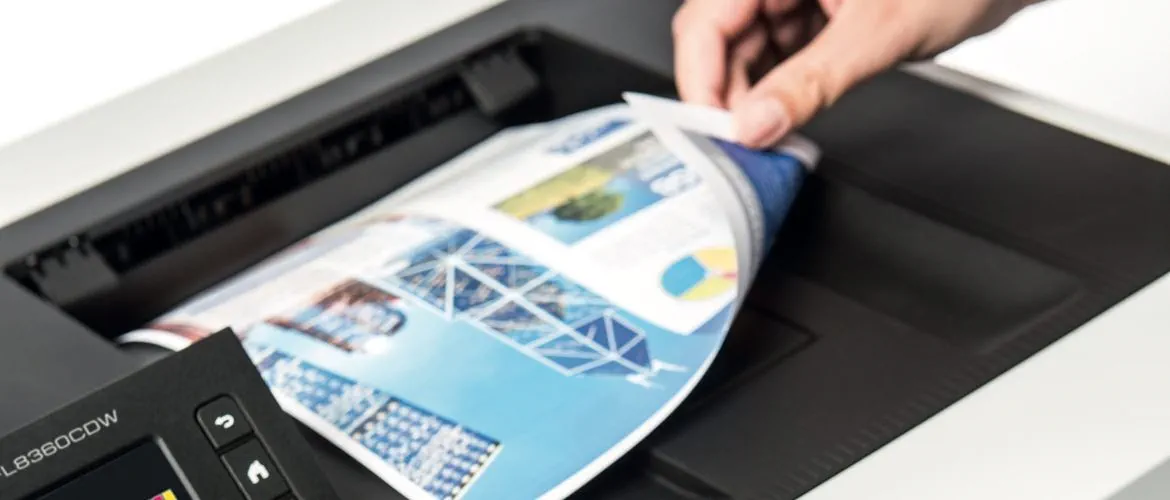
How to Print Double-sided on a Printer: A Step-by-step Guide
Are you tired of printing documents that take up too much space? Do you want to reduce paper waste and save time in the process? Printing double-sided (also known as duplex printing) is a great way to do just that. In this article, we’ll show you how to print double-sided on a printer using various methods.
What You Need to Know Before Starting
Before we dive into the instructions, here are some things you should know:
- Not all printers support double-sided printing. Check your printer’s manual or manufacturer’s website to see if it has this feature.
- Even if your printer supports double-sided printing, not all software and operating systems may be compatible.
- You can still print double-sided manually using a simple trick that we’ll explain later.
Method 1: Printing Double-sided on Windows
If you’re using a Windows computer, here’s how to print double-sided:
Step 1: Open The Document
Open the document or file you want to print using Microsoft Word, Google Docs, or any other software that supports printing.
Step 2: Go to Print Options
Click on the “Print” menu and select the “Properties” or “Options” button.
Step 3: Select Double-sided Printing
In the print options window, look for a section called “Layout” or “Paper Settings.” Click on the dropdown menu next to it and select “Double-sided” or “Duplex.”
Step 4: Print Your Document
Click the “Print” button to start printing your document.
Method 2: Printing Double-sided on Macos
If you’re using a Mac, here’s how to print double-sided:
Step 1: Open The Document
Open the document or file you want to print using Pages, Microsoft Word, or any other software that supports printing.
Step 2: Go to Print Options
Click on the “Print” menu and select the “Show Details” button.
Step 3: Select Double-sided Printing
In the print options window, click on the dropdown menu next to “Orientation” and select “Double-sided.”
Step 4: Print Your Document
Click the “Print” button to start printing your document.
Method 3: Manual Double-sided Printing
If your printer doesn’t support double-sided printing or you want to do it manually, here’s a simple trick:
- Open the document and select only the odd-numbered pages.
- Print the selected pages.
- Rotate the paper in the printer so that the even-numbered pages are facing up.
- Print the remaining pages.
Tips And Variations
Here are some additional tips and variations to keep in mind:
- Make sure you have the latest drivers and software for your printer.
- Some printers may require you to insert a special type of paper or use a specific setting.
- You can also print double-sided on a smartphone or tablet using a Wi-Fi printer.
Conclusion
Printing double-sided is a great way to reduce paper waste and save time. With these step-by-step instructions, you should be able to print double-sided on your Windows or macOS computer, as well as manually using a simple trick. Remember to check your printer’s compatibility before starting, and happy printing!
Frequently Asked Questions
- Q: What is Double-sided Printing?
A: Double-sided printing refers to the process of printing two pages on one sheet of paper. - Q: How do I Print Double-sided on my Windows Computer?
A: To print double-sided on a Windows computer, follow the steps outlined in Method 1 above. - Q: Can I Print Double-sided Manually if my Printer Doesn’t Support It?
A: Yes, you can print double-sided manually using the method described in Step 3 above. - Q: What Are Some Tips For Printing Double-sided?
A: Some tips include making sure your printer is compatible with double-sided printing and selecting only odd-numbered pages to print first. - Q: Can I Print Double-sided on a Smartphone or Tablet?
A: Yes, you can print double-sided on a smartphone or tablet using a Wi-Fi printer.


