
How to Slow a Video With Vlc: A Step-by-step Guide
Are you tired of watching videos that are too fast or too slow? Do you want to analyze specific sequences or speed up your favorite movies? Look no further! In this article, we will guide you through the process of slowing down a video using VLC media player.
What is Vlc Media Player?
VLC (VideoLAN Client) is a free and open-source media player that can run on multiple platforms, including Windows, macOS, and Linux. It’s one of the most popular media players available, known for its versatility and customization options.
Why Slow Down a Video With Vlc?
There are several reasons why you might want to slow down a video using VLC:
- Analysis: By slowing down a video, you can analyze specific sequences or details that might have been missed at normal speed.
- Learning: If you’re learning a new skill or language, slowing down videos can help you understand the instructions more clearly.
- Entertainment: Some people enjoy watching videos in slow motion for entertainment purposes.
Getting Started
Before we dive into the step-by-step guide, make sure you have VLC installed on your device. If not, download and install it from the official website:
Now that we’ve got that out of the way, let’s move on to the main event!
Slowing Down a Video With Vlc: A Step-by-step Guide
Windows Version
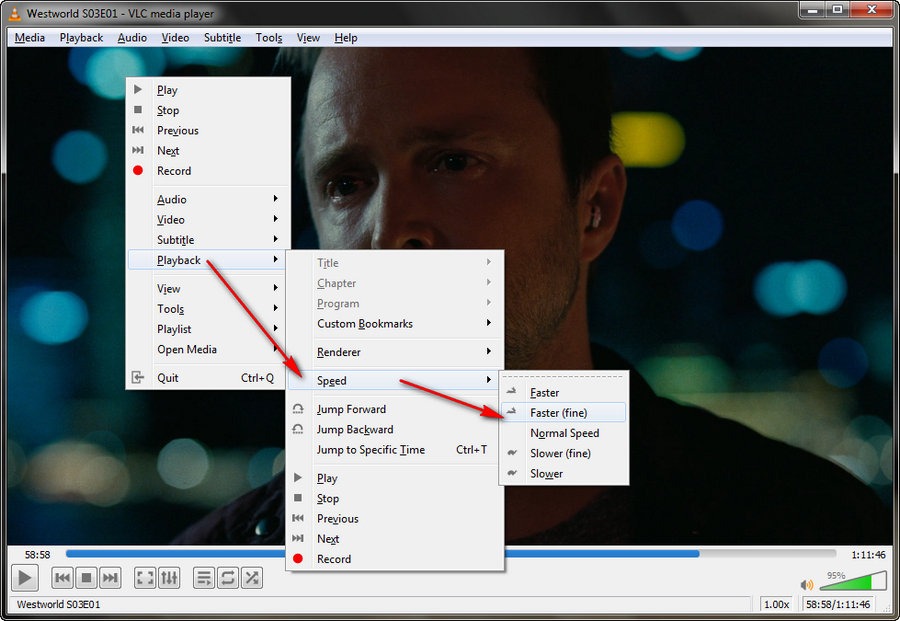
- Open Vlc: Launch VLC media player and open the video you want to slow down.
- Select The Video Menu: Go to the “Video” menu at the top of the screen and select “Playback.”
- Adjust The Speed: In the playback window, click on the dropdown arrow next to the play button. You’ll see a list of speed options, including “1/2,” “1/4,” and so on.
- Choose Your Speed: Select the desired speed by clicking on it.
Macos Version
- Open Vlc: Launch VLC media player and open the video you want to slow down.
- Select The Video Menu: Go to the “Video” menu at the top of the screen and select “Playback.”
- Adjust The Speed: In the playback window, click on the dropdown arrow next to the play button. You’ll see a list of speed options, including “1/2,” “1/4,” and so on.
- Choose Your Speed: Select the desired speed by clicking on it.
Android And Ios/ipados Version
- Open Vlc: Launch VLC media player and open the video you want to slow down.
- Select The Menu: Tap on the three horizontal lines at the top left corner of the screen to access the menu.
- Adjust The Speed: Scroll down to the “Playback” section and select the desired speed.
Saving The Slow-mo Video
If you want to save your slow-motion video, follow these steps:
- Open Vlc: Launch VLC media player and open the video you want to slow down.
- Select The Convert/save Menu: Go to the “Media” menu at the top of the screen and select “Convert/Save.”
- Choose Your Output Format: Select your desired output format from the dropdown list.
- Adjust The Video Settings: In the video settings section, enter the desired speed (e.G., 0.5 For half-speed).
- Start The Conversion: Click on the “Start” button to begin the conversion process.
Tips And Tricks
Here are some additional tips and tricks to keep in mind:
- Adjust The Video Settings: Experiment with different video settings, such as resolution, frame rate, and aspect ratio.
- Use The Pause Function: Use the pause function to slow down specific sequences or details that you want to analyze.
- Experiment With Different Speeds: Try out different speed options to find the one that works best for your needs.
Conclusion
Slowing down a video using VLC media player is a straightforward process. By following these step-by-step instructions, you can analyze specific sequences, learn new skills, or simply enjoy watching videos in slow motion.
Faqs
Here are some frequently asked questions to help you better understand the process:
- Q: What is Vlc Media Player?
- A: VLC (VideoLAN Client) is a free and open-source media player that can run on multiple platforms, including Windows, macOS, and Linux.
- Q: Why Slow Down a Video With Vlc?
- A: There are several reasons why you might want to slow down a video using VLC, including analysis, learning, and entertainment purposes.
- Q: How do I Save my Slow-mo Video?
- A: To save your slow-motion video, follow the steps outlined in the “Saving the Slow-Mo Video” section of this article.
Additional Resources
If you’re interested in learning more about VLC media player or slowing down videos using other methods, check out these additional resources:
- Vlc Media Player Official Website: Visit the official VLC website for more information on features, customization options, and troubleshooting.
- Slow-mo Video Apps: Explore other slow-mo video apps, such as SlowMo, Speedify, or MovieTube.
By following this step-by-step guide, you’ll be able to slow down a video using VLC media player like a pro.


