
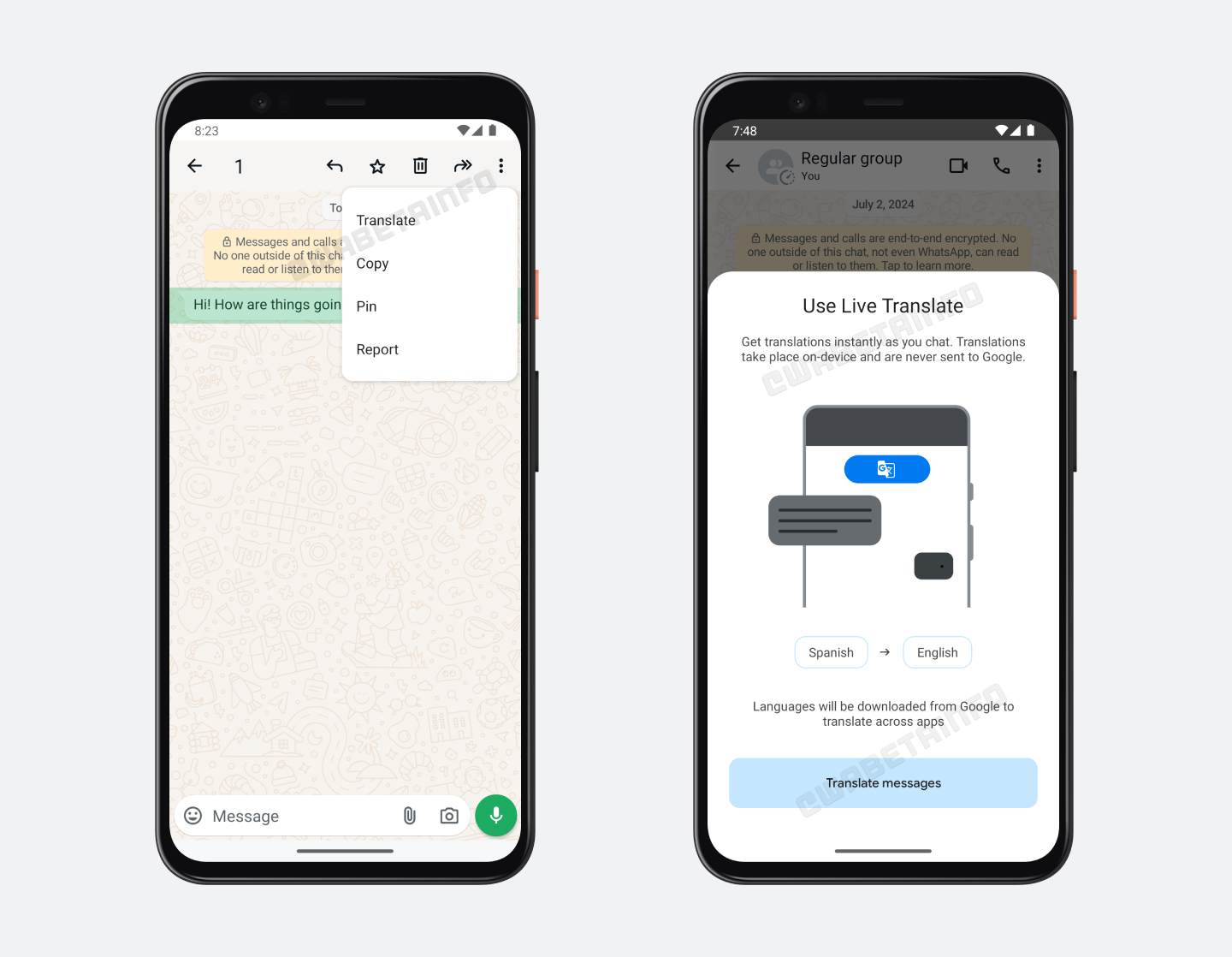
Are you tired of struggling to communicate with friends or family members who speak a different language? Do you wish there was an easier way to translate messages on WhatsApp without having to switch between apps or copy and paste? Look no further! In this article, we will explore the various ways to translate on WhatsApp, including using Android devices, iPhones, and even PCs.
Introduction
As we navigate the increasingly globalized world, language barriers can be a significant challenge. With over 2 billion people using WhatsApp every month, it’s essential to have a smooth communication experience across languages. In this article, we will provide you with step-by-step guides on how to translate messages on WhatsApp, covering various devices and platforms.
How to Translate on Whatsapp With Android
If you’re using an Android device, the process is relatively straightforward. You can use the Google Translator app, which allows you to translate text in over 100 languages. Here’s a step-by-step guide:
- Download The Google Translator App: First, download and install the Google Translator app on your Android device.
- Launch Whatsapp: Open WhatsApp and navigate to the conversation where you want to translate messages.
- Select The Message: Tap and hold on the message you want to translate until a pop-up menu appears.
- Copy The Message: Select “Copy” from the menu.
- Open Google Translator: Launch the Google Translator app and tap on the icon in the top-right corner.
- Paste The Message: Tap on the microphone icon and speak or type the message you want to translate.
- Select The Language: Choose the target language for the translation.
How to Translate on Whatsapp With Iphone
If you’re using an iPhone, things might be slightly more complicated due to iOS restrictions. However, there are still ways to translate messages without leaving WhatsApp:
- Install Command Swifts: First, install Command Swifts, a third-party app that allows you to create shortcuts for various tasks.
- Add The Google Translator Shortcut: Open Command Swifts and add the Google Translator shortcut.
- Launch Whatsapp: Open WhatsApp and navigate to the conversation where you want to translate messages.
- Select The Message: Tap and hold on the message until a menu appears.
- Copy The Message: Select “Copy” from the menu.
- Use Command Swifts: Launch Command Swifts and tap on the Google Translator shortcut.
How to Translate on Whatsapp With PC
If you’re using WhatsApp Web or Desktop, translating messages is relatively straightforward:
- Install Google Translator Extension: First, install the Google Translator extension in your browser (e.G., Chrome or Edge).
- Launch Whatsapp Web/desktop: Open WhatsApp Web or Desktop and navigate to the conversation where you want to translate messages.
- Select The Message: Highlight the text of the message by tapping on it until a pop-up menu appears.
- Copy The Message: Select “Copy” from the menu.
- Use Google Translator Extension: Launch the Google Translator extension and paste the copied message.
How to Translate Vocal Messages on Whatsapp
Translating vocal messages can be more challenging, but there are still ways to do it:
- Use Two Smartphones (Android): Use two Android devices connected via Bluetooth or Wi-Fi.
- Install Google Translator App: Install the Google Translator app on one of the devices and open it.
- Copy The Audio Message: Copy the audio message from WhatsApp on the other device.
- Transcribe The Audio Message: Transcribe the audio message using the Google Translator app.
Conclusion
In conclusion, translating messages on WhatsApp can be achieved through various methods, including using Android devices, iPhones, and even PCs. By following these step-by-step guides, you’ll be able to communicate with friends or family members across languages without any issues.
Frequently Asked Questions (FAQs)
- Q: Can I Translate Messages Directly on Whatsapp?
A: Unfortunately, there is no built-in translation feature on WhatsApp. - Q: Which Devices Can I Use to Translate Messages?
A: You can use Android devices, iPhones, and PCs (WhatsApp Web/Desktop) to translate messages. - Q: How do I Install The Google Translator App?
A: Download and install the Google Translator app from the Play Store or App Store. - Q: Can I Transcribe Audio Messages on Whatsapp?
A: Yes, you can use third-party apps (e.G., Transcriber for WhatsApp) to transcribe audio messages. - Q: How do I Install The Command Swifts App?
A: Download and install the Command Swifts app from the App Store. - Q: Can I Translate Vocal Messages on Pc?
A: Yes, you can use a smartphone connected via Bluetooth or Wi-Fi to transcribe audio messages using Google Translator. - Q: How do I Install The Google Translator Extension?
A: Install the Google Translator extension in your browser (e.G., Chrome or Edge). - Q: Can I Translate Text on Whatsapp Web/desktop?
A: Yes, you can copy and paste text from WhatsApp Web/Desktop into the Google Translator extension.
Additional Tips
- Make sure to update your devices and apps regularly for optimal functionality.
- Always use reputable third-party apps to avoid security risks.
- Be aware of any limitations or restrictions when using third-party apps.


