
How to Personalize Windows 10: A Step-by-step Guide
Are you tired of the same old menu on your Windows 10 PC? Do you want to add a touch of personality to your operating system? Look no further! In this article, we’ll show you how to personalize Windows 10 and make it truly yours.
Why Personalize Your Windows 10 Menu?
Before we dive into the nitty-gritty of personalizing your Windows 10 menu, let’s take a moment to consider why you might want to do so. By customizing your menu, you can:
- Make your PC feel more like home
- Add a touch of personality to your device
- Improve your productivity by hiding unnecessary apps and features
How to Change The Menu Size
The first step in personalizing your Windows 10 menu is to change its size. This is a simple process that can be completed in just a few steps.
- Click on The Start Button: The Start button is located at the bottom left-hand corner of your screen. Clicking on it will open up the menu.
- Hold Down The Mouse Cursor: Once the menu is open, hold down the mouse cursor and drag it to the desired size.
- Release The Cursor: Release the cursor when you’ve reached the desired size.
How to Change The Menu Position
If you want to change the position of your menu, follow these steps:
- Click on The Start Button: Clicking on the Start button will open up the menu.
- Hold Down The Mouse Cursor: Hold down the mouse cursor and drag it to the desired position.
- Release The Cursor: Release the cursor when you’ve reached the desired position.
How to Change The Menu Appearance
Changing the appearance of your menu is a bit more involved, but still relatively simple.
- Click on The Start Button: Clicking on the Start button will open up the menu.
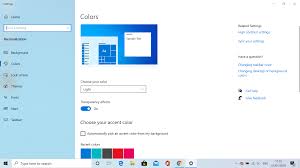
- Click on The Settings Icon: The Settings icon is located in the top right-hand corner of the screen. Clicking on it will open up the Settings panel.
- Click on Personalization: In the Settings panel, click on the Personalization option.
- Change The Color Scheme: In the Personalization panel, you can change the color scheme to one that suits your taste.
How to Change The Menu Content
Changing the content of your menu is also relatively simple.
- Click on The Start Button: Clicking on the Start button will open up the menu.
- Click on The Settings Icon: The Settings icon is located in the top right-hand corner of the screen. Clicking on it will open up the Settings panel.
- Click on Personalization: In the Settings panel, click on the Personalization option.
- Change The Apps And Folders: In the Personalization panel, you can change which apps and folders are displayed in the menu.
Troubleshooting Menu Issues
If your menu is not functioning properly, don’t panic! There are several things you can try to resolve the issue.
- Restart Your PC: Sometimes, a simple restart of your PC can resolve menu issues.
- Check For Updates: Make sure that your PC is up-to-date with the latest software patches.
- Run The System File Checker: The System File Checker tool can help resolve file corruption issues that may be causing your menu to malfunction.
Conclusion
Personalizing your Windows 10 menu is a great way to make your PC feel more like home. By following these simple steps, you can change the size, position, appearance, and content of your menu to suit your needs.
Frequently Asked Questions (FAQs)
- Q: Can I Change The Color Scheme of my Menu?
A: Yes! You can change the color scheme of your menu by following the steps outlined above. - Q: How do I Change The Position of my Menu?
A: To change the position of your menu, simply hold down the mouse cursor and drag it to the desired location. - Q: Can I Add or Remove Apps From my Menu?
A: Yes! You can add or remove apps from your menu by following the steps outlined above. - Q: What if my Menu is Not Functioning Properly?
A: Don’t worry! There are several things you can try to resolve menu issues, such as restarting your PC, checking for updates, and running the System File Checker tool. - Q: Can I Customize my Menu on Windows 11?
A: Yes! The steps outlined above can be followed on Windows 11 as well. - Q: How do I Change The Appearance of my Menu?
A: To change the appearance of your menu, follow the steps outlined above, including changing the color scheme and modifying the content of the menu. - Q: Can I Troubleshoot Issues With my Menu on Windows 10?
A: Yes! The troubleshooting steps outlined above can be followed to resolve common issues with your menu. - Q: What if I Have Multiple Monitors Set Up? Can I Still Customize my Menu?
A: Yes! You can still customize your menu even if you have multiple monitors set up.
Resources


