
How to Disable Whatsapp Notifications: A Comprehensive Guide
Are you tired of being constantly notified by WhatsApp every time someone sends you a message or calls you? Do you want to enjoy some peace and quiet while still keeping up with your conversations on the popular messaging app? Look no further! In this article, we will guide you through the steps to disable WhatsApp notifications on various devices, including Android, iPhone, computer, and more.
Why Disable Whatsapp Notifications?
Before we dive into the how-to section, let’s talk about why you might want to disable WhatsApp notifications in the first place. Perhaps you’re someone who values their alone time or prefers not to be disturbed by constant notifications. Maybe you’re a busy professional who needs to focus on work without being distracted by personal messages. Whatever your reason, disabling WhatsApp notifications can be a great way to take control of your digital life and prioritize what’s important.
Disabling Whatsapp Notifications on Android
If you’re using an Android device, here are the steps to disable WhatsApp notifications:
- Open Whatsapp: Go to your phone’s app drawer and find the WhatsApp icon.
- Tap on The Three Dots: Tap on the three dots (⋯) in the top-right corner of the screen.
- Select Settings: Choose “Settings” from the menu that appears.
- Go to Notifications: Scroll down to the “Notifications” section.
- Disable Notifications: Toggle off the switch next to “Show notifications” or “Use notifications.”
- Confirm Your Choice: Tap on “OK” to confirm that you want to disable notifications.
Disabling Whatsapp Notifications on Iphone
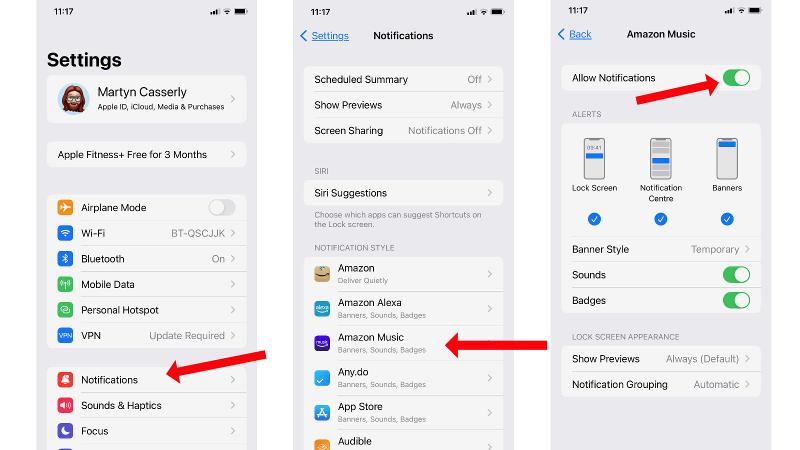
If you’re using an iPhone, here are the steps to disable WhatsApp notifications:
- Open Whatsapp: Go to your phone’s home screen and find the WhatsApp icon.
- Tap on Settings: Tap on the “Settings” app (looks like a cogwheel).
- Scroll Down to Notifications: Scroll down to the “Notifications” section.
- Disable Notifications: Toggle off the switch next to “Allow Notifications.”
- Confirm Your Choice: Tap on “OK” to confirm that you want to disable notifications.
Disabling Whatsapp Notifications on Computer
If you’re using a computer, here are the steps to disable WhatsApp notifications:
- Open Whatsapp Web: Go to the WhatsApp website and sign in with your account.
- Click on Settings: Click on the three dots (⋯) in the top-right corner of the screen.
- Select Notifications: Choose “Notifications” from the menu that appears.
- Disable Notifications: Uncheck the box next to “Show notifications.”
- Confirm Your Choice: Click on “OK” to confirm that you want to disable notifications.
Disabling Whatsapp Notifications on PC (Windows)
If you’re using a Windows computer, here are the steps to disable WhatsApp notifications:
- Open Settings: Press the Windows key + I to open the Settings app.
- Go to System: Click on “System” from the menu.
- Click on Notifications: Scroll down to the “Notifications” section.
- Disable Whatsapp Notifications: Toggle off the switch next to “WhatsApp.”
- Confirm Your Choice: Click on “OK” to confirm that you want to disable notifications.
Disabling Whatsapp Notifications on Mac
If you’re using a Mac, here are the steps to disable WhatsApp notifications:
- Open System Preferences: Go to the Apple menu and choose “System Preferences.”
- Click on Notifications: Scroll down to the “Notifications” section.
- Disable Whatsapp Notifications: Toggle off the switch next to “WhatsApp.”
- Confirm Your Choice: Click on “OK” to confirm that you want to disable notifications.
Conclusion
Disabling WhatsApp notifications can be a great way to take control of your digital life and prioritize what’s important. By following the steps outlined in this article, you should be able to disable WhatsApp notifications on various devices, including Android, iPhone, computer, and more. Remember to always confirm your choice before disabling notifications, as this will ensure that you don’t miss any important messages.
Frequently Asked Questions (FAQs)
- Q: Will I Still Receive Messages if I Disable Notifications?
A: Yes, you will still receive messages even if you disable notifications. - Q: Can I Enable Notifications Again Later?
A: Yes, you can re-enable notifications at any time by following the steps outlined in this article. - Q: Will Disabling Notifications Affect my Ability to Make Calls or Send Messages on Whatsapp?
A: No, disabling notifications will not affect your ability to make calls or send messages on WhatsApp. - Q: Can I Disable Notifications For a Specific Contact or Group Chat?
A: Yes, you can disable notifications for a specific contact or group chat by following the steps outlined in this article. - Q: Will Disabling Notifications Affect my Phone’s Battery Life?
A: No, disabling notifications will not affect your phone’s battery life.
Bonus Tip
If you’re looking to take control of your digital life even further, consider using a feature lock for WhatsApp on your device. This can help protect your conversations from unauthorized access and ensure that only you have access to them.


