
How to Open Zip Files: A Comprehensive Guide
Are you struggling to open a ZIP file on your computer or mobile device? Don’t worry, you’ve come to the right place! In this article, we’ll provide you with a step-by-step guide on how to open ZIP files on various operating systems and devices.
What is a Zip File?
A ZIP file is a compressed archive that contains one or more files or folders. It’s a convenient way to store and share multiple files in a single package. ZIP files are widely used and supported by most operating systems, including Windows, macOS, iOS, and Android.
Opening Zip Files on PC
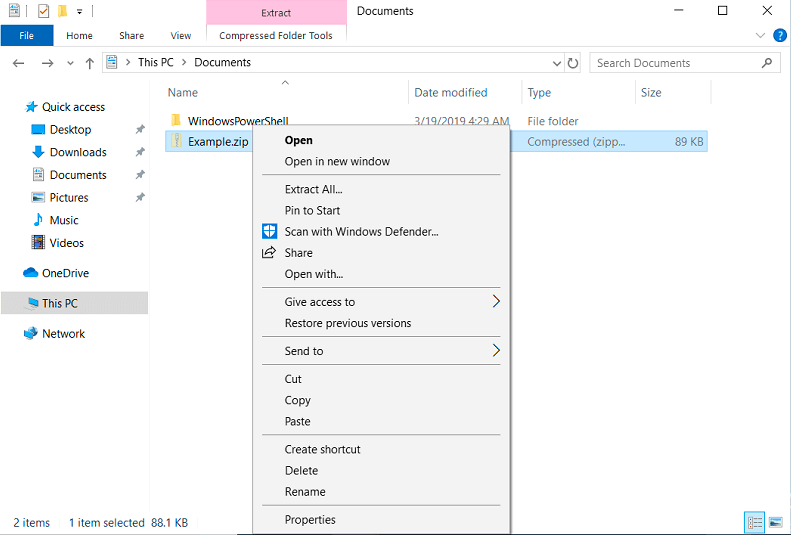
If you’re using a Windows computer, you can easily open a ZIP file using the built-in Windows Zip File Explorer. Here’s how:
- Right-click on the ZIP file and select Extract All.
- Choose a location to extract the files and click OK.
- The files will be extracted to the chosen location.
Alternatively, you can use third-party software like 7-Zip, WinRAR, or WinZIP to open and manage ZIP files.
Opening Zip Files on Mac
If you’re using a macOS computer, you can open a ZIP file using the built-in Archive Utility. Here’s how:
- Right-click on the ZIP file and select Open With > Archive Utility.
- Choose a location to extract the files and click OK.
- The files will be extracted to the chosen location.
You can also use third-party software like Keka, iZip, or Archive to open and manage ZIP files.
Opening Zip Files on Android
If you’re using an Android device, you can download and install a file manager app that supports ZIP files, such as:
- Google Files
- Solid Explorer
- MiXplorer
Once installed, follow these steps:
- Open the file manager app.
- Navigate to the location of the ZIP file.
- Tap on the ZIP file to open it.
- Choose a location to extract the files and tap Extract.
Opening Zip Files on Ios
If you’re using an iOS device, you can download and install a file manager app that supports ZIP files, such as:
- IZip
- Documents by Readdle
- WinZip
Once installed, follow these steps:
- Open the file manager app.
- Navigate to the location of the ZIP file.
- Tap on the ZIP file to open it.
- Choose a location to extract the files and tap Extract.
Other Options
If you’re unable to open a ZIP file using the above methods, there are other options available:
- Online services: You can use online services like ezyZip or Archive Extractor to open ZIP files without downloading any software.
- Cloud storage: You can upload your ZIP file to cloud storage services like Google Drive or Dropbox and access it from anywhere.
Conclusion
Opening a ZIP file is a straightforward process that can be done on various operating systems and devices. Whether you’re using Windows, macOS, Android, or iOS, there are multiple options available to extract the files within the ZIP package. We hope this guide has been helpful in resolving any issues you may have encountered while trying to open a ZIP file.
Frequently Asked Questions (FAQs)
- Q: What is a Zip File?
A: A ZIP file is a compressed archive that contains one or more files or folders. - Q: How do I Open a Zip File on my Pc?
A: You can use the built-in Windows Zip File Explorer or third-party software like 7-Zip, WinRAR, or WinZIP to open and manage ZIP files. - Q: How do I Open a Zip File on my Mac?
A: You can use the built-in Archive Utility or third-party software like Keka, iZip, or Archive to open and manage ZIP files. - Q: How do I Open a Zip File on my Android Device?
A: You can download and install a file manager app that supports ZIP files, such as Google Files or Solid Explorer. - Q: How do I Open a Zip File on my Ios Device?
A: You can download and install a file manager app that supports ZIP files, such as iZip or Documents by Readdle. - Q: What if I’m Unable to Open a Zip File Using The Above Methods?
A: There are other options available, including online services like ezyZip or Archive Extractor, and cloud storage services like Google Drive or Dropbox.
Recommended Software
- 7-Zip (Windows)
- Keka (Mac)
- IZip (Android and iOS)
- Solid Explorer (Android)
- MiXplorer (Android)
- Documents by Readdle (iOS)
- WinZIP (Windows, Mac, Android, and iOS)


