
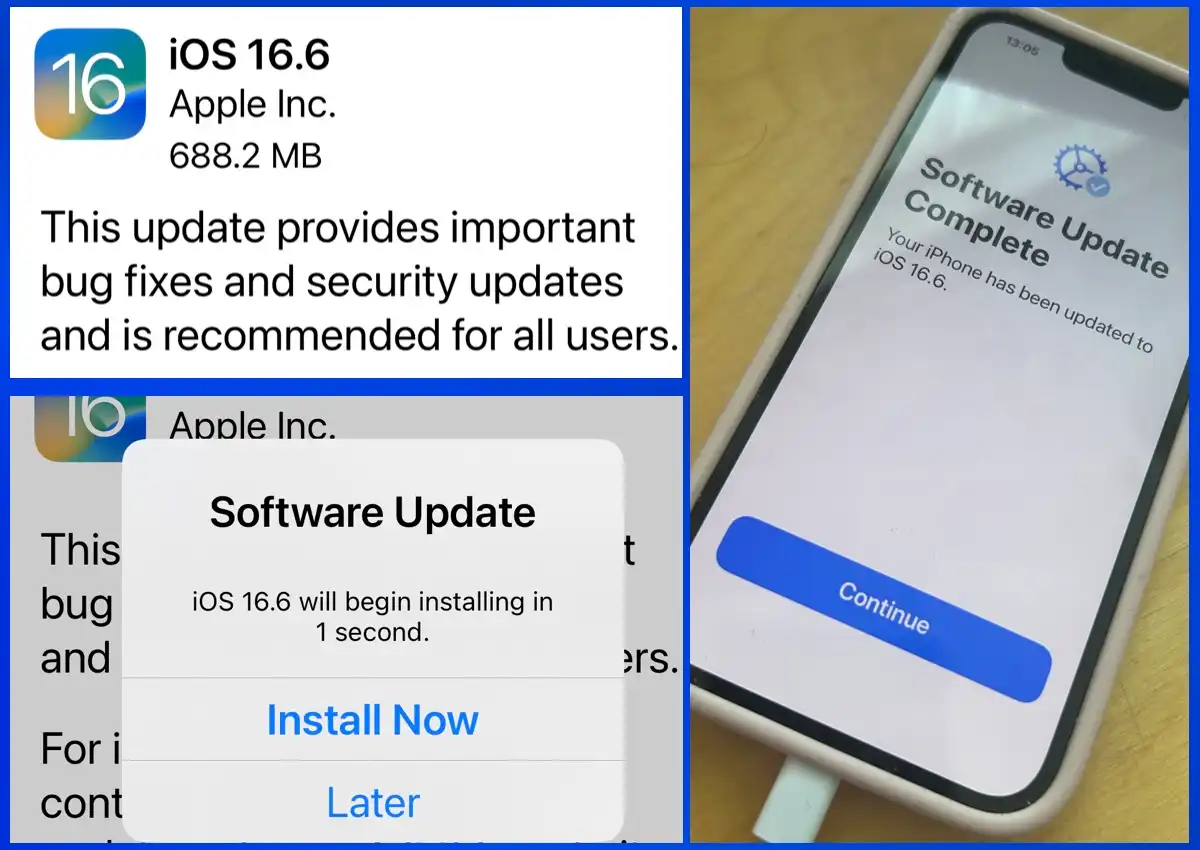
How to Update Ios: A Step-by-step Guide
As soon as you’ve acquired your prime iPhone or iPad, and considering the release of the new version of iOS, you’d want to understand a bit better how the update mechanism works for Apple’s operating system.
Understanding The Two Updating Procedures
There are two main procedures to update iOS: The one that downloads the file directly from the device (system OTA), and the one that involves downloading and installing the update on your computer. You can use either procedure, but it’s essential to know that updating through a computer has greater software utilization compared to the direct download method.
Preparation For Updating
Before initiating an update, ensure you have at least 50% battery charge in your iPhone or iPad and sufficient blank space (at least 7-8 GB) on your device. If these requirements are not met, you’ll receive a notification suggesting that you discharge the blank before proceeding.
Backing Up Your Data
While backing up your data is not necessary for updating iOS, it’s still a good idea to create a backup of your personal data and prevent any potential errors.
Checking Compatibility With New Ios Versions
To check if your device will be compatible with the new version of iOS, visit Apple’s official website. If your device is listed as incompatible, you may consider purchasing a newer model.
Updating Ios on Iphone And Ipad
To update iOS on your iPhone or iPad:
- Connect to Wi-Fi: Ensure that your device is connected to the internet via Wi-Fi.
- Check for Updates: Go to Settings > General > Software Update.
- Download and Install: If an update is available, tap on “Download and Install” and follow the prompts.
Updating Ios With Wifi
To update iOS using Wi-Fi:
- Connect to Wi-Fi: Ensure that your device is connected to the internet via Wi-Fi.
- Check for Updates: Go to Settings > General > Software Update.
- Download and Install: If an update is available, tap on “Download and Install” and follow the prompts.
Updating Ios With Cellular Data
To update iOS using cellular data:
- Ensure cellular data is enabled: Go to Settings > Mobile and ensure that cellular data is turned on.
- Check for Updates: Go to Settings > General > Software Update.
- Download and Install: If an update is available, tap on “Download and Install” and follow the prompts.
Installing Security Updates
To install security updates:
- Ensure your device is updated to iOS 16.4.1 Or later.
- Go to Settings > General > Software Update > Automatic Updates.
- Enable automatic updates by toggling the switch next to “Interventions of safety and rows of system”.
Updating Ios on PC And Mac
To update iOS on your computer:
- Connect your iPhone or iPad to your computer via USB cable.
- Open iTunes or Finder, depending on your operating system.
- Select your device from the top left corner of the screen.
- Click on “Check for Updates” and follow the prompts.
Updating Ios Beta
To update iOS beta:
- Go to Apple’s official website and sign in with your Apple ID.
- Enroll your iPhone or iPad in the Apple Beta Software Program.
- Download and install the beta version of iOS.
Troubleshooting Common Issues
If you encounter any issues during the updating process, refer to our troubleshooting guide for assistance.
Conclusion
Updating iOS is a relatively straightforward process that can be completed through either direct download on your device or by using your computer. By following these steps and being prepared, you’ll be able to update your operating system with ease.
Frequently Asked Questions (FAQs)
- Q: How do I Know if my Device Will be Compatible With The New Version of Ios?
A: Check Apple’s official website for compatibility information. - Q: Can I Update Ios Using Cellular Data?
A: Yes, you can update iOS using cellular data, but ensure that your device has sufficient blank space and battery charge. - Q: How do I Install Security Updates on my Iphone or Ipad?
A: Enable automatic updates by going to Settings > General > Software Update > Automatic Updates. - Q: Can I Update Ios on my Computer?
A: Yes, you can update iOS on your computer using iTunes or Finder. - Q: How do I Update to The Latest Beta Version of Ios?
A: Enroll in the Apple Beta Software Program and follow the prompts to download and install the beta version. - Q: Can I Downgrade my Iphone or Ipad’s Operating System?
A: No, downgrading is not possible, but you can try to reinstall a previous version using an articulated procedure involving your computer.
Bonus Tip
To stay up-to-date with the latest iOS updates, ensure that automatic updates are enabled on your device. This way, you’ll receive notifications whenever new versions become available.


