
How to Modify The Miniature of Your Facebook Profile Picture
Are you tired of seeing a tiny, unflattering version of your profile picture on Facebook? Do you want to make sure that everyone who sees your posts or comments gets a clear view of your amazing face? Look no further! In this article, we’ll show you how to modify the miniature of your Facebook profile picture in just a few easy steps.
Why Modify Your Miniature?
Before we dive into the nitty-gritty of modifying your miniature, let’s talk about why it’s a good idea. When you upload a new profile picture, Facebook automatically creates a smaller version of it to display in comments and other sections of the site. However, this miniature may not always be flattering or even recognizable as you. By taking a few minutes to modify your miniature, you can ensure that everyone sees the best possible version of you.
Modifying Your Miniature on Android
If you’re using an Android device, modifying your Facebook profile picture is a breeze. Here’s how:
- Open Facebook: First, open the Facebook app on your Android device.
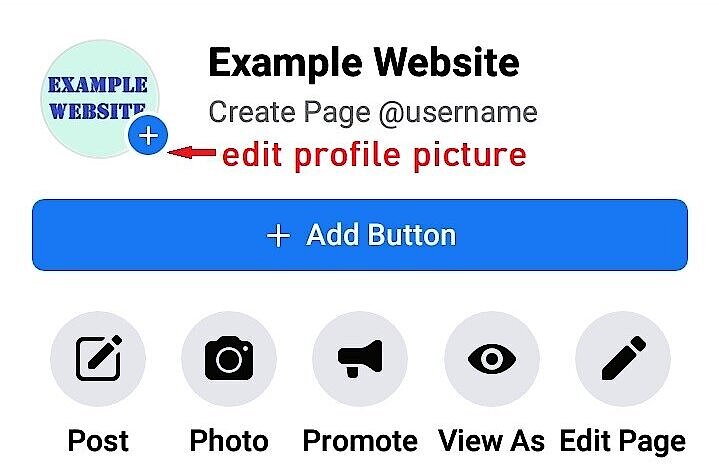
- Access Your Profile: Tap on your profile picture to access your profile page.
- Select The Photo: Tap on the “Select Image” button to choose a new photo for your profile picture.
- Crop And Edit: Use the built-in editor to crop and edit your photo as desired.
- Save Changes: Once you’re happy with your changes, tap “Save” to update your profile picture.
Modifying Your Miniature on Ios
If you’re using an iOS device, modifying your Facebook profile picture is just as easy. Here’s how:
- Open Facebook: First, open the Facebook app on your iOS device.
- Access Your Profile: Tap on your profile picture to access your profile page.
- Select The Photo: Tap on the “Select Image” button to choose a new photo for your profile picture.
- Crop And Edit: Use the built-in editor to crop and edit your photo as desired.
- Save Changes: Once you’re happy with your changes, tap “Save” to update your profile picture.
Modifying Your Miniature on PC
If you prefer to use a computer to manage your Facebook account, modifying your miniature is just as simple. Here’s how:
- Access Facebook: First, access the Facebook website on your computer.
- Log In: Log in to your account using your credentials.
- Access Your Profile: Click on your profile picture to access your profile page.
- Select The Photo: Select a new photo for your profile picture from your computer or mobile device.
- Crop And Edit: Use the built-in editor to crop and edit your photo as desired.
- Save Changes: Once you’re happy with your changes, click “Save” to update your profile picture.
Tips And Tricks
- To ensure that everyone sees a clear version of your face, try to upload a high-quality image for your profile picture.
- If you’re not satisfied with the miniature created by Facebook, don’t hesitate to modify it using the built-in editor or a third-party app.
- Consider uploading multiple photos for different occasions or events, so you can easily switch between them as needed.
Conclusion
Modifying the miniature of your Facebook profile picture is a simple and easy process that requires just a few minutes of your time. By following the steps outlined in this article, you can ensure that everyone sees the best possible version of you on the social network. Whether you’re using an Android device, iOS device, or computer, we’ve got you covered.
Frequently Asked Questions
- Q: Why is my Facebook Profile Picture so Small?
A: Facebook automatically creates a smaller version of your profile picture to display in comments and other sections of the site. - Q: How do I Modify The Miniature of my Facebook Profile Picture?
A: To modify the miniature, access your profile page, select a new photo, crop and edit it as desired, and then save the changes. - Q: Can I Upload Multiple Photos For Different Occasions or Events?
A: Yes, you can upload multiple photos for different occasions or events, so you can easily switch between them as needed. - Q: How do I Ensure That Everyone Sees a Clear Version of my Face on Facebook?
A: To ensure that everyone sees a clear version of your face, try to upload a high-quality image for your profile picture. - Q: Can I Use a Third-party App to Modify The Miniature of my Facebook Profile Picture?
A: Yes, you can use a third-party app to modify the miniature of your Facebook profile picture. - Q: How do I Know if my Facebook Profile Picture is High-quality Enough?
A: To ensure that your Facebook profile picture is high-quality enough, try using a camera with good resolution or editing the image before uploading it. - Q: Can I Modify The Miniature of my Facebook Profile Picture on Android Devices Only?
A: No, you can modify the miniature of your Facebook profile picture on any device, including iOS devices and computers.


