
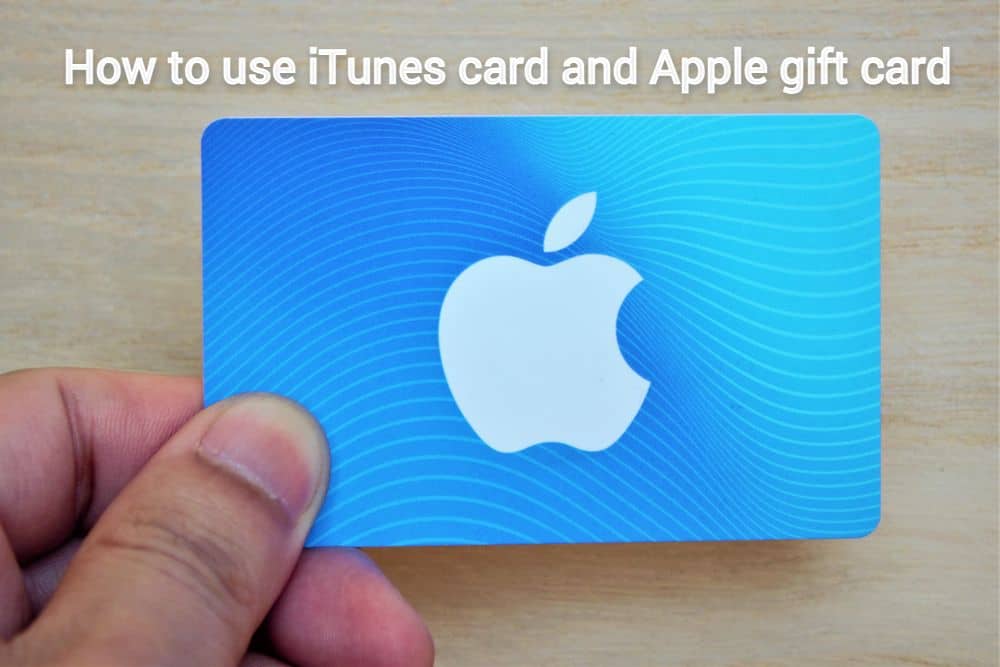
Unlocking The Power of Itunes Cards: A Comprehensive Guide
Are you ready to unlock the full potential of your iTunes experience? Look no further! In this article, we’ll take you on a journey through the world of iTunes cards, exploring their benefits, uses, and how to utilize them on various devices.
What is an Itunes Card?
An iTunes card is a prepaid gift card that allows users to add funds to their iTunes account. This convenient way to top up your balance enables you to purchase music, movies, TV shows, apps, and more without the need for a credit or debit card.
Why Use an Itunes Card?
There are several reasons why using an iTunes card is a great idea:
- Convenience: No need to enter sensitive payment information, making it a safe and secure option.
- Flexibility: Choose from various denominations, allowing you to add funds in the amount that suits your needs.
- Easy Management: Keep track of your balance and spendings with ease.
How to Use an Itunes Card on Your Iphone or Ipad
To utilize an iTunes card on your iOS device:
- Tap the Settings icon (the gear) on your home screen.
- Select “iTunes & App Store” from the menu.
- Choose the option “Add a card or code” and select “Use the camera.”
- Take a photo of the 16-digit code on the back of your iTunes card using your device’s camera.
- Confirm the code, and you’re ready to go!
Using an Itunes Card on Your Android Device
If you’ve received an iTunes card and want to use it on your Android device:
- Open the Google Play Store app.
- Tap the menu icon (three horizontal lines) in the top left corner.
- Select “Account” and then “Redeem.”
- Enter the 16-digit code from your iTunes card.
Activating Apple Music With an Itunes Card
If you want to activate Apple Music using your iTunes card:
- Open the Apple Music app on your Android device.
- Tap the menu icon (three horizontal lines) in the top left corner.
- Select “Settings” and then “Subscription.”
- Choose the option “Use a gift card or code.”
- Enter the 16-digit code from your iTunes card.
Using an Itunes Card on Your Computer
To use an iTunes card on your computer:
- Open iTunes and click on the menu icon (the gear).
- Select “Account” and then “Redeem.”
- Enter the 16-digit code from your iTunes card.
- Confirm the code, and you’re ready to go!
Troubleshooting Common Issues
- Code Not Recognized: Make sure the code is entered correctly and that it’s within the expiration date.
- Balance Not Added: Check if the funds were successfully added to your account by looking at the balance in your iTunes account.
Conclusion
In conclusion, using an iTunes card can greatly enhance your overall iTunes experience. With this comprehensive guide, you’ll be able to unlock the full potential of your iTunes card and enjoy seamless transactions across various devices.


