
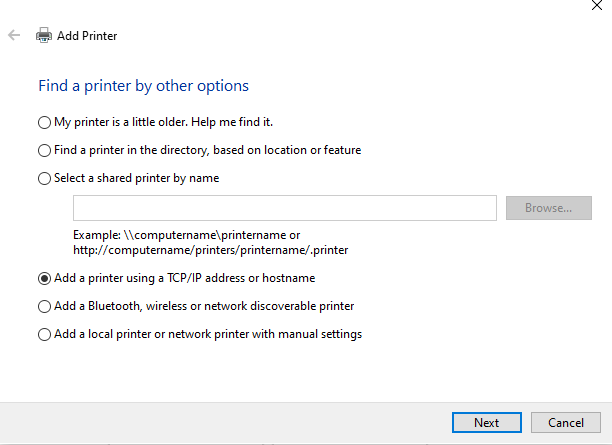
How to Install an Old Printer on Windows 10: A Step-by-step Guide
Are you struggling to connect your old printer to your new Windows 10 PC? Don’t worry, we’ve got you covered! In this article, we’ll show you how to install an old printer on Windows 10 using a CD and without one.
Before You Begin
Before we dive into the installation process, there are some preliminary operations that you need to accomplish. Make sure you check the compatibility of your printer with Windows 10 by searching online for “compatibility [printer model] with Windows 10.” If your printer is compatible, proceed to the next step.
Step 1: Download And Install The Driver
If you don’t have the installation CD or if it’s not working, you can download the driver from the internet. Search for “driver [printer model] Windows 10” and select the link that takes you to the official website of your printer manufacturer. Follow the instructions on the page to download and install the driver.
Installing an Old Printer on Windows 10 With a CD
If you have the installation CD, follow these steps:
- Connect your printer to your PC using a parallel cable (LPT), USB port, or wireless connection.
- Insert the installation CD into your PC’s CD drive.
- Follow the instructions on the screen to install the driver and configure your printer.
- If prompted, restart your PC to complete the installation process.
Installing an Old Printer on Windows 10 Without a CD
If you don’t have the installation CD or if it’s not working, follow these steps:
- Connect your printer to your PC using a parallel cable (LPT), USB port, or wireless connection.
- Download and install the driver from the internet.
- Follow the instructions on the screen to configure your printer.
Troubleshooting Tips
If you encounter any issues during the installation process, here are some troubleshooting tips:
- Make sure you have downloaded the correct driver for your printer model.
- Check if the driver is compatible with your Windows 10 version.
- Restart your PC and try again.
- If the issue persists, contact the manufacturer’s support team for further assistance.
Conclusion
Installing an old printer on Windows 10 can be a daunting task, but with these steps, you should be able to get it working in no time. Remember to check the compatibility of your printer before proceeding, and if you encounter any issues, don’t hesitate to reach out for help.
Faqs
- Q: How do I Know if my Printer is Compatible With Windows 10?
A: Search online for “compatibility [printer model] with Windows 10” or check the manufacturer’s website. - Q: Can I Install an Old Printer on a Mac?
A: Yes, but you’ll need to download and install the driver from the internet and follow the instructions provided by the manufacturer. - Q: What if my Printer is Not Recognized by Windows 10?
A: Try restarting your PC or reinstalling the driver. - Q: How do I Troubleshoot Issues With my Printer?
A: Check the manufacturer’s website for troubleshooting guides, or contact their support team for assistance. - Q: Can I Use an Old Printer With a New Windows 10 Laptop?
A: Yes, but make sure your printer is compatible with Windows 10 and that you have downloaded the correct driver. - Q: How do I Connect my Old Printer to my PC Using Wi-fi?
A: Follow the instructions provided by the manufacturer or search online for “how to connect [printer model] to Wi-Fi.” - Q: What if I Don’t Have The Installation Cd?
A: You can download the driver from the internet and follow the instructions provided. - Q: Can I Use an Old Printer With a Windows 10 Tablet?
A: Yes, but make sure your printer is compatible with Windows 10 and that you have downloaded the correct driver.
Recommended Reading
- How to Install a Printer on Windows 10
- Troubleshooting Printer Issues on Windows 10
- Connecting a Printer to Wi-Fi on Windows 10
Note: The above FAQs are provided for general guidance only. If you encounter any issues, please consult the manufacturer’s website or contact their support team for assistance.


