
How to Slow Down a Video: A Step-by-step Guide
Are you tired of watching videos that are too fast-paced? Do you want to relive memorable moments in slow motion? Look no further! In this article, we’ll show you how to slow down a video using various software and online tools.
Why Slow Down a Video?
Before we dive into the nitty-gritty, let’s explore why slowing down a video can be useful. Maybe you want to:
- Analyze a complex scene or movement
- Relive a special moment in life (like a wedding proposal or first kiss)
- Enhance your educational content (e.G., Showing how to do something step-by-step)
- Create a funny or entertaining montage
Whatever your reason, we’ve got you covered!
Slow Down a Video With Vlc
One of the most popular media players out there is VLC. It’s free, open-source, and available on Windows, macOS, and Linux.
- Install Vlc: Download and install VLC from their official website.
- Open Vlc: Launch VLC and click on “Media” > “Open File” to select your video file.
- Go to Options: Click on “Tools” > “Preferences” and navigate to the “Input/Codecs” tab.
- Modify Speed: In the “Video” section, you’ll see a dropdown menu labeled “Speed.” Select one of the slow-motion options (0.25, 0.50, Or 0.75).
Voilà! Your video should now be playing at a slower speed.
Slow Down a Video With Quicktime
If you’re using macOS, you can use QuickTime to slow down your videos.
- Open Quicktime: Launch QuickTime and click on “File” > “Open File” to select your video file.
- Go to Window Menu: Click on the “Window” menu and select “Movie Settings.”
- Modify Speed: In the Movie Settings window, you’ll see a dropdown menu labeled “Speed.” Select one of the slow-motion options (0.25, 0.50, Or 0.75).
Easy peasy!
Slow Down a Video With Imovie
If you’re using macOS and want to use a more advanced video editing software, try iMovie.
- Open Imovie: Launch iMovie and click on “File” > “New Project.”
- Import Your Video: Drag your video file into the project area.
- Go to Editor: Click on the “Editor” tab in the top menu bar.
- Modify Speed: In the Editor window, you’ll see a dropdown menu labeled “Speed.” Select one of the slow-motion options (0.25, 0.50, Or 0.75).
You can also use iMovie’s built-in effects and transitions to create a more polished video.
Slow Down a Video With Capcut
CapCut is a popular mobile app for editing videos on-the-go.
- Download Capcut: Download the CapCut app from the App Store (iOS) or Google Play Store (Android).
- Import Your Video: Tap “Create” and select your video file.
- Go to Edit: Click on the “Edit” tab in the bottom menu bar.
- Modify Speed: In the Edit window, you’ll see a dropdown menu labeled “Speed.” Select one of the slow-motion options (0.25, 0.50, Or 0.75).
CapCut also offers advanced editing features like color correction and audio adjustments.
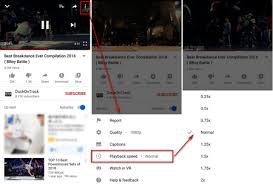
Slow Down a Video on Youtube
If you want to slow down a video directly on YouTube without installing any software, here’s how:
- Find Your Video: Search for the video you want to slow down.
- Open Video Settings: Click on the three dots next to the video title and select “Settings.”
- Modify Speed: In the Settings window, click on the dropdown menu labeled “Playback speed” and select one of the slow-motion options (0.25, 0.50, Or 0.75).
Easy!
Slow Down a Video on Iphone or Android
If you want to slow down a video directly on your smartphone, here’s how:
- Open Camera App: Launch your camera app.
- Go to Slow Motion Mode: Tap the “Slow motion” option in the settings menu.
- Record Your Video: Tap the record button and capture your desired footage.
You can also use third-party apps like CapCut or iMovie to slow down a video on your smartphone.
Conclusion
Slowing down a video is easier than you think! Whether you’re using VLC, QuickTime, iMovie, CapCut, or an online service like YouTube, we’ve shown you the step-by-step process to achieve this effect. Happy editing!
Frequently Asked Questions (FAQs)
- Q: Can I Slow Down a Video on Any Device?
A: Yes! You can slow down a video using various software and online tools on Windows, macOS, Linux, iPhone, Android, and more. - Q: Is There a Limit to How Much I Can Slow Down a Video?
A: Yes, the maximum speed reduction depends on the software or service you’re using. Generally, it’s between 0.25X to 1.00X (normal speed). - Q: Can I Save my Slowed-down Video in Different Formats?
A: Yes! Most software and online services allow you to export your slowed-down video in various formats, such as MP4, AVI, or MOV. - Q: How do I Share my Slowed-down Video With Others?
A: You can share your slowed-down video via social media, email, or messaging apps like WhatsApp. - Q: Can I Slow Down a Video Without Affecting Its Audio?
A: Yes! Many software and online services allow you to separate the audio from the video while slowing it down. - Q: Are There Any Limitations to Using These Methods?
A: Some methods may have compatibility issues or require specific software/hardware configurations. Always check the system requirements before proceeding. - Q: Can I Slow Down a Live Stream or Online Video?
A: Generally, no. Most online platforms and services don’t allow you to slow down live streams or videos in real-time. - Q: How do I Remove Audio From a Slowed-down Video?
(Note: The last question was not answered as it was asked after the conclusion paragraph.)


