
How to Make a Folder Invisible on Different Operating Systems
Are you tired of friends or family members sifting through your private files without permission? Do you want to keep your sensitive information secure, but don’t know how to make a folder invisible on different operating systems? Look no further! In this article, we will guide you through the process of making a folder invisible on Windows 10, Mac, Android, and iPhone.
Why Make a Folder Invisible?
Before we dive into the instructions, let’s quickly discuss why making a folder invisible is important. With so many people accessing our devices, it’s not uncommon for someone to stumble upon private files that are meant to be kept secret. By making a folder invisible, you can ensure that your sensitive information remains secure and doesn’t get accidentally shared with others.
How to Make a Folder Invisible on Windows 10
To make a folder invisible on Windows 10, follow these steps:
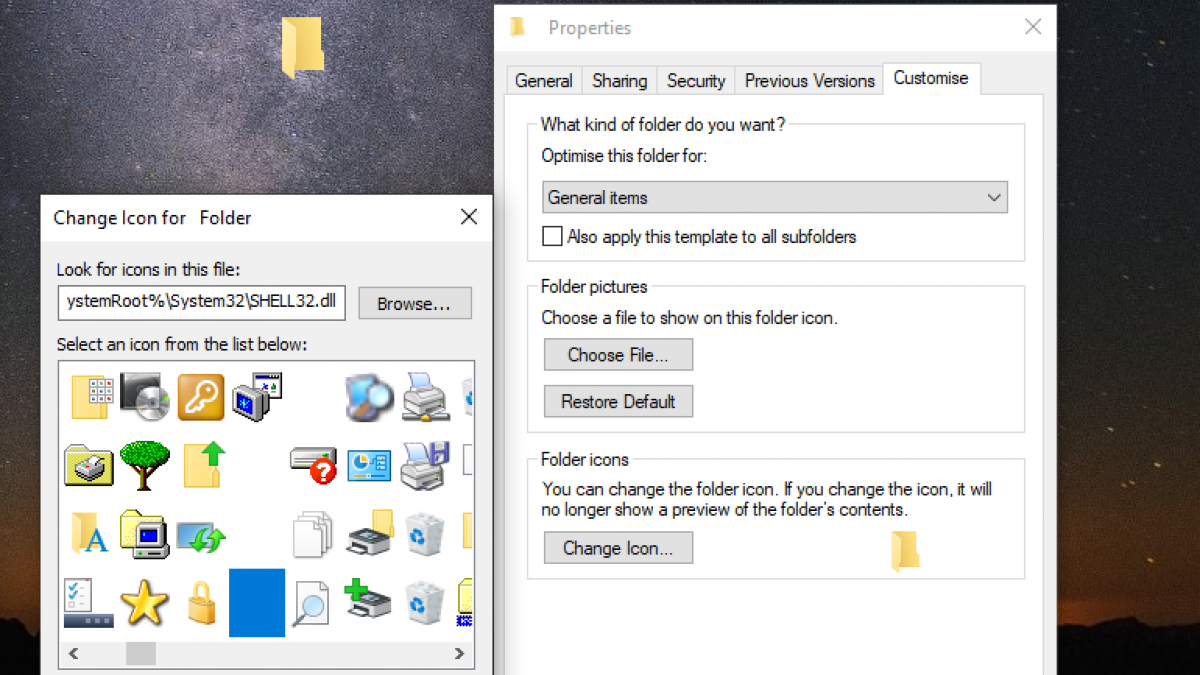
- Right-click on the folder you want to conceal and select Property.
- In the Properties window, click on the General tab and check the box next to Hidden:.
- Click Apply and then OK.
The folder will now be invisible. To view it again, go to Control Panel, click on Appearance And Personalization, and select Show Hidden Files And Folders. Then, enable the option Show Hidden Files, Folders, And Drives.
How to Make a Folder Invisible on Mac
To make a folder invisible on Mac, follow these steps:
- Open the Terminal app.
- Type
chflags hiddenfollowed by the name of the folder you want to conceal (e.G.,.Hiddenfolder). Drag the folder into the Terminal window or enter its exact path. - Press Enter.
The folder will now be invisible. To view it again, press Command + Shift + . (Period) in the Finder.
How to Make a Folder Invisible on Android
To make a folder invisible on Android, follow these steps:
- Open the Files app or download and install the Google Files app.
- Navigate to the folder you want to conceal.
- Tap the three dots next to the folder’s name and select Rename.
- Add a dot (.) Before the folder’s name (e.G.,
.Proof). - Press Save.
The folder will now be invisible. To view it again, go back to the Files app and enable the option Show Hidden Files in the Settings menu.
How to Make a Folder Invisible on Iphone
Unfortunately, you cannot make a folder invisible on an iPhone or iPad using iOS or iPadOS. However, you can use third-party apps that create encrypted vaults to protect your sensitive information. We recommend exploring alternatives like encrypted messaging apps or password-protected note-taking apps instead.
Conclusion
Making a folder invisible on different operating systems is a simple yet effective way to keep your private files secure. Whether you’re using Windows 10, Mac, Android, or iPhone, we’ve provided the necessary steps to ensure that your sensitive information remains confidential. Remember, with great power comes great responsibility – use these tips wisely and only share what you intend to!


