
How to Find And Delete Double Photos on Your Device
Are you tired of dealing with duplicate photos on your device? Do you wish there was an easier way to find and delete them without spending hours sorting through your collection? Look no further! In this article, we’ll show you how to use various tools to find and delete double photos on Windows, Mac, Android, and iOS/iPadOS devices.
What is Duplicate Photo Finder?
Duplicate photo finder is a tool that helps you identify and delete duplicate photos on your device. It’s a convenient way to free up space and keep your photo collection organized.
How to Find And Delete Double Photos on Windows
If you’re using a Windows device, there are several tools you can use to find and delete double photos. Here are some of the best options:
Similarimages
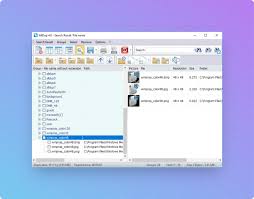
One of the best tools for finding duplicate photos on Windows is SimilarImages. This free program scans your folders and subfolders to identify similar images, including duplicates. To download and install SimilarImages, follow these steps:
- Visit the SimilarImages website and click on the “Stable” link in the downloads section.
- Open the downloaded file and click on the “Yes” and “OK” buttons to proceed with the installation.
- Select the folders you want to analyze by clicking on the “+” button next to the folder name.
- Adjust the threshold sensitivity as needed.
- Click on the “Search duplicate” button to initiate the search.
Other Solutions For Windows
If SimilarImages isn’t what you’re looking for, here are some other solutions:
- Visipics: This free program scans your folders and subfolders to identify similar images, including duplicates.
- Duplicate Photo Finder: This incredibly easy-to-use software helps you find and delete duplicate photos on your device.
How to Find And Delete Double Photos on Mac
If you’re using a Mac device, here are some of the best tools for finding duplicate photos:
Gemini
Gemini is one of the best instruments for finding duplicate photos on macOS. This intuitive interface supports various photo formats and helps you identify similarities between images.
To download and install Gemini, follow these steps:
- Visit the Gemini website and click on the “Download” button.
- Drag the icon to your Applications folder and open the app.
- Accept the terms of service and select the folders you want to analyze.
- Click on the “Search duplicate” button to initiate the search.
Other Solutions For Mac
If Gemini isn’t what you’re looking for, here are some other solutions:
- Disk Drill: This free software helps you recover data from your device and includes a tool for maintaining your computer’s performance.
- Dupeguru: This free app scans your hard drive to identify duplicate files, including photos.
How to Find And Delete Double Photos on Android
If you’re using an Android device, here are some of the best tools for finding duplicate photos:
Files by Google
One of the best tools for finding duplicate photos on Android is Files by Google. This app helps you manage your device’s storage space and includes a tool for identifying similar files.
To download and install Files by Google, follow these steps:
- Visit the Google Play Store and search for “Files.”
- Install the app and open it.
- Select the folders you want to analyze.
- Click on the “Erase” button to delete duplicate photos.
Other Solutions For Android
If Files by Google isn’t what you’re looking for, here are some other solutions:
- Remo Duplicated Photos Remover: This app helps you find and delete duplicate photos on your device.
- Duplicate Files Fixer: This app scans your hard drive to identify duplicate files, including photos.
How to Find And Delete Double Photos on Ios/ipados
If you’re using an iOS or iPadOS device, here are some of the best tools for finding duplicate photos:
Photo App (iOS 16)
One of the best tools for finding duplicate photos on iOS is the built-in Photo app. To find and delete duplicate photos using the Photo app, follow these steps:
- Open the Photos app.
- Select the album you want to analyze.
- Scroll down to the “Duplicated” section.
- Click on the join button to delete duplicate photos.
Other Solutions For Ios/ipados
If the Photo app isn’t what you’re looking for, here are some other solutions:
- Gemini Photos: This app helps you find and delete duplicate photos on your device.
- Cleanup: Cleaner For Gallery: This app scans your gallery to identify similar images and allows you to delete duplicates.
Conclusion
Finding and deleting duplicate photos on your device can be a tedious task, but with the right tools, it’s easier than ever. Whether you’re using Windows, Mac, Android, or iOS/iPadOS, there are many options available to help you find and delete double photos. We hope this article has been helpful in your search for the perfect duplicate photo finder!
Faqs
- What is a Duplicate Photo Finder?
A duplicate photo finder is a tool that helps you identify and delete duplicate photos on your device. - How do I Find Duplicate Photos on Windows?
You can use tools like SimilarImages, VisiPics, or Duplicate Photo Finder to find duplicate photos on Windows. - How do I Find Duplicate Photos on Mac?
You can use tools like Gemini, Disk Drill, or dupeGuru to find duplicate photos on Mac. - How do I Find Duplicate Photos on Android?
You can use tools like Files by Google, Remo Duplicated Photos Remover, or Duplicate Files Fixer to find duplicate photos on Android. - How do I Find Duplicate Photos on Ios/ipados?
You can use the built-in Photo app or apps like Gemini Photos, Cleanup: Cleaner For Gallery, or Remove Master for Chamber Roll to find and delete duplicate photos on iOS/iPadOS. - Are These Tools Free?
Some of the tools mentioned are free, while others require a payment to unlock their full features. - How do I Download And Install These Tools?
The steps for downloading and installing each tool vary depending on the platform you’re using (Windows, Mac, Android, or iOS/iPadOS). Be sure to follow the instructions carefully to avoid any issues.


