
Creating a Kahoot: A Step-by-step Guide
Are you looking to create an engaging and interactive quiz or game for your students, colleagues, or friends? Look no further than Kahoot! This popular online platform allows users to create and share quizzes, games, and surveys with ease. In this article, we will guide you through the process of creating a Kahoot, from setting up an account to sharing your quiz with others.
Getting Started
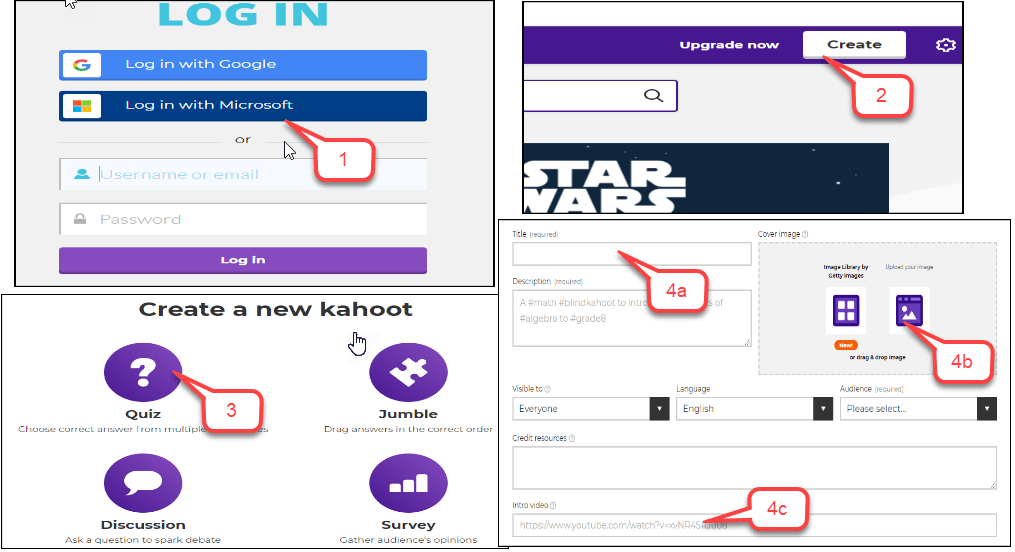
To begin, navigate to the Kahoot website (www.Kahoot.Com) and click on “Sign Up” to create an account. You can use your email address or sign in with a Google, Microsoft, or Apple account. Once you’ve created your account, you’ll be taken to the Kahoot dashboard.
Creating a Quiz
To create a quiz, click on the “Create” button at the top right corner of the screen. You’ll then be presented with two options: “Kahoot” and “Raced.” For now, let’s focus on creating a Kahoot. Click on the “Kahoot” option, and you’ll be taken to a new page where you can start typing your first question.
Settings
Before starting to type questions, take some time to familiarize yourself with the settings menu. You can access this by clicking on the gear icon at the top left corner of the screen. Here, you can customize various aspects of your quiz, such as:
- Title: Give your quiz a catchy title that reflects its content.
- Description: Add a brief description to provide context and interest.
- Image: Choose an image or logo that represents your quiz.
- Video: Select a YouTube video to play before the game begins.
- Music: Choose a song to set the mood.
Setting Up Questions
Now it’s time to create questions for your quiz. To do this, follow these steps:
- Click on the “Add Question” button at the top right corner of the screen.
- Type in your question and add multiple-choice options (up to four) or a True/False option.
- Select the correct answer from the dropdown menu.
- Repeat this process for each question you want to add.
Tips And Tricks
- Use the “drag-and-drop” feature to reorder questions if needed.
- Add images, videos, or audio clips to enhance engagement.
- Utilize the “Add Slide” feature to create a presentation-style introduction.
Saving And Sharing Your Quiz
Once you’ve finished creating your quiz, click on the “Save” button at the top right corner of the screen. You can then share your quiz with others by:
- Generating a PIN code that players can use to join the game.
- Copying a QR code that participants can scan to access the game.
- Sharing the link directly via email or social media.
Creating a Kahoot on Mobile
If you prefer to create a Kahoot on-the-go, you can download the Kahoot app on your smartphone or tablet. The process is similar to creating a quiz on PC:
- Open the app and sign in with your account.
- Click on the “Create” button to start a new quiz.
- Follow the same steps as above to set up questions and settings.
Sharing Your Quiz With Teams
Want to make your Kahoot more competitive and team-based? You can create teams by selecting the “Teams with devices shared” option when creating your quiz. This allows players to use their own devices, while a designated team leader gives answers.
Conclusion
Creating a Kahoot is an easy and fun way to engage your audience and promote learning or entertainment. By following these steps, you’ll be able to create a quiz that’s both enjoyable and educational. So why not give it a try today?
Frequently Asked Questions (FAQs)
- What is a Pin Code?
A PIN code is a unique identifier generated by Kahoot when creating a quiz. Players can use this code to join the game. - How do I Share my Quiz With Others?
You can share your quiz via email, social media, or by copying and pasting the link directly into a message. - Can I Create Teams in my Kahoot?
Yes, you can create teams by selecting the “Teams with devices shared” option when creating your quiz. - How do I Generate a QR Code?
To generate a QR code, go to the Kahoot dashboard and click on the three dots next to your quiz title. Select “QR Code” from the dropdown menu. - Can I Add Images or Videos to my Quiz?
Yes, you can add images, videos, or audio clips to enhance engagement and make your quiz more engaging. - How do I Reorder Questions in my Quiz?
You can use the drag-and-drop feature to reorder questions if needed. - Can I Create a Kahoot on Mobile?
Yes, you can download the Kahoot app on your smartphone or tablet and create a quiz on-the-go. - What is The Difference Between “Kahoot” And “Raced”?
“Kahoot” is the classic quiz format, while “Raced” is a timed version that’s ideal for competitive play.


