
How to Format Windows 8 Without a Cd: A Step-by-step Guide
Are you tired of dealing with problems after installing Windows 8? Have you tried formatting your computer, but don’t know where to start? Look no further! In this article, we will guide you through the process of formatting Windows 8 without a CD.
Why Format Windows 8?
Formatting your computer can be a great way to troubleshoot problems or simply give yourself a fresh start. When you format Windows 8, you are essentially wiping the slate clean and starting from scratch. This can be especially helpful if you’re experiencing issues with your operating system or if you want to sell or trade-in your computer.
How to Format Windows 8 Without a Cd: Using The Settings PC
Formatting Windows 8 without a CD is possible using the built-in settings app on your PC. Here’s how:
- Access The Start Screen: Click on the Start button in the bottom left corner of your screen.
- Open The Settings App: Click on the “Settings” icon, which looks like a gear or cog.
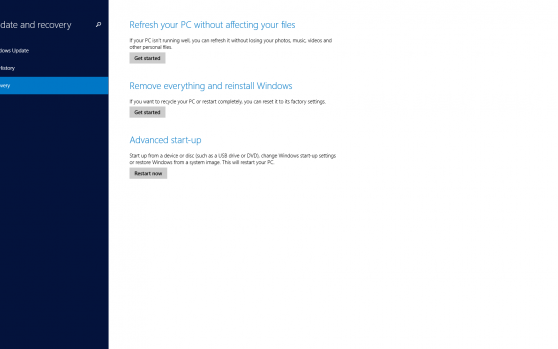
- Click on Update And Recovery: Select the “Update and Recovery” option from the list.
- Select The Recovery Option: Choose the “Recovery” option from the sidebar menu.
- Click on Restart Now: Click on the button that says “Restart Now.”
- Select The Option to Reinstall Windows: When your PC restarts, select the option to reinstall Windows.
How to Format Windows 8 Without a Cd: Using a Usb Drive
If you don’t have access to the Settings app or prefer not to use it, you can format Windows 8 using a USB drive. Here’s how:
- Create a Bootable Usb Drive: Download and install the Microsoft tool that creates a bootable USB drive.
- Insert The Usb Drive: Insert the USB drive into your PC.
- Restart Your PC: Restart your PC and enter the BIOS settings (this will vary depending on your computer’s manufacturer).
- Set The Usb Drive as First Boot Device: Set the USB drive as the first boot device in the BIOS settings.
- Save Changes And Exit: Save changes and exit the BIOS settings.
The Formatting Process
Once you’ve selected the option to reinstall Windows, the formatting process will begin. This can take anywhere from 15-20 minutes to several hours, depending on your computer’s specifications.
Tips And Precautions
Before formatting your computer, make sure to:
- Backup Your Data: Back up any important files or data you want to keep.
- Disable Any Antivirus Software: Disable any antivirus software to prevent conflicts during the formatting process.
- Use a Usb Drive With at Least 4 GB of Space: Use a USB drive with at least 4 GB of space to ensure that all necessary files are saved.
Conclusion
Formatting Windows 8 without a CD is a relatively simple process, and by following these steps, you should be able to get your computer up and running in no time. Remember to back up your data before formatting your PC, and if you encounter any issues during the process, don’t hesitate to seek help.
Frequently Asked Questions
- What Happens When I Format my Windows 8 Pc?
When you format your Windows 8 PC, all existing data on the computer will be deleted. - Will Formatting my Windows 8 PC Remove All my Installed Programs?
Yes, formatting your Windows 8 PC will also delete all installed programs and settings. - How Long Does The Formatting Process Take?
The formatting process can take anywhere from 15-20 minutes to several hours, depending on your computer’s specifications. - Can I Use a Usb Drive With Less Than 4 GB of Space?
No, it is recommended that you use a USB drive with at least 4 GB of space to ensure all necessary files are saved. - Will Formatting my Windows 8 PC Affect my Antivirus Software?
Yes, formatting your Windows 8 PC will disable any installed antivirus software. - Can I Format my Windows 8 PC if It’s Not Recognizing my Usb Drive?
If your computer is not recognizing your USB drive, try using a different USB port or resetting the USB drive settings in the BIOS. - What Should I do With my Old Windows 8 Files After Formatting my Pc?
You can either store them on an external hard drive or transfer them to a new device if you have one.
Additional Resources
- For more information on formatting your Windows 8 PC, visit Microsoft’s official website: Https://Support.Microsoft.Com/en-us/help/14257/windows-8-format
- To learn how to create a bootable USB drive, check out this article from Microsoft: Https://Docs.Microsoft.Com/en-us/deploy/linux/docker-on-windows-create-a-bootable-usb-drive
Note that formatting your Windows 8 PC is a permanent process and should be approached with caution. Make sure to back up any important data before proceeding, and if you have any doubts or concerns, consider seeking help from a qualified IT professional.


