
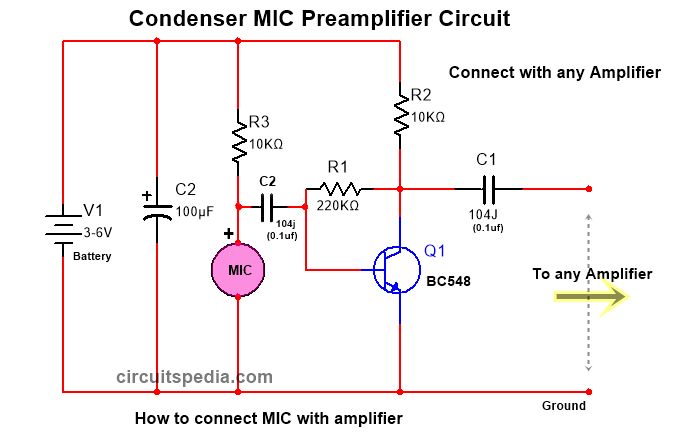
Amplifying a Microphone: A Guide to Enhancing Audio Quality
Are you tired of your microphone not picking up your voice clearly? Do you struggle with recording audio that sounds muffled or distorted? Look no further! In this comprehensive guide, we’ll show you how to amplify a microphone and enhance the quality of your audio recordings.
Understanding The Problem
Just like amplifying a microphone, increasing the volume of your voice can be a challenge. When you speak into a microphone, your voice is picked up by the device and sent to a computer or recording device. However, if the microphone’s volume is not set correctly, your voice may not be loud enough to record clearly.
Windows 10: How to Amplify a Microphone
If you’re using Windows 10, amplifying a microphone is relatively easy. Here’s how:
- Click on The Volume Icon: Locate the volume icon in the system tray (usually located near the clock). Click on it and select “Open Sound settings.”
- Access The Audio Settings: In the Sound settings window, click on the “Recording” tab.
- Select The Microphone: Choose the microphone you want to use from the dropdown menu.
- Adjust The Volume: Move the slider under the microphone icon to adjust the volume.
- Apply And OK: Click on “Apply” and then “OK” to save your changes.
Tips For Windows 10 Users
- Avoid over-amplifying your voice, as this can lead to distortion or whistling sounds.
- Experiment with different volume levels to find the sweet spot that works best for you.
- Consider using a microphone with built-in amplification or a separate amplifier to boost your audio signal.
Mac: How to Amplify a Microphone
If you’re using a Mac, amplifying a microphone is also relatively straightforward:
- Access System Preferences: Click on the Apple menu and select “System Preferences.”
- Select Sound: In the System Preferences window, click on the “Sound” icon.
- Choose Input Device: Select the microphone you want to use from the dropdown menu.
- Adjust Volume: Move the slider under the microphone icon to adjust the volume.
- Apply And OK: Click on “Apply” and then “OK” to save your changes.
Tips For Mac Users
- Be careful not to over-amplify your voice, as this can lead to distortion or whistling sounds.
- Experiment with different volume levels to find the sweet spot that works best for you.
- Consider using a microphone with built-in amplification or a separate amplifier to boost your audio signal.
Smartphones And Tablets: How to Amplify a Microphone
If you’re using a smartphone or tablet, amplifying a microphone can be a bit more complicated. However, there are still ways to enhance your audio quality:
- Use an App: Download a third-party app that allows you to adjust the volume of your microphone.
- Clean Your Microphone: Regularly clean your microphone to ensure it’s working properly and not picking up background noise.
- Experiment With Different Settings: Try adjusting different settings, such as EQ or compression, to find the best audio quality for your needs.
Conclusion
Amplifying a microphone is easier than you think! By following these simple steps, you can enhance the quality of your audio recordings and ensure that your voice comes through clearly. Remember to experiment with different volume levels and settings to find the sweet spot that works best for you.
Frequently Asked Questions (FAQs)
- Q: How do I Know if my Microphone Needs Amplification?
A: If your voice sounds muffled or distorted when recording audio, it may be a sign that your microphone needs amplification. - Q: Can I Over-amplify my Microphone And Cause Distortion?
A: Yes, if you amplify your microphone too much, it can lead to distortion or whistling sounds. Be careful not to overdo it! - Q: What’s The Best Way to Clean my Microphone?
A: Regularly clean your microphone with a soft cloth and mild soap to ensure it’s working properly. - Q: Do I Need Special Software to Amplify my Microphone?
A: No, you can usually find the necessary settings in your computer or device’s audio settings menu. - Q: Can I Use a Separate Amplifier to Boost my Audio Signal?
A: Yes, using a separate amplifier can be an effective way to boost your audio signal and improve overall quality.


