
How to Create a Presentation With Microsoft Powerpoint: A Step-by-step Guide
Are you looking for tips on how to create an effective presentation using Microsoft PowerPoint? Look no further! In this article, we will guide you through the process of creating a presentation from scratch, including choosing a template, designing slides, and adding animations.
Choosing The Right Template
Before you start creating your presentation, you need to choose a template that suits your needs. Microsoft PowerPoint offers a wide range of templates to choose from, including modern, classic, and business-oriented designs. To access the templates, follow these steps:
- Open Microsoft PowerPoint on your computer.
- Click on the “File” tab in the top left corner.
- Select “New” from the dropdown menu.
- Choose a template that suits your needs.
Designing Your Slides
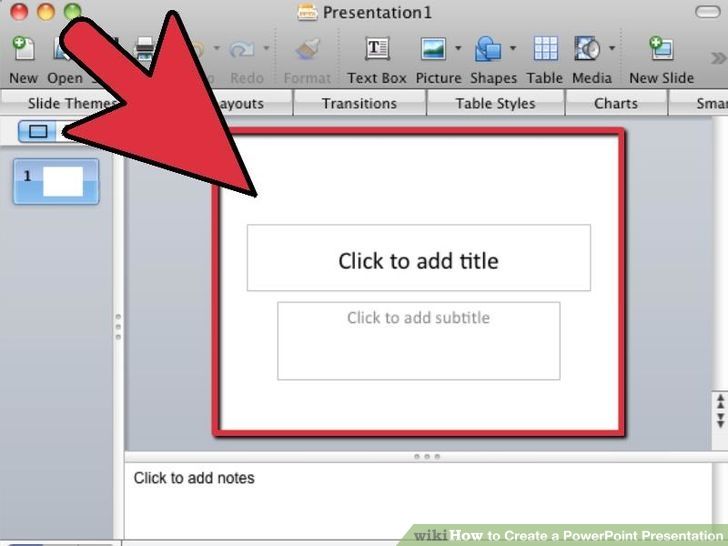
Once you have chosen a template, it’s time to design your slides. Here are some steps to follow:
- Click on the “Home” tab in the top left corner.
- Select a blank slide by clicking on the “+” icon.
- Add text, images, and other elements to your slide using the various tools available.
Adding Animations
Animations can make your presentation more engaging and interesting. Here’s how you can add animations to your slides:
- Click on the “Transitions” tab in the top left corner.
- Select a transition effect that suits your needs.
- Apply the transition effect to your slide by clicking on it.
Sharing Your Presentation
Once you have created your presentation, it’s time to share it with others. Here are some steps to follow:
- Click on the “File” tab in the top left corner.
- Select “Save As” from the dropdown menu.
- Choose a location and format to save your presentation.
Conclusion
Creating an effective presentation using Microsoft PowerPoint requires careful planning, design, and execution. By following these tips, you can create a presentation that is both engaging and informative. Remember to choose a template that suits your needs, design your slides carefully, add animations to make it more interesting, and share it with others.
Faqs
- What Are The Different Types of Templates Available in Microsoft Powerpoint?
Microsoft PowerPoint offers a wide range of templates to choose from, including modern, classic, and business-oriented designs. - How Can I Add Animations to my Slides?
To add animations to your slides, click on the “Transitions” tab in the top left corner, select a transition effect that suits your needs, and apply it to your slide by clicking on it. - What is The Best Way to Share my Presentation With Others?
The best way to share your presentation with others is to save it as a file and send it to them via email or cloud storage services like Google Drive. - Can I Use Microsoft Powerpoint Online?
Yes, you can use Microsoft PowerPoint online by signing in to your Microsoft account and accessing the service through a web browser. - What Are Some Tips For Creating an Effective Presentation?
Some tips for creating an effective presentation include choosing a template that suits your needs, designing your slides carefully, adding animations to make it more interesting, and practicing your delivery before presenting.
Table 1: Microsoft Powerpoint Templates
| Template Type | Description |
|---|---|
| Modern | A modern design with clean lines and minimal graphics. |
| Classic | A classic design with a traditional look and feel. |
| Business | A business-oriented design with a professional layout and typography. |
_Table 2: Animation Effects in Microsoft PowerPoint**
| Effect | Description |
|---|---|
| Fade | An effect that makes the slide fade in or out. |
| Slide | An effect that slides the content on and off the screen. |
| Zoom | An effect that zooms in or out of a section of the slide. |
_Table 3: Ways to Share Your Presentation**
| Method | Description |
|---|---|
| Send your presentation as an attachment via email. | |
| Cloud Storage | Save your presentation to cloud storage services like Google Drive and share the link with others. |
| Present Online | Use Microsoft PowerPoint online to present your slide remotely. |
_Table 4: Tips for Creating an Effective Presentation**
| Tip | Description |
|---|---|
| Choose a template that suits your needs | Select a template that matches your topic or theme. |
| Design your slides carefully | Add text, images, and other elements to your slide using the various tools available. |
| Add animations to make it more interesting | Use transition effects to add visual interest to your presentation. |
| Practice your delivery before presenting | Rehearse your presentation several times to ensure a smooth delivery. |


