
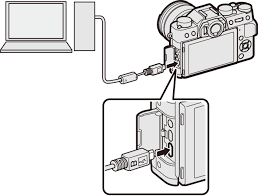
How to Connect a Webcam to Your Pc: A Step-by-step Guide
Are you struggling to connect your webcam to your PC? Don’t worry, we’ve got you covered! In this article, we’ll walk you through the simple steps to connect your webcam to your computer.
Choosing The Right Webcam
Before we dive into the setup process, make sure you have a compatible webcam. Not all webcams are created equal, and some may require specific drivers or software to function properly.
Step 1: Unboxing And Preparation
Carefully unbox your webcam and prepare it for installation. Check that all cables and accessories are included.
How to Connect a Webcam to Your PC (Fixed)
Connecting a webcam to your fixed PC is relatively straightforward. Here’s what you need to do:
- Connect The Usb Cable: Take the provided USB cable and connect one end to the webcam and the other end to an available USB port on your computer.
- Install Drivers (if Necessary): Depending on your operating system, you may need to install drivers for your webcam. Check with the manufacturer or our guide below for more information.
Installing Drivers
If your webcam doesn’t connect automatically, you’ll need to install the necessary drivers. Here’s how:
- Check With The Manufacturer: Visit the manufacturer’s website and check if they have a driver download section.
- Download And Install: Download the driver software from the manufacturer’s website and follow the installation instructions.
Connecting a Webcam to Your Portable PC
If you’re using a portable PC, the process is slightly different:
- Connect The Usb Cable: Connect the webcam to your portable PC using the provided USB cable.
- Install Drivers (if Necessary): As with fixed PCs, you may need to install drivers for your webcam.
Troubleshooting Tips
If your webcam doesn’t connect or functions erratically, try the following:
- Restart Your Computer: Sometimes a simple reboot can resolve connectivity issues.
- Check Driver Updates: Visit the manufacturer’s website and check if there are any driver updates available.
- Disable And Re-enable Drivers: Try disabling and re-enabling drivers to see if that resolves the issue.
How to Connect a Webcam to Your Mac
If you’re using a Mac, here’s what you need to do:
- Connect The Usb Cable: Connect the webcam to your Mac using the provided USB cable.
- No Driver Installation Required: MacOS usually recognizes webcams automatically. If not, visit the manufacturer’s website for driver updates.
Step 3: Configuring Your Webcam
Once connected and drivers installed (if necessary), it’s time to configure your webcam:
- Launch a Video Application: Open a video application such as Skype or FaceTime.
- Select Your Webcam: Choose your webcam from the list of available devices.
Conclusion
Connecting a webcam to your PC is a straightforward process that can be completed in just a few steps. If you encounter any issues, try restarting your computer, updating drivers, or disabling and re-enabling drivers. With this guide, you should now have a functioning webcam connected to your computer.
Frequently Asked Questions (FAQs)
- Q: Why Won’t my Webcam Connect?
A: Check if the USB cable is properly connected and that the driver software is installed. - Q: Do I Need to Install Drivers For my Mac?
A: No, macOS usually recognizes webcams automatically. - Q: How do I Configure my Webcam?
A: Launch a video application such as Skype or FaceTime and select your webcam from the list of available devices. - Q: Why is my Webcam Not Showing up in my Video Applications?
A: Try restarting your computer, updating drivers, or disabling and re-enabling drivers. - Q: Can I Connect Multiple Webcams to One Pc?
A: Yes, but you may need to install additional drivers and configure each camera separately. - Q: How do I Update my Webcam’s Drivers?
A: Visit the manufacturer’s website for driver updates. - Q: Why is my Webcam Not Functioning Properly?
A: Try restarting your computer or updating drivers. - Q: Can I Connect a Webcam to a Laptop?
A: Yes, the process is similar to connecting a webcam to a desktop PC.
Table of Contents
- Choosing the Right WebCam
- How to Connect a Webcam to Your PC (Fixed)
- Installing Drivers
- Connecting a Webcam to Your Portable PC
- Troubleshooting Tips
- How to Connect a Webcam to Your Mac
- Configuring Your Webcam
- Conclusion
- Frequently Asked Questions (FAQs)
Related Articles
- How to Record Video With a Webcam
- Best Webcams For Gaming And Streaming
- Webcam Driver Issues: Troubleshooting Tips
- Connecting Multiple Webcams to One PC


