
How to Delete Your Groupon Account: A Step-by-step Guide
Are you tired of receiving emails from Groupon, but don’t know how to delete your account? Look no further! In this article, we will guide you through the process of deleting your Groupon account on both computer and smartphone/tablet devices.
Why Delete Your Groupon Account?
Groupon is a popular online platform that offers exclusive deals and discounts on various products and services. However, if you’re not using the service regularly or have lost interest in it, deleting your account might be the best option for you.
The Risks of Deleting Your Groupon Account
Before we dive into the deletion process, it’s essential to note that deleting your Groupon account will result in the permanent loss of all associated data, including unused coupons and credits. If you change your mind later, there’s no way to recover your deleted account.
Deleting Your Groupon Account on Computer
To delete your Groupon account from a computer:
- Access The Groupon Website: Log in to your Groupon account by visiting the official website.
- Click on “Settings”: Click on the settings icon (represented by three horizontal lines) located at the top right corner of the page.
- Select “Account Settings”: From the dropdown menu, select “Account Settings”.
- Scroll Down to “Delete Account”: Scroll down to the bottom of the page and click on “Delete Account”.
- Confirm Account Deletion: Confirm that you want to delete your account by clicking on the “Confirm” button.
Deleting Your Groupon Account on Smartphone or Tablet
To delete your Groupon account from a smartphone or tablet:
- Download The Groupon App: Download the Groupon app from the App Store (for iOS devices) or Google Play Store (for Android devices).
- Log in to Your Account: Log in to your Groupon account using your credentials.
- Access Account Settings: Tap on the three horizontal lines at the top left corner of the screen and select “Account Settings”.
- Scroll Down to “Delete Account”: Scroll down to the bottom of the page and tap on “Delete Account”.
- Confirm Account Deletion: Confirm that you want to delete your account by tapping on the “Confirm” button.
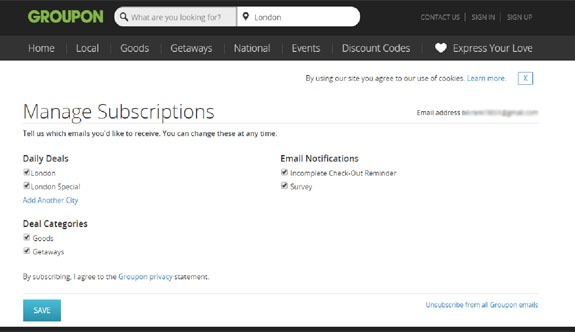
Disabling Groupon Newsletter
If you don’t want to delete your Groupon account entirely, but still want to stop receiving newsletters from them, follow these steps:
- Access The Groupon Website: Log in to your Groupon account using a computer.
- Click on “My Account”: Click on the “My Account” dropdown menu located at the top right corner of the page.
- Select “Newsletter”: From the dropdown menu, select “Newsletter”.
- Unsubscribe From Newsletters: Unsubscribe from all newsletters by clicking on the “Unsubscribe” button.
Frequently Asked Questions
Q: Will deleting my Groupon account affect any coupons I have?
A: Yes, deleting your Groupon account will result in the permanent loss of all associated data, including unused coupons and credits.
Q: Can I recover my deleted account?
A: No, once you delete your Groupon account, it cannot be recovered.
Q: How long does it take to delete a Groupon account?
A: The deletion process typically takes a few minutes to complete.
Q: Will deleting my Groupon account affect any other accounts I have?
A: Deleting your Groupon account will only affect the specific account you’re attempting to delete. Other accounts, if any, remain unaffected.
Q: Can I delete my Groupon account using the mobile app?
A: Yes, you can delete your Groupon account using the mobile app on both iOS and Android devices.
Q: How do I disable Groupon newsletter without deleting my account?
A: To disable Groupon newsletters without deleting your account, access the settings page, select “Newsletter”, and click on the “Unsubscribe” button.
Conclusion
Deleting your Groupon account is a straightforward process that can be completed on both computer and smartphone/tablet devices. However, please note that this will result in the permanent loss of all associated data. If you have any further questions or concerns, feel free to reach out to us.


