
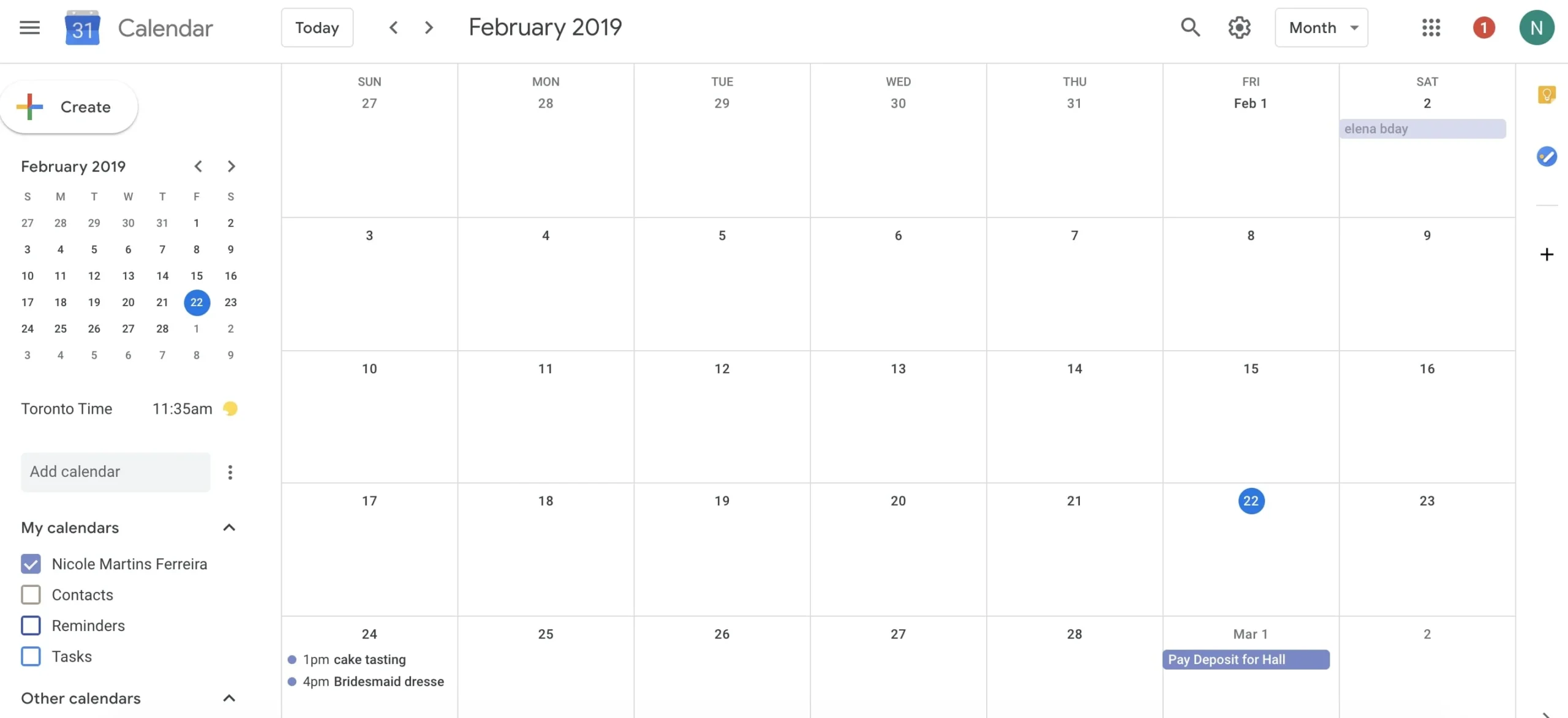
How to Use Google Calendar For Birthdays: A Step-by-step Guide
Are you tired of forgetting birthdays and special occasions? Do you want to make sure you never miss another important date? Look no further than Google Calendar! In this article, we will show you how to use Google Calendar to keep track of birthdays and other important dates.
Why Use Google Calendar For Birthdays?
Google Calendar is a powerful tool that can help you stay organized and on top of your schedule. By using it to track birthdays and other important dates, you can:
- Make sure you never forget a birthday or special occasion
- Keep track of multiple people’s birthdays in one place
- Set reminders and notifications to ensure you’re always punctual
- Easily share your calendar with friends and family
How to Synchronize Contacts With Google Calendar
To use Google Calendar for birthdays, you’ll first need to synchronize your contacts with the service. Here’s how:
- Access Your Google Account: Log in to your Google account on the web.
- Go to My Calendars: Click on the gear icon in the top right corner of the screen and select “My calendars.”
- Add a New Calendar: Click on the “+” button next to “Other calendars” and select “Create new calendar.”
- Name Your Calendar: Give your birthday calendar a name, such as “Birthdays.”
How to Add Birthdays to Google Contacts
Now that you’ve set up your birthday calendar, it’s time to add birthdays to your contacts:
- Access Your Google Account: Log in to your Google account on the web.
- Go to Your Contacts: Click on the gear icon in the top right corner of the screen and select “Contacts.”
- Add a New Contact: Click on the “+” button next to “New contact” and fill out the contact’s information.
- Add Birthday Information: Scroll down to the “Birthday” section and enter the person’s birthday.
How to Use Google Calendar For Birthdays on Android, Ios, or Ipados
If you use an Android, iOS, or iPadOS device, you can also use Google Calendar to track birthdays:
- Download The Google Calendar App: Download the Google Calendar app from the Google Play Store (for Android) or the App Store (for iOS).
- Open The App: Open the Google Calendar app and log in with your Google account.
- Add a Birthday Event: Tap on the “+” button to create a new event, then select “Birthday” as the type of event.
How to Create Recurring Events For Birthdays
To make sure you never forget a birthday, create recurring events:
- Create a New Event: Tap on the “+” button to create a new event.
- Select The Type of Event: Select “Recurring” as the type of event.
- Set The Frequency: Set the frequency of the event (e.G., Every year).
How to Use Google Calendar For Birthdays on PC
If you use a PC, you can also use Google Calendar to track birthdays:
- Access Your Google Account: Log in to your Google account on the web.
- Go to My Calendars: Click on the gear icon in the top right corner of the screen and select “My calendars.”
- Add a New Event: Click on the “+” button next to “New event” and fill out the event’s information.
Tips For Using Google Calendar For Birthdays
Here are some additional tips for using Google Calendar for birthdays:
- Make sure you have a dedicated calendar for birthdays.
- Set reminders and notifications to ensure you’re always punctual.
- Share your calendar with friends and family so they can also stay on top of birthdays.
- Consider creating recurring events for special occasions like anniversaries or holidays.
Conclusion
Using Google Calendar for birthdays is a simple and effective way to keep track of important dates. By following these steps, you’ll be able to:
- Synchronize your contacts with Google Calendar
- Add birthdays to your contacts
- Create recurring events for birthdays
- Use Google Calendar on Android, iOS, or iPadOS devices
- Use Google Calendar on PC
Frequently Asked Questions
Here are some frequently asked questions about using Google Calendar for birthdays:
- Q: Do I Need to Have a Google Account to Use Google Calendar?
A: Yes, you’ll need to have a Google account to use Google Calendar. - Q: Can I Use Google Calendar on Multiple Devices?
A: Yes, you can use Google Calendar on multiple devices, including Android, iOS, and iPadOS devices, as well as PC. - Q: How do I Add Birthdays to my Contacts?
A: To add birthdays to your contacts, go to your Google account settings and select “Contacts.” Then, click on the “+” button next to “New contact” and fill out the contact’s information, including their birthday. - Q: Can I Create Recurring Events For Special Occasions Like Anniversaries or Holidays?
A: Yes, you can create recurring events for special occasions like anniversaries or holidays by following the same steps as creating a recurring event for a birthday. - Q: How do I Share my Calendar With Friends And Family?
A: To share your calendar with friends and family, go to your Google account settings and select “My calendars.” Then, click on the gear icon in the top right corner of the screen and select “Share.”


