
How to Convey Monitor From Smartphone to TV
Are you tired of watching videos or playing games on your small smartphone screen? Do you want to share the experience with friends and family on a larger TV screen? You’re in luck! Conveying the monitor from your smartphone to TV is easier than ever, and we’ll guide you through the process.
What You Need to Know
Before we dive into the steps, it’s essential to understand that conveying the monitor from your smartphone to TV requires some technical knowledge. However, with this guide, you’ll be able to navigate the process smoothly.
Types of Devices For Conveying Monitor
There are several devices available in the market that can help you convey the monitor from your smartphone to TV. Some popular options include:
- Chromecast: A small device developed by Google that allows you to stream content from your smartphone or tablet to your TV.
- Apple TV: A digital media player developed by Apple that allows you to stream content from your iPhone, iPad, or Mac to your TV.
- Fire TV Stick: A streaming media player developed by Amazon that allows you to stream content from your smartphone or tablet to your TV.
Step-by-step Guide For Conveying Monitor
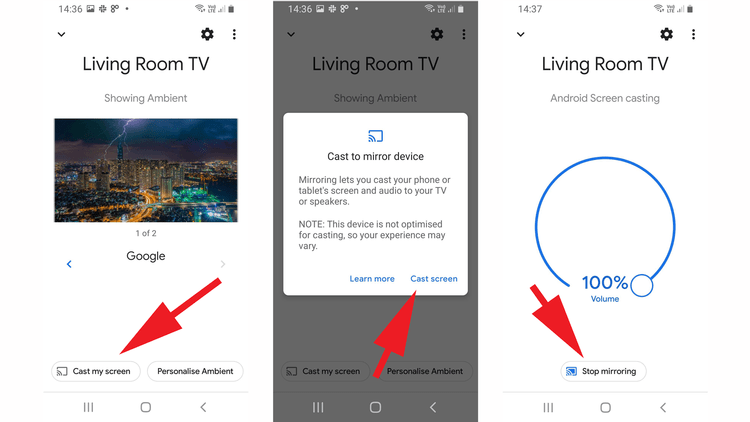
Here’s a step-by-step guide on how to convey the monitor from your smartphone to TV using Chromecast:
- Connect Chromecast to Your TV: Connect Chromecast to your TV using an HDMI cable.
- Download The Google Home App: Download the Google Home app on your smartphone or tablet.
- Configure Chromecast: Configure Chromecast by following the instructions in the Google Home app.
- Convey Monitor: Once you’ve configured Chromecast, you can convey the monitor from your smartphone to TV using the Google Home app.
Alternative Options
If you don’t have a Chromecast or Apple TV, you can use alternative options like:
- Miracast: A wireless display technology that allows you to project content from your smartphone or tablet to your TV.
- Airplay: A wireless technology developed by Apple that allows you to stream content from your iPhone, iPad, or Mac to your TV.
Tips And Tricks
Here are some tips and tricks to keep in mind when conveying the monitor from your smartphone to TV:
- Make Sure Your Smartphone And TV Are Connected to The Same Wi-fi Network.
- Ensure That Your Chromecast or Apple TV is Properly Configured.
- Use a Good Quality Hdmi Cable For Optimal Performance.
Conclusion
Conveying the monitor from your smartphone to TV is easier than ever, and with this guide, you’ll be able to navigate the process smoothly. Remember to choose the right device for your needs and follow the step-by-step guide for a seamless experience.
FAQs
Here are some frequently asked questions (FAQs) about conveying the monitor from your smartphone to TV:
Q: What devices can I use to convey the monitor from my smartphone to TV?
A: You can use Chromecast, Apple TV, Fire TV Stick, Miracast, or AirPlay to convey the monitor from your smartphone to TV.
Q: How do I configure Chromecast?
A: To configure Chromecast, download the Google Home app on your smartphone or tablet and follow the instructions in the app.
Q: Can I use Miracast to convey the monitor from my smartphone to TV?
A: Yes, you can use Miracast to convey the monitor from your smartphone to TV. Make sure that your smartphone and TV are connected to the same Wi-Fi network.
Q: What are some tips and tricks for conveying the monitor from my smartphone to TV?
A: Some tips and tricks include making sure that your smartphone and TV are connected to the same Wi-Fi network, ensuring that your Chromecast or Apple TV is properly configured, and using a good quality HDMI cable for optimal performance.


