
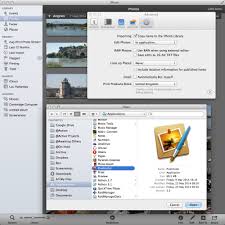
The Ultimate Guide to Using Photo on Iphone, Ipad, Mac, And Icloud
Are you tired of feeling lost when it comes to organizing your photos across all your Apple devices? Look no further! In this comprehensive guide, we’ll walk you through the process of using Photo on iPhone, iPad, Mac, and iCloud.
What is Photo?
Photo is the official photo management app developed by Apple. It’s designed to help you organize, edit, and share your photos across all your Apple devices. Whether you’re an iPhone user or a Mac owner, Photo is the perfect solution for managing your digital memories.
How to File Photos on Iphone With Photo
Filing photos on iPhone with Photo is a breeze. Here’s how:
- Open The Photo App: You can find it on your home screen.
- Tap on The “Albums” Tab: This will take you to the album view, where you’ll see all your existing albums and folders.
- Create a New Album or Folder: Tap on the “+” icon in the top-right corner of the screen. You can choose to create a new album, smart album, or folder.
- Add Photos to Your Album or Folder: To add photos, tap on the “Select” button at the top of the screen and then select the photos you want to add.
How to File Photos on Mac With Photo
Filing photos on Mac with Photo is also easy. Here’s how:
- Open The Photo App: You can find it in your Applications folder.
- Tap on The “Albums” Tab: This will take you to the album view, where you’ll see all your existing albums and folders.
- Create a New Album or Folder: Tap on the “+” icon in the top-left corner of the window. You can choose to create a new album, smart album, or folder.
- Add Photos to Your Album or Folder: To add photos, drag and drop them into the album or folder you want to add them to.
How to File Photos on Icloud With Photo
Filing photos on iCloud with Photo is also easy. Here’s how:
- Open The Settings App: You can find it on your home screen.
- Tap on The “iCloud” Tab: This will take you to the iCloud settings page.
- Toggle on The “Photos” Switch: This will enable iCloud Photos and sync your photos across all your Apple devices.
- Confirm The Operation: Enter your password to confirm.
Benefits of Using Photo
Using Photo has many benefits, including:
- Seamless Syncing: Your photos are synced across all your Apple devices, ensuring you always have access to them.
- Smart Organization: Photo uses AI-powered algorithms to organize your photos into albums and folders based on date, location, and other factors.
- Editing And Sharing Capabilities: Photo allows you to edit and share your photos directly from the app.
Conclusion
In conclusion, using Photo is a great way to manage your digital memories across all your Apple devices. With its seamless syncing capabilities, smart organization features, and editing and sharing capabilities, Photo is the perfect solution for anyone looking to take their photo management to the next level.
Frequently Asked Questions (FAQs)
Here are some frequently asked questions about using Photo:
Q: How do I create a new album or folder in Photo?
A: To create a new album or folder, tap on the “+” icon in the top-right corner of the screen (on iPhone) or top-left corner of the window (on Mac).
Q: How do I add photos to my album or folder in Photo?
A: To add photos, tap on the “Select” button at the top of the screen (on iPhone) or drag and drop them into the album or folder (on Mac).
Q: How do I enable iCloud Photos?
A: To enable iCloud Photos, toggle on the “Photos” switch in the Settings app.
Q: What are the benefits of using Photo?
A: The benefits of using Photo include seamless syncing, smart organization, editing and sharing capabilities, and more.
Q: Can I edit photos directly from the Photo app?
A: Yes, you can edit photos directly from the Photo app.
Q: How do I share photos from the Photo app?
A: To share photos, tap on the “Share” button at the top of the screen and select the sharing option you prefer.
Q: Can I access my photos across all my Apple devices with Photo?
A: Yes, with Photo, your photos are synced across all your Apple devices.


