
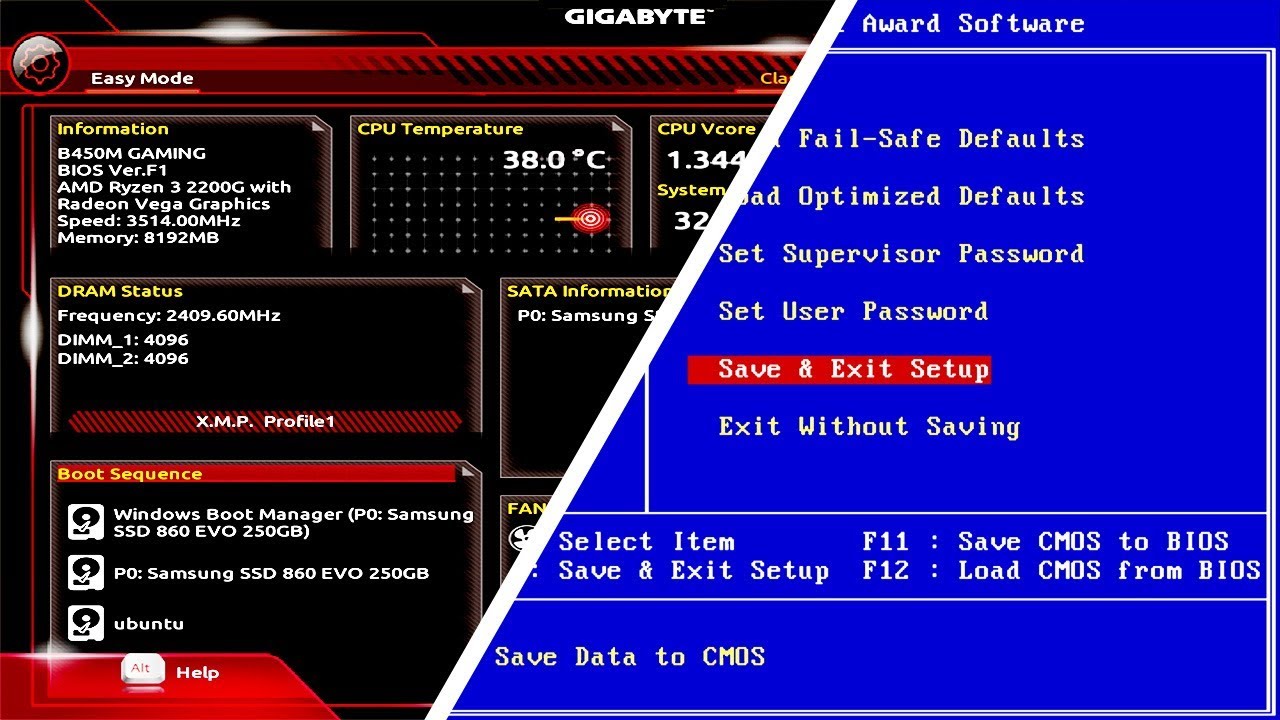
Understanding Your Computer’s Bios: A Comprehensive Guide
Are you curious about the inner workings of your computer? Do you want to learn how to navigate the complex world of computer settings? Look no further! In this article, we’ll delve into the world of BIOS (Basic Input-Output System) and UEFI (Unified Extensible Firmware Interface), two crucial components that govern your computer’s behavior.
What is Bios?
BIOS is a set of instructions stored in non-volatile memory that controls how your computer interacts with its hardware and software components. It provides basic information to help your computer boot up correctly and initiate the operating system. Think of it as the “brain” of your computer, responsible for setting the stage for a smooth operation.
What is Uefi?
UEFI is a more modern alternative to BIOS, designed to be more efficient and secure. It offers a graphical interface that can be navigated with a mouse or keyboard, making it easier to configure settings. UEFI also provides advanced features like Secure Boot, which prevents unauthorized operating systems from booting.
Accessing The Bios/uefi Settings
To access the BIOS or UEFI settings, you’ll need to follow these steps:
- Restart your computer.
- Press a specific key (usually F10, F2, Esc, or Canc) as soon as it starts booting up. This will take you to the BIOS or UEFI interface.
- Use the arrow keys to navigate through the menu and select the desired settings.
Modifying Bios/uefi Settings
Before making any changes, ensure you understand what each setting does. Some common operations include:
- Adjusting the boot order to prioritize a specific drive (e.G., SSD or USB).
- Setting up secure boot to prevent unauthorized operating systems.
- Modifying power management settings for better energy efficiency.
Warning: Be Cautious When Modifying Settings
Modifying BIOS/UEFI settings can have unintended consequences, so it’s essential to be cautious. If you’re unsure about what to change or how to do it, consider seeking professional help.
Accessing Uefi Settings on Specific Devices
If your device uses the classic BIOS instead of UEFI, follow these steps:
- Press a specific key (usually F10, F2, Esc, or Canc) as soon as it starts booting up.
- Use the arrow keys to navigate through the menu and select the desired settings.
Accessing Bios Settings on Macs
Unfortunately, Apple has disabled access to the BIOS menu on newer Mac devices. However, you can still reset the NVRAM (non-volatile memory) or SMC (System Management Controller) to resolve some issues.
Conclusion
In conclusion, understanding your computer’s BIOS and UEFI settings is essential for optimal performance and security. Remember to approach these settings with caution and take necessary precautions before making any modifications.
Frequently Asked Questions
- What is The Difference Between Bios And Uefi?
BIOS is an older system that provides basic information for booting up, while UEFI is a more modern alternative that offers advanced features like Secure Boot. - How do I Access The Bios/uefi Settings on my Computer?
Restart your computer and press a specific key (usually F10, F2, Esc, or Canc) as soon as it starts booting up. - Can I Modify The Bios/uefi Settings Myself?
Yes, but be cautious and understand what each setting does before making any changes. - What is Secure Boot And How Does it Work?
Secure Boot prevents unauthorized operating systems from booting by verifying a digital signature on the operating system. - How do I Reset The Nvram or Smc on my Mac?
Resetting the NVRAM or SMC can resolve some issues, but consult Apple’s official documentation for instructions. - What is The Importance of Updating Uefi Firmware?
Updating UEFI firmware ensures you have the latest security patches and features to keep your computer running smoothly.
Bonus Tips
- Regularly update your UEFI firmware for better security and performance.
- Consider consulting professional help if unsure about modifying BIOS/UEFI settings.
- Take necessary precautions when changing boot order or secure boot settings.


