
How to Share Rows on Google Drive, Dropbox, Onedrive, Teams, And Excel
Are you tired of sharing files manually? Do you want to make it easy for others to access your documents without having to send them via email or messaging apps? Look no further! In this article, we will explore the various ways to share rows on different platforms, including Google Drive, Dropbox, OneDrive, Teams, and Excel.
What is Sharing Rows?
Sharing rows refers to the process of making files or folders accessible to others. This can be done by sending a link, inviting users via email, or granting permission to view or edit specific documents.
Google Drive: The Ultimate File-sharing Platform
Google Drive is one of the most popular file-sharing platforms available today. With its intuitive interface and seamless integration with Google’s other services, it’s no wonder why millions of users rely on it for their storage needs.
How to Share Rows on Google Drive
To share rows on Google Drive, follow these simple steps:
- Access Google Drive: Log in to your Google account and navigate to the Google Drive page.
- Upload Files or Folders: Drag and drop files or folders into the Google Drive window or use the “New” button to upload new content.
- Share With Others: Right-click on a file or folder, select “Share,” and enter the email address of the person you want to share it with.
- Choose Permissions: Select from three permission levels: Editor (can edit), Viewer (can view), or Commenter (can only comment).
- Send The Link: Click “Send” to send a notification to the recipient, or click “Copy link” to generate a sharable link.
Dropbox: A Popular Alternative
Dropbox is another widely used file-sharing platform that offers a range of features and plans to suit different needs.
How to Share Rows on Dropbox
To share rows on Dropbox:
- Access Dropbox: Log in to your Dropbox account or create a new one.
- Upload Files or Folders: Click the “Upload” button, drag and drop files into the Dropbox window, or use the “Share” feature for existing content.
- Select Sharing Options: Choose from three permission levels: Can edit, Can view, or Can comment.
- Send a Link or Email: Select how you want to share the file with others.
Onedrive: A Cloud Storage Service
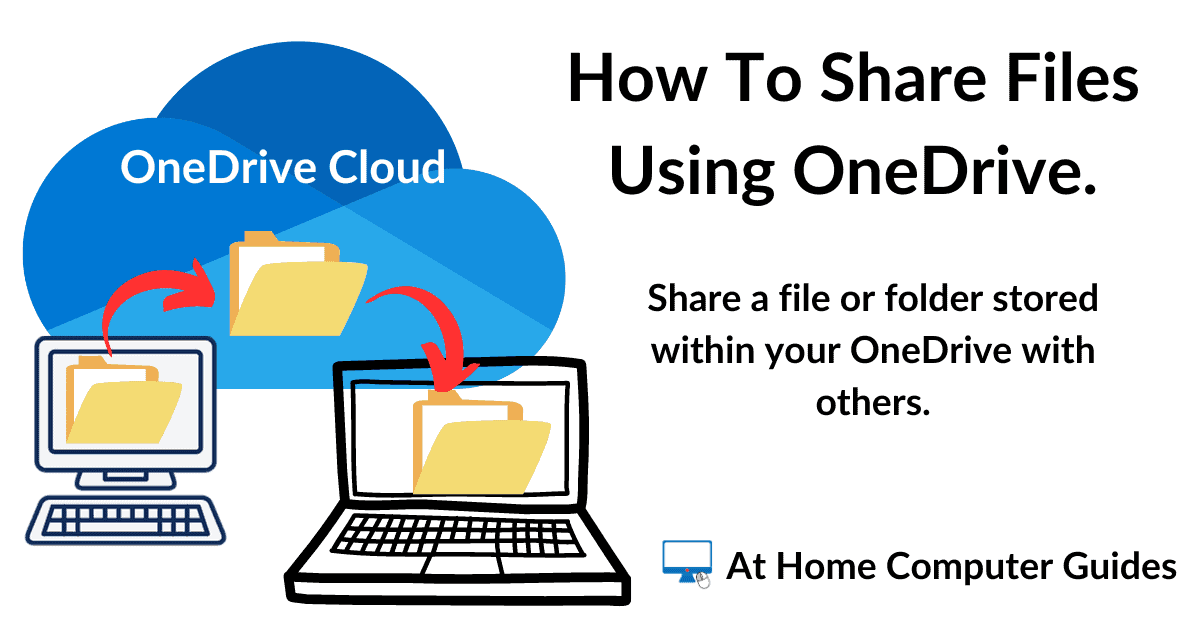
Microsoft’s OneDrive is a cloud storage service that allows users to store and share files across multiple devices.
How to Share Rows on Onedrive
To share rows on OneDrive:
- Access Onedrive: Log in to your Microsoft account and navigate to the OneDrive page.
- Upload Files or Folders: Click the “Upload” button, drag and drop files into the OneDrive window, or use the “Share” feature for existing content.
- Select Sharing Options: Choose from three permission levels: Can edit, Can view, or Can comment.
- Send a Link or Email: Select how you want to share the file with others.
Teams: A Collaboration Tool
Microsoft Teams is a collaboration tool that allows teams to communicate and work together in real-time.
How to Share Rows on Teams
To share rows on Teams:
- Access Teams: Log in to your Microsoft account and navigate to the Teams page.
- Share Files or Folders: Click the “Share” button, select the file or folder you want to share, and choose the permission level.
- Send a Link or Email: Select how you want to share the file with others.
Excel: A Spreadsheet Software
Microsoft Excel is a popular spreadsheet software that allows users to create and edit spreadsheets.
How to Share Rows on Excel
To share rows on Excel:
- Access Excel: Log in to your Microsoft account and navigate to the Excel page.
- Share Files or Folders: Click the “Share” button, select the file or folder you want to share, and choose the permission level.
- Send a Link or Email: Select how you want to share the file with others.
Conclusion
Sharing rows on different platforms has never been easier. Whether you’re using Google Drive, Dropbox, OneDrive, Teams, or Excel, following these simple steps will allow you to make your files accessible to others in no time.
Faqs
- What is Sharing Rows?
Sharing rows refers to the process of making files or folders accessible to others. - How do I Share Rows on Google Drive?
To share rows on Google Drive, follow the steps outlined above. - Can I Share Rows on Dropbox?
Yes, you can share rows on Dropbox using the “Share” feature. - What Are The Permission Levels For Sharing Rows on Onedrive?
OneDrive offers three permission levels: Can edit, Can view, and Can comment. - How do I Access Teams to Share Rows?
To access Teams, log in to your Microsoft account and navigate to the Teams page. - Can I Use Excel to Share Rows?
Yes, you can use Excel to share rows using the “Share” feature. - What is The Best Way to Share Heavy Files?
For heavy files, consider using services like WeTransfer or pCloud. - How do I Ensure my Shared Files Are Secure?
To ensure your shared files are secure, choose a permission level that limits access to only those who need it.
We hope this article has helped you understand how to share rows on various platforms. If you have any further questions, feel free to ask!


