
Fixing No Sound Issues on Your Pc: A Step-by-step Guide
Are you frustrated with no sound issues on your Windows computer? Don’t worry, we’ve got you covered! In this article, we’ll walk you through a step-by-step guide to help you troubleshoot and fix the problem.
Symptoms of No Sound Issues
Before we dive into the solutions, let’s identify the symptoms of no sound issues. If you’re experiencing any of the following problems, then you’ve come to the right place:
- Your PC is not producing any sound, even when you play music or videos.
- The volume is low, and you can’t increase it using the speaker icon on your desktop.
- You hear distorted or static sounds coming from your speakers.
Step 1: Check The Connections
The first step to fixing no sound issues is to check the connections. Make sure that:
- Your external speakers are properly connected to the correct jacks (green, blue, and pink) on the back of your computer.
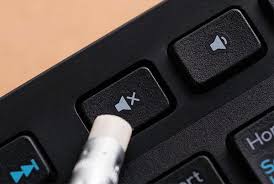
- The volume control is turned up and not muted.
Step 2: Check The Device Manager
The next step is to check the device manager for any issues with your audio drivers. To do this:
- Go to the Start menu and type “Device Manager” in the search bar.
- Expand the “Sound, video and game controllers” section.
- Look for any devices that are not functioning properly or have a yellow exclamation mark next to them.
Step 3: Update Audio Drivers
If you find any issues with your audio drivers, update them immediately. To do this:
- Right-click on each device and select “Update driver.”
- Follow the prompts to download and install the latest drivers from the manufacturer’s website.
Step 4: Restart Your PC
Sometimes, simply restarting your PC can resolve no sound issues. Try restarting your computer and see if the problem persists.
Step 5: Use The Built-in Audio Troubleshooter
Windows has a built-in audio troubleshooter that can help you identify and fix common audio problems. To access it:
- Go to the Start menu and type “Troubleshoot” in the search bar.
- Select “Audio Troubleshooter” from the list of available troubleshooters.
Step 6: Check For Hardware Issues
If none of the above steps resolve the issue, then there might be a hardware problem with your speakers or sound card. Try using a different pair of speakers or connecting an external sound card to see if it resolves the problem.
Why Are My Audio Drivers Not Working?
Sometimes, audio drivers can become corrupted or outdated, leading to no sound issues. Here are some common reasons why this might happen:
- Outdated Drivers: If your drivers are not up-to-date, they may not be able to communicate with your computer properly.
- Corrupted Drivers: Corrupted drivers can cause a range of problems, including no sound issues.
- Hardware Conflicts: Conflicts between hardware devices can cause audio drivers to malfunction.
What Can I Do to Fix No Sound Issues on My Mac?
If you’re experiencing no sound issues on your Mac, here are some steps you can take to resolve the problem:
- Check that the volume is turned up and not muted.
- Try restarting your Mac and see if the problem persists.
- Use the built-in audio troubleshooter to identify and fix common audio problems.
- Update your audio drivers using the Apple Support website.
Conclusion
No sound issues can be frustrating, but by following these steps, you should be able to resolve the problem. Remember to always check the connections, update audio drivers, restart your PC or Mac, use the built-in troubleshooter, and check for hardware issues.
Frequently Asked Questions (FAQs)
Here are some frequently asked questions related to no sound issues:
- Why is my Computer Not Producing Any Sound?
There could be a range of reasons why your computer is not producing any sound, including outdated audio drivers, corrupted files, or hardware conflicts.
- How Can I Fix The Problem if It’s Caused by Outdated Drivers?
You can try updating your audio drivers using the manufacturer’s website or using the built-in troubleshooter on Windows.
- Why am I Experiencing Distorted or Static Sounds Coming From my Speakers?
Distorted or static sounds could be caused by a range of factors, including corrupted files, hardware conflicts, or outdated drivers.
- Can I Fix no Sound Issues if It’s Caused by Hardware Problems?
Yes, you can try using a different pair of speakers or connecting an external sound card to see if it resolves the problem.
- Why is my Mac Not Producing Any Sound?
There could be a range of reasons why your Mac is not producing any sound, including outdated audio drivers, corrupted files, or hardware conflicts.
- How Can I Troubleshoot no Sound Issues on my Windows Computer?
You can try using the built-in audio troubleshooter on Windows to identify and fix common audio problems.
- Can I Use External Speakers With my Laptop?
Yes, you can use external speakers with your laptop as long as they are properly connected to the correct jacks.
- Why am I Experiencing no Sound Issues on my Gaming Console?
There could be a range of reasons why you’re experiencing no sound issues on your gaming console, including corrupted files, hardware conflicts, or outdated audio drivers.


