
How to Add a Printer on Mac: A Step-by-step Guide
Are you struggling to connect your new printer to your Mac? Don’t worry, we’ve got you covered! In this article, we’ll guide you through the process of adding a printer on Mac, whether it’s connected via USB or wirelessly.
Understanding Your Printer’s Connectivity Options
Before we dive into the setup process, let’s quickly discuss the different connectivity options for your printer:
- Usb: If your printer is connected to your Mac using a USB cable, you can simply follow our step-by-step guide below.
- Wireless: If your printer has wireless capabilities, you’ll need to configure it to connect to your Mac using Wi-Fi. We’ll cover this process in detail later.
Adding a Printer on Mac Without CD
You might be thinking that installing a printer on Mac requires a CD or DVD, but fortunately, that’s not the case! Apple recommends installing printer software directly from the internet, and most printers come with their own setup apps. Follow these steps to add your printer:
- Connect Your Printer to Your Mac: Plug in the USB cable or ensure your wireless printer is connected to the same network as your Mac.
- Open System Preferences: Click on the Apple menu and select “System Preferences.”
- Select Printers & Scanners: In the System Preferences window, click on “Printers & Scanners” under Hardware.
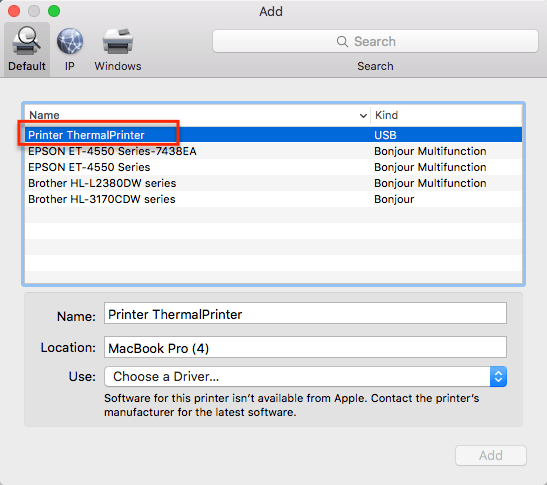
- Click The “+” Button: At the bottom left corner of the window, you’ll see a “+” button. Click on it to add a new printer.
- Select Your Printer: Choose the manufacturer and model of your printer from the list.
- Follow The Installation Process: The setup app will guide you through the installation process.
Installing HP Printer on Mac
If you have an HP printer, follow these additional steps:
- Download The HP Smart App: Go to the App Store and download the HP Smart app for Desktop.
- Open The HP Smart App: Launch the app and follow the on-screen instructions to set up your printer.
- Configure Your Printer: Connect your printer to the same Wi-Fi network as your Mac, and configure it using the app.
Adding Printer With Wi-fi Direct
If you have a printer with Wi-Fi Direct capabilities, follow these steps:
- Enable Wi-fi Direct on Your Printer: Check your printer’s manual for instructions on enabling Wi-Fi Direct.
- Configure Your Mac to Connect to The Printer: Go to System Preferences > Wi-Fi and select “Wi-Fi Direct” as the network type.
- Connect Your Mac to The Printer: Enter the password provided by your printer, and you should now be connected.
Troubleshooting Common Issues
If you encounter any issues during the setup process, don’t worry! Here are some common problems and their solutions:
- Printer Not Recognized: Make sure your printer is properly connected to your Mac or Wi-Fi network.
- Driver Not Installed: Check if the driver for your printer has been successfully installed.
Conclusion
Adding a printer on Mac can seem daunting at first, but with these steps, you should be able to get it up and running in no time! Whether you’re using a USB connection or wireless capabilities, we’ve got you covered. Don’t hesitate to reach out if you have any further questions.
Frequently Asked Questions (FAQs)
- Q: Can I Add Multiple Printers on my Mac?
A: Yes, you can add as many printers as you need. - Q: Do I Need to Restart my Mac After Adding a Printer?
A: No, restarting your Mac is not necessary. - Q: How do I Remove an Unwanted Printer From my Mac?
A: Go to System Preferences > Printers & Scanners and select the printer you want to remove. - Q: Can I Print Wirelessly Without a Router?
A: Yes, using Wi-Fi Direct or AirPrint allows you to print wirelessly without a router. - Q: What if my Printer Doesn’t Connect to my Mac?
A: Try restarting your printer and Mac, then try reconnecting them. - Q: Can I Use Multiple Wireless Networks With my Mac?
A: Yes, but make sure your printer is connected to the same network as your Mac. - Q: How do I Reset my Printer’s Settings?
A: Check your printer’s manual for instructions on resetting its settings.
The Final Word
We hope this article has helped you understand how to add a printer on Mac. Remember, it’s always a good idea to consult the user manual of your specific printer model for detailed instructions. Happy printing!


