
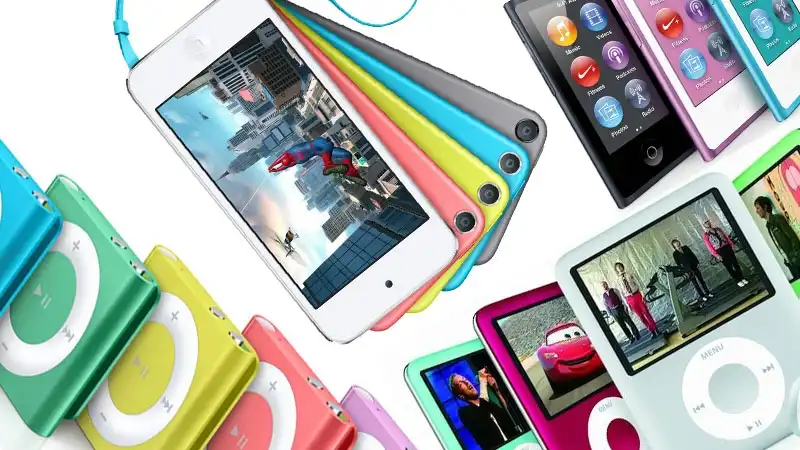
How to Transfer Music From Computer to Ipod Without Itunes
Are you tired of using iTunes to transfer music from your computer to your iPod? Do you want a more efficient and user-friendly way to manage your music library? Look no further! In this article, we will explore the various options available to transfer music from your computer to your iPod without using iTunes.
The Problem With Itunes
ITunes is a popular media player developed by Apple that allows users to manage their music libraries on multiple devices. However, it has its limitations and can be quite complicated to use. For example, iTunes requires you to sync your music library with the device, which can take up a lot of time and space on your computer.
Alternatives to Itunes
Fortunately, there are several alternatives to iTunes that offer similar functionality without the hassle. In this article, we will explore some of these options in detail.
1. Imazing
IMazing is a free program that allows you to transfer music from your computer to your iPod (touch) without syncing with iTunes. This software also supports transferring messages and other data between devices. The free version has a limitation of 100 files, but it’s still a great option for small music libraries.
Step-by-step Guide:
- Download the iMazing program from their official website.
- Install the program on your computer (Windows or macOS).
- Connect your iPod to your computer using a USB cable.
- Launch the iMazing program and select “Transfer” as the action you want to perform.
- Drag the music files you want to transfer into the iMazing window.
2. Iexplorer
IExplorer is another free program that allows you to transfer music from your computer to your iPod without syncing with iTunes. This software also supports transferring data between devices and has a user-friendly interface.
Step-by-step Guide:
- Download the iExplorer program from their official website.
- Install the program on your computer (Windows or macOS).
- Connect your iPod to your computer using a USB cable.
- Launch the iExplorer program and select “Files” as the option you want to view.
- Select the music files you want to transfer and drag them into the iExplorer window.
3. Finder (macOS)
If you’re using a Mac, you can use the built-in Finder program to transfer music from your computer to your iPod without syncing with iTunes.
Step-by-step Guide:
- Connect your iPod to your Mac using a USB cable.
- Launch the Finder program and select “iPod” as the device you want to view.
- Select the music files you want to transfer and drag them into the Finder window.
4. Airdrop (macOS)
AirDrop is a feature developed by Apple that allows you to transfer files between devices using Wi-Fi or Bluetooth. You can use AirDrop to transfer music from your Mac to your iPod without syncing with iTunes.
Step-by-step Guide:
- Connect your iPod to your Mac using a USB cable.
- Launch the AirDrop program on both devices and select “Receive” as the option you want to view.
- Select the music files you want to transfer and drag them into the AirDrop window.
Other Options
There are several other options available to transfer music from your computer to your iPod without syncing with iTunes, including:
- CopyTrans Manager (Windows)
- MediaMonkey (Windows)
- IMusic (Windows/macOS)
Streaming Services
If you’re looking for a more convenient way to access music on your iPod without transferring files directly from your computer, consider using streaming services like Apple Music, Spotify, or Amazon Music. These services allow you to stream millions of songs, albums, and playlists directly to your device.
Conclusion
Transferring music from your computer to your iPod doesn’t have to be a hassle. With the options listed above, you can choose the one that best suits your needs. Whether you prefer using software programs or streaming services, there’s a solution for everyone.
Frequently Asked Questions (FAQs)
Q: What are some alternatives to iTunes for transferring music from computer to iPod?
A: Some alternatives include iMazing, iExplorer, Finder (macOS), and AirDrop (macOS).
Q: How do I transfer music from my computer to my iPod without syncing with iTunes?
A: You can use software programs like iMazing or iExplorer to transfer music directly from your computer to your iPod.
Q: Can I use streaming services to access music on my iPod without transferring files directly from my computer?
A: Yes, you can use streaming services like Apple Music, Spotify, or Amazon Music to stream millions of songs, albums, and playlists directly to your device.
Q: What are some other options available for transferring music from computer to iPod?
A: Some other options include CopyTrans Manager (Windows), MediaMonkey (Windows), and iMusic (Windows/macOS).
Q: Can I use AirDrop to transfer music from my Mac to my iPod without syncing with iTunes?
A: Yes, you can use AirDrop to transfer files between devices using Wi-Fi or Bluetooth.
Q: Are there any limitations to the options listed above?
A: Some software programs have limitations, such as file size limits or free version restrictions.


