
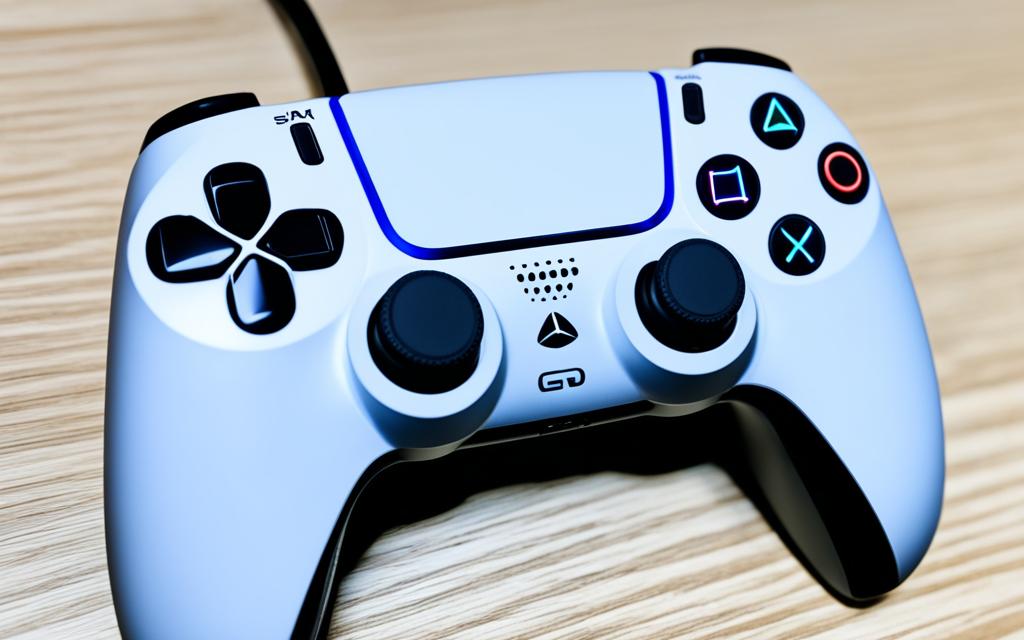
Resetting Your Playstation 5 Controller: A Step-by-step Guide
Are you tired of dealing with pesky controller issues on your PS5? Look no further! In this article, we’ll guide you through the process of resetting your DualSense controller, ensuring it functions smoothly and efficiently.
Why Reset Your Ps5 Controller?
Resetting your PS5 controller can resolve various issues, such as:
- Controller not responding or connecting to the console
- Repeated disconnections from the console
- Inability to use certain features or functions
Before we dive into the steps, it’s essential to note that resetting your controller will restore its factory settings. This means you’ll need to reconfigure any custom settings or personalizations you’ve made.
Step 1: Try a Soft Reset
A soft reset is often the first step in resolving controller issues. To do this:
- Turn off your PS5 console
- Press and hold the PlayStation button on your controller until it turns off (about 10-15 seconds)
- Release the button and turn on your console again
This simple procedure can sometimes resolve minor connectivity or function issues.
TheBolded Heading:Resetting Your Controller via Settings**
If a soft reset doesn’t work, you may need to resort to resetting your controller through the PS5’s settings. Here’s how:
- Connect your controller to the PS5 using a USB cable
- Go to Settings > Accessories > DualSense Wireless Controller
- Select “Reset” and confirm
Step 3: Hard Reset Your Controller (Manual Procedure)
If you don’t have another working controller or prefer not to use the settings reset method, a hard reset is an option. You’ll need:
- A sharp object, such as a pin or needle
- Your PS5 console turned off
Insert the object into the small hole on the back of your DualSense controller (near the written logo “SONY”). Press and hold for around 10 seconds. Release and turn on your PS5 console again.
What to Do If Resetting Doesn’t Work
If resetting doesn’t resolve the issue, it’s possible that there are underlying hardware problems with your controller. In this case:
- Contact PlayStation support for further assistance
- Visit the official PlayStation website for guidance on repair or replacement
Important Reminders And Considerations
Before attempting any reset procedures, keep in mind:
- A reset will erase all custom settings and configurations
- If you experience persistent issues after resetting, it may be a sign of hardware problems
By following these steps and considering the above reminders, you should be able to resolve controller issues on your PS5.
Faqs
- What Happens if I Reset my Ps5 Controller?
A: Resetting your controller restores its factory settings, erasing any custom configurations or personalizations. - Can I Reset my Ps5 Controller Without a Second Working Controller?
A: Yes, you can perform a hard reset using a manual procedure with a sharp object. - Will Resetting my Ps5 Controller Affect Online Multiplayer Features?
A: No, resetting your controller should not impact online multiplayer capabilities. - How do I Prevent Controller Issues in The Future?
A: Regularly cleaning and maintaining your controller, as well as updating your console’s software, can help minimize the risk of issues. - Can I Contact Playstation Support For Assistance With Controller Resets?
A: Yes, you can reach out to PlayStation support for guidance on resetting or troubleshooting controller-related problems.
By following this guide, you should be able to resolve common PS5 controller issues and enjoy a seamless gaming experience.


