
Connect Samsung to Tv: A Complete Guide
Introduction
Your Samsung smartphone is a real marvel, isn’t it? with all its built-in features, it can do so many things you might not even know about. But often, we find ourselves using it for only half of its potential because we don’t know the tools necessary to exploit all its capabilities. In this guide, I will explain how to connect your Samsung to the TV, so you can use the television as a monitor to see the contents of your smartphone.
How to Connect Samsung to tv Without Cable
The first option I present to you is to connect your Samsung to the TV without cable. This solution is easier and faster, but may not be available in all situations. To do this, you will use your smartphone’s mirroring function, which will allow you to view the content on your television.
Using The Smart View Function
The first thing to do is make sure your TV is equipped with Miracast technology. To do this, you can search online for how to activate the miracast function on your samsung brand device or even other compatible devices. Once this is done, follow these steps:
-
Connect both devices to the same wi-fi network.
-
Go to the settings menu of your smartphone and select the “connected devices” item.
-
Scroll down until you find the smart view feature and tap on it.
-
If it is the first time you use this function, you will see a message explaining how it works; press the continue button to proceed.
-
Wait for your smartphone to search for the device in question and, once found, tap on it to connect followed by the start button to start it.
How to Connect Samsung to tv With Smartthings
The other option I present to you is to use the smartthings app. This app allows you to control all the smart home devices and accessories in your home, including your TV. To do this, follow these steps:
-
Download the smartthings app from the play store or other platforms.
-
Open the app and select the “supported devices” item.
-
Use the search bar to find your TV model.
-
Once found, tap on it to add it to the app’s connected devices.
-
Wait for the app to search for your device and, once found, tap on it to start the connection.
How to Connect Samsung to tv With Chromecast
If your TV is not equipped with Miracast or SmartThings technology, you can use the Chromecast device made by Google. Chromecast is a device that allows you to easily connect your television to the internet and use applications such as YouTube, Netflix and many others.
How to Connect Samsung to tv With Cable
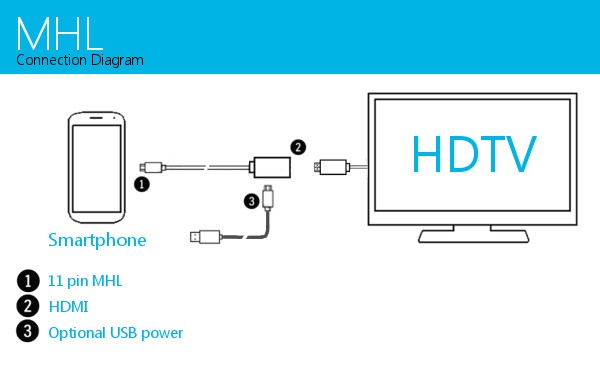
If you prefer cable use, you can also use HDMI technology to connect your smartphone to the TV. To do this, follow these steps:
-
Buy a dongle that transforms a USB-C output into an HDMI output or buy a USB-C hub.
-
Connect the HDMI cable from your smartphone to the television.
-
Select the correct television input to view the contents of your smartphone.
Conclusion
Connecting your samsung to the tv is not more difficult than you think, right? with these options, you can use your television as a monitor to view the contents of your smartphone and take advantage of all its capabilities. I hope this guide has been useful to you.
Frequently Asked Questions (faqs)
Q: What are the options for connecting my Samsung to the TV?
A: There are several options, including using miracast technology, smartthings app or chromecast device.
Q: How does miracast technology work?
A: Miracast technology allows you to view the contents of your smartphone on your television without the need for cables.
Q: What are the features of the Chromecast device?
A: The chromecast device is a device that allows you to easily connect your television to the internet and use applications such as youtube, netflix and many others.
Q: How can I activate Miracast technology on my TV?
A: You can search online how to activate miracast function on your samsung brand device or other compatible devices.
Author’s Note


