
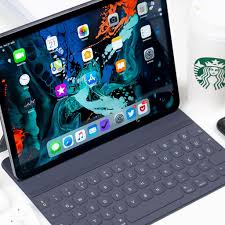
How to Connect a Keyboard to Your Ipad: A Step-by-step Guide
Are you tired of typing on your iPad’s virtual keyboard? Do you want to experience the joy of physical typing? Look no further! In this article, we’ll guide you through the process of connecting a keyboard to your iPad.
Why Use a Keyboard With Your Ipad?
Before we dive into the how-to section, let’s talk about why using a keyboard with your iPad is a great idea. A physical keyboard can greatly improve your typing experience on your iPad. It’s especially useful for tasks that require intense typing, such as writing emails, composing documents, or even creating art.
Types of Keyboards Compatible With Ipads
There are several types of keyboards compatible with iPads, including:
- Apple Smart Keyboard: This keyboard is specifically designed for the iPad and uses a proprietary connection called Smart Connector.
- Bluetooth Keyboards: These keyboards use Bluetooth technology to connect to your iPad.
- Usb-c Keyboards: These keyboards use the USB-C port on your iPad to connect.
How to Connect an Apple Smart Keyboard to Your Ipad
Connecting an Apple Smart Keyboard to your iPad is a straightforward process. Here’s how:
- Open the lid of your Apple Smart Keyboard and locate the Smart Connector.
- Align the Smart Connector on your iPad with the one on your keyboard.
- Press down gently until you hear a magnetic click.
How to Connect a Bluetooth Keyboard to Your Ipad
Connecting a Bluetooth keyboard to your iPad is also easy. Here’s how:
- Put your Bluetooth keyboard in pairing mode.
- Go to Settings > Bluetooth on your iPad.
- Tap the “i” icon next to your keyboard’s name and select “Connect”.
How to Connect a Usb-c Keyboard to Your Ipad
Connecting a USB-C keyboard to your iPad requires an adapter, but it’s still easy to do. Here’s how:
- Purchase an adapter that converts your keyboard’s USB-C port to the Lightning port on your iPad.
- Connect your keyboard to the adapter and then to your iPad.
Tips For Using Your Keyboard With Your Ipad
Now that you’ve connected your keyboard, here are some tips to get the most out of it:
- Use Keyboard Shortcuts: Many apps support keyboard shortcuts. Experiment with different combinations to find what works best for you.
- Customize Your Keyboard Layout: Some keyboards allow you to customize the layout to fit your preferences.
- Take Advantage of Apple’s Universal Control: If you have a Mac and an iPad, you can use Universal Control to control both devices with one keyboard.
Conclusion
Connecting a keyboard to your iPad is a great way to improve your typing experience and productivity. With this guide, you should be able to connect any type of keyboard compatible with your iPad. Happy typing!
Frequently Asked Questions (FAQs)
- Q: Can I Use Any Keyboard With my Ipad?
A: Yes, but make sure it’s compatible with your iPad model. - Q: How do I Know Which Keyboard is Right For Me?
A: Consider what you’ll be using the keyboard for and choose a keyboard that fits those needs. - Q: Can I Use Multiple Keyboards at Once?
A: Yes, but make sure they’re all compatible with your iPad model. - Q: How do I Switch Between Keyboards on my Ipad?
A: Go to Settings > Accessibility > Keyboards and select the keyboard you want to use. - Q: Can I Use a Keyboard With an Ipad That’s Not Running Ios 13 or Later?
A: No, you’ll need to update your iPad to at least iOS 13 or later for keyboard compatibility. - Q: How do I Troubleshoot Issues With my Keyboard?
A: Try restarting both the keyboard and your iPad, then go through the connection process again. - Q: Can I Use a Keyboard With an Ipad That’s Running Ipados 15 or Later?
A: Yes, but make sure you have the latest version of iPadOS installed on your device. - Q: How do I Enable Keyboard Shortcuts on my Ipad?
A: Go to Settings > Accessibility > Keyboards and select “Show Keyboard Shortcuts” under “Complete Access of Keyboard”.


