
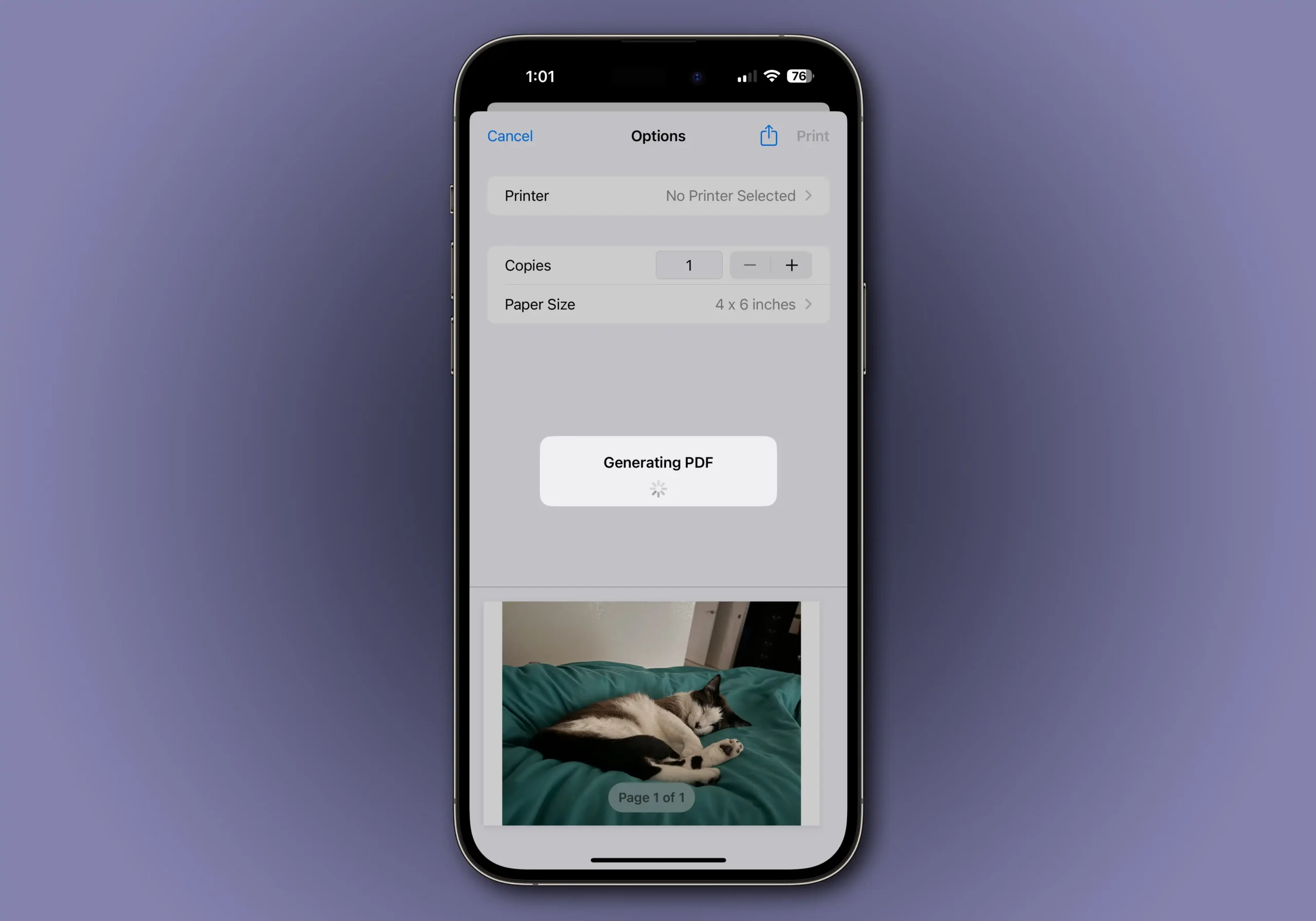
How to Modify a Pdf on Iphone: A Comprehensive Guide
Are you tired of struggling to edit PDFs on your iPhone? Look no further! This article will guide you through the various ways to modify a PDF on your iPhone, using both built-in features and third-party apps.
Introduction
PDFs are an essential part of our digital lives, used for everything from documents and forms to contracts and presentations. However, editing them can be a challenge, especially when you’re on-the-go with your iPhone. In this article, we’ll explore the best ways to modify a PDF on your iPhone, using both free and paid apps.
Built-in Features: Ios’ Native Pdf Editor
Before diving into third-party apps, let’s take a look at what iOS has to offer. Starting from iOS 17, Apple included a built-in PDF editor that allows you to add text, arrows, signatures, and other elements directly to your PDFs.
To access this feature:
- Open the PDF document you want to edit in the Files app or any other file manager on your iPhone.
- Tap the “Edit” button (represented by three horizontal lines).
- Select the tools you need from the menu that appears.
Other Built-in Features: Ibooks And Safari
If you’re not using a third-party app, you can also use Apple’s iBooks or Safari browser to modify your PDFs. Here’s how:
- Open iBooks and select the PDF document you want to edit.
- Tap the “Edit” button (represented by three horizontal lines).
- Select the tools you need from the menu that appears.
Alternatively, open the PDF in Safari and tap the “Share” icon. Choose “Save as PDF” or “Open in [App Name]” to continue editing your PDF.
Third-party Apps: The Ultimate Solution
While Apple’s built-in features are convenient, they may not offer all the functionality you need. That’s where third-party apps come in! Here are some of the top PDF editors for iPhone:
- Smallpdf: A comprehensive app that allows you to edit PDFs, add text, signatures, and more. It also converts PDFs to various formats and compresses them.
- Xodo Pdf: A powerful editor that enables you to annotate, fill forms, and sign PDFs. Its free version is feature-rich, but the paid version offers even more functionality.
- Ilovepdf: Another popular app that lets you edit, convert, and sign PDFs. It’s free, but has a daily limit on processing PDFs.
How to Use Smallpdf
Smallpdf is an excellent choice for modifying PDFs on your iPhone. Here’s how to use it:
- Download and install Smallpdf from the App Store.
- Launch the app and choose the function you need (e.G., Edit, compress, or convert a PDF).
- Select the PDF document you want to modify.
- Use the various tools provided by Smallpdf to make your changes.
How to Use Xodo Pdf
Xodo PDF is another great option for editing PDFs on your iPhone. Here’s how to use it:
- Download and install Xodo PDF from the App Store.
- Launch the app and choose the function you need (e.G., Edit, annotate, or sign a PDF).
- Select the PDF document you want to modify.
- Use the various tools provided by Xodo to make your changes.
How to Use Ilovepdf
ILovePDF is another excellent choice for modifying PDFs on your iPhone. Here’s how to use it:
- Download and install iLovePDF from the App Store.
- Launch the app and choose the function you need (e.G., Edit, convert, or sign a PDF).
- Select the PDF document you want to modify.
- Use the various tools provided by iLovePDF to make your changes.
Conclusion
Modifying PDFs on your iPhone has never been easier! With these built-in features and third-party apps, you can add text, signatures, and more directly to your PDFs. Remember to explore the various options available, and choose the one that best suits your needs.
Frequently Asked Questions (FAQs)
- Q: Can I Edit Pdfs on my Iphone For Free?
A: Yes! iOS’ built-in features and some third-party apps offer free editing capabilities. - Q: What’s The Best App For Modifying Pdfs on my Iphone?
A: It depends on your specific needs, but Smallpdf, Xodo PDF, and iLovePDF are excellent choices. - Q: Can I Convert a Pdf to Another Format Using These Apps?
A: Yes! Most of these apps allow you to convert PDFs to various formats, such as Word or Excel documents. - Q: Are These Apps Secure?
A: Yes! All the apps mentioned in this article are secure and reliable.
I hope this comprehensive guide has helped you master the art of modifying PDFs on your iPhone. Happy editing!


