
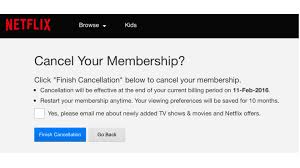
Are you tired of Netflix’s endless content, but can’t seem to cancel your subscription? You’re not alone! Many users have struggled with this very issue, only to find themselves stuck in a cycle of continuous payment. But fear not, dear reader, for we’ve got the solution right here.
In this article, we’ll take you through the step-by-step process of canceling your Netflix subscription across various platforms, including PC, smartphone, and tablet. We’ll also explore the nuances of canceling Netflix on other services like Sky and TIMVISION.
Why Cancel Netflix?
Before we dive into the nitty-gritty details, let’s quickly address the elephant in the room: Why would you want to cancel Netflix in the first place?
While Netflix offers an incredible selection of content, it’s not everyone’s cup of tea. Some users may find that they’ve simply watched too much and don’t have time for more; others might be looking for a change or wanting to cut back on unnecessary expenses.
Canceling Netflix on PC
The process of canceling Netflix on PC is relatively straightforward:
- Access The Netflix Website: Log in to your account using your email address and password.
- Click on The Profile Icon: Located at the top right corner of the screen, this will take you to a dropdown menu.
- Select “Account”: This option is usually displayed as an avatar or profile picture.
- Choose “Discharge Subscription”: Clicking on this option will initiate the cancellation process.
- Confirm Your Decision: You’ll be asked if you’re sure about canceling; click “Continue” to finalize.
Canceling Netflix on Smartphone And Tablet
The procedure is similar for mobile devices:
- Launch The Netflix App: Open the application and log in with your credentials.
- Tap on The Profile Icon: This will take you to a menu where you can manage your account.
- Select “Account”: From the dropdown menu, choose this option.
- Choose “Discharge Subscription”: You’ll be asked if you’re sure about canceling; confirm by tapping “Continue”.
- Verify Your Decision: Review the cancellation details and click “Confirm” to finalize.
Canceling Netflix on Sky
If you’ve subscribed to Netflix through Sky, here’s what you need to do:
- Access The Sky Website: Log in with your credentials.
- Click on The Profile Icon: This will take you to a dropdown menu where you can manage your account.
- Select “Stir up Online”: Choose this option and navigate to the “Seleziona pack or packs of stirring up” section.
- Choose “Intrattenimento Plus”: Select this option and click on the “Procedi” button.
- Affix a Sign Next to “Removal to The Deadline of The Contract”: If you want to cancel Netflix before its natural deadline, follow these steps.
Canceling Netflix on Timvision
To cancel Netflix through TIMVISION:
- Call The Tim Customer Service Number (187): Explain that you’d like to cancel your subscription.
- Follow The Voice Guide Instructions: This will lead you through the cancellation process.
- Affix a Sign Next to “Removal”: Confirm that you want to cancel Netflix.
- Restore The Decoder Box Within 30 Days: Return the TIMVISION box and pay any applicable fees.
Frequently Asked Questions (FAQs)
- What Happens When I Cancel Netflix?: Your account will be disabled, and any automatic renewals will be canceled.
- Can I Reactivate my Subscription Later?: Yes, you can! Visit the “Subscription and turnover” section to do so.
- How Long Does it Take to Cancel Netflix on Pc?: The process should only take a few minutes.
- What if I Want to Cancel Netflix Through Sky?: Follow the steps outlined above to initiate cancellation.
- Can I Return The Timvision Decoder Box?: Yes, you must restore the box within 30 days of cancellation and cover any applicable fees.
- How do I Know Which Service to Contact For Cancellation?: Check your original subscription details or contact customer support for guidance.
- Will my Data be Deleted When I Cancel Netflix?: Your account will be disabled, but your viewing history and other data may still be stored.
Conclusion
Canceling a subscription is never fun, but with the right tools and knowledge, it’s a straightforward process. Remember to follow these steps for each platform you’ve subscribed to (PC, smartphone, tablet, Sky, or TIMVISION), and don’t hesitate to reach out if you have any further questions!
Happy canceling!


