
How to Customize Your Fortnite Command on Mobile
Are you tired of playing Fortnite on your mobile device with the default controls? Do you want to customize your gaming experience to suit your playstyle? Look no further! In this article, we will guide you through the step-by-step process of customizing your Fortnite command on mobile.
What is Customizing Your Fortnite Command?
Customizing your Fortnite command refers to modifying the default settings of the game’s controls to better suit your preferences. This can include changing the layout of the buttons, adjusting sensitivity levels, and even creating a personalized control scheme for specific types of gameplay.
Why Customize Your Fortnite Command?
There are several reasons why you might want to customize your Fortnite command:
- Improved Gaming Experience: By customizing your controls, you can create a more enjoyable gaming experience that suits your playstyle.
- Increased Efficiency: Customized controls can help you react faster and make quicker decisions during gameplay.
- Competitive Edge: In competitive modes like Battle Royale, having customized controls can give you an edge over other players.
How to Customize Your Fortnite Command on Android And Ios
Customizing your Fortnite command is a relatively straightforward process. Here’s how to do it:
Step 1: Open The Fortnite App
First, open the Fortnite app on your mobile device. You should see the game’s main menu screen.
Step 2: Tap on The Settings Icon
Tap on the settings icon ☰ located in the top-right corner of the screen.
Step 3: Select Settings
From the menu that appears, select “Settings”.
Step 4: Customize Your Controls
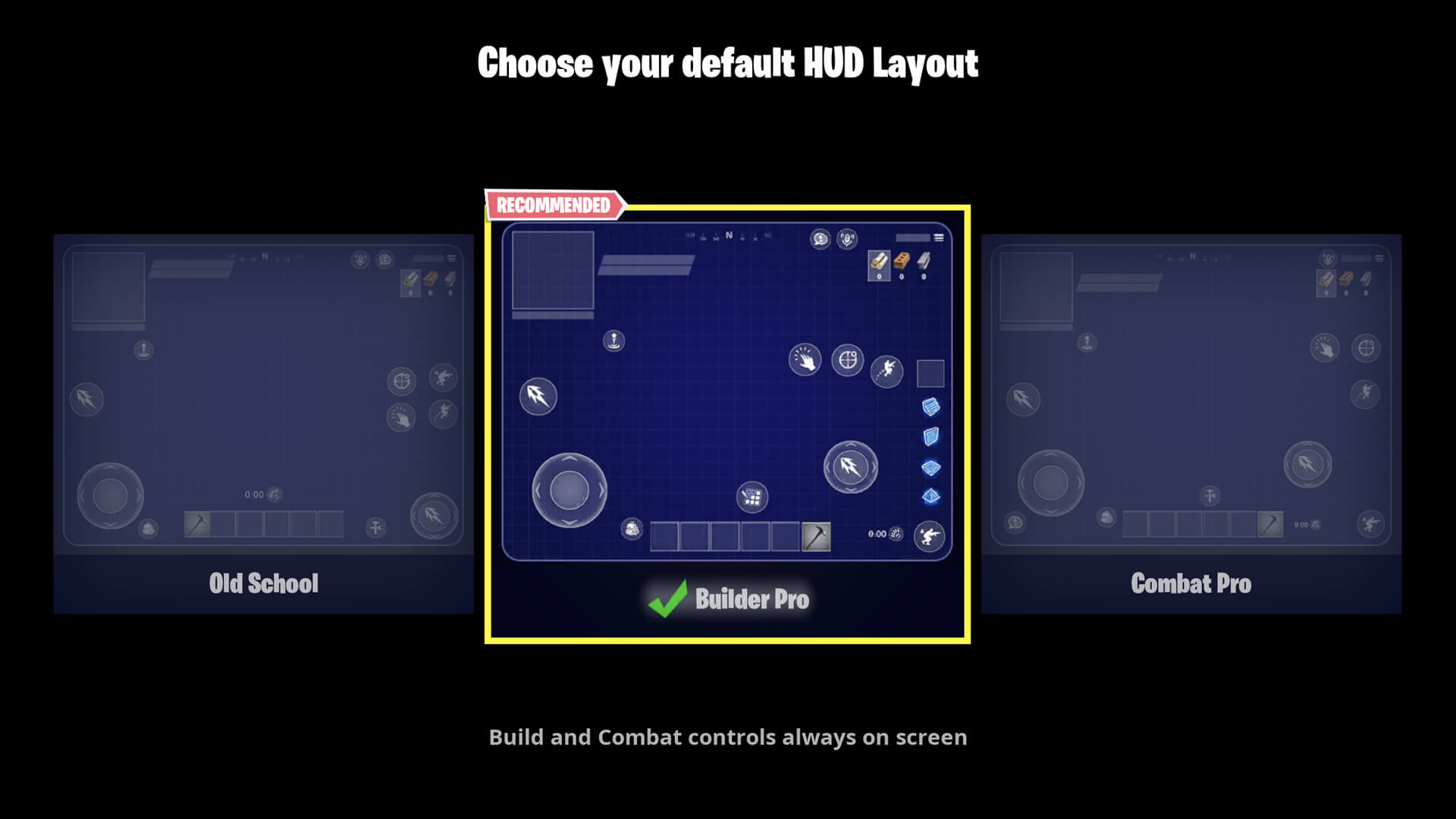
In the settings menu, you will see a section dedicated to customizing your controls. Here, you can adjust sensitivity levels, change button layouts, and even create a personalized control scheme for specific types of gameplay.
Step 5: Save Your Changes
Once you’ve made your changes, be sure to save them by tapping on the “Apply” button.
Customizing Your Controls
Now that we’ve covered the basics of customizing your Fortnite command, let’s take a closer look at some advanced customization options:
- Aim Assist: This feature allows you to adjust the sensitivity of your aim while using the built-in aiming system.
- Motion Options: Here, you can customize settings like sprint speed and jump height.
- Turbo Building: This option allows you to build structures faster by reducing the time it takes to place blocks.
Using a Controller
If you’re playing Fortnite on a device with a controller attached (like an Android TV or iOS gaming console), customizing your controls is just as easy. Here’s how:
Step 1: Access The Options Menu
Open the Fortnite app and navigate to the main menu screen.
Step 2: Select Settings
Tap on the settings icon ☰ located in the top-right corner of the screen.
Step 3: Choose Controller Options
From the menu that appears, select “Controller Options”.
Step 4: Customize Your Controls
Here, you can adjust settings like controller sensitivity and even create a personalized control scheme for specific types of gameplay.
Tips And Tricks
- Practice Makes Perfect: Don’t be discouraged if it takes some time to get used to your customized controls. Practice makes perfect!
- Experiment With Different Settings: Try out different combinations of settings to find what works best for you.
- Join Online Communities: Connect with other Fortnite players online to share tips and tricks on customizing your controls.
Conclusion
Customizing your Fortnite command is a simple yet powerful way to enhance your gaming experience. By following the steps outlined in this article, you can create a more enjoyable and efficient gameplay experience that suits your playstyle. Happy gaming!


