
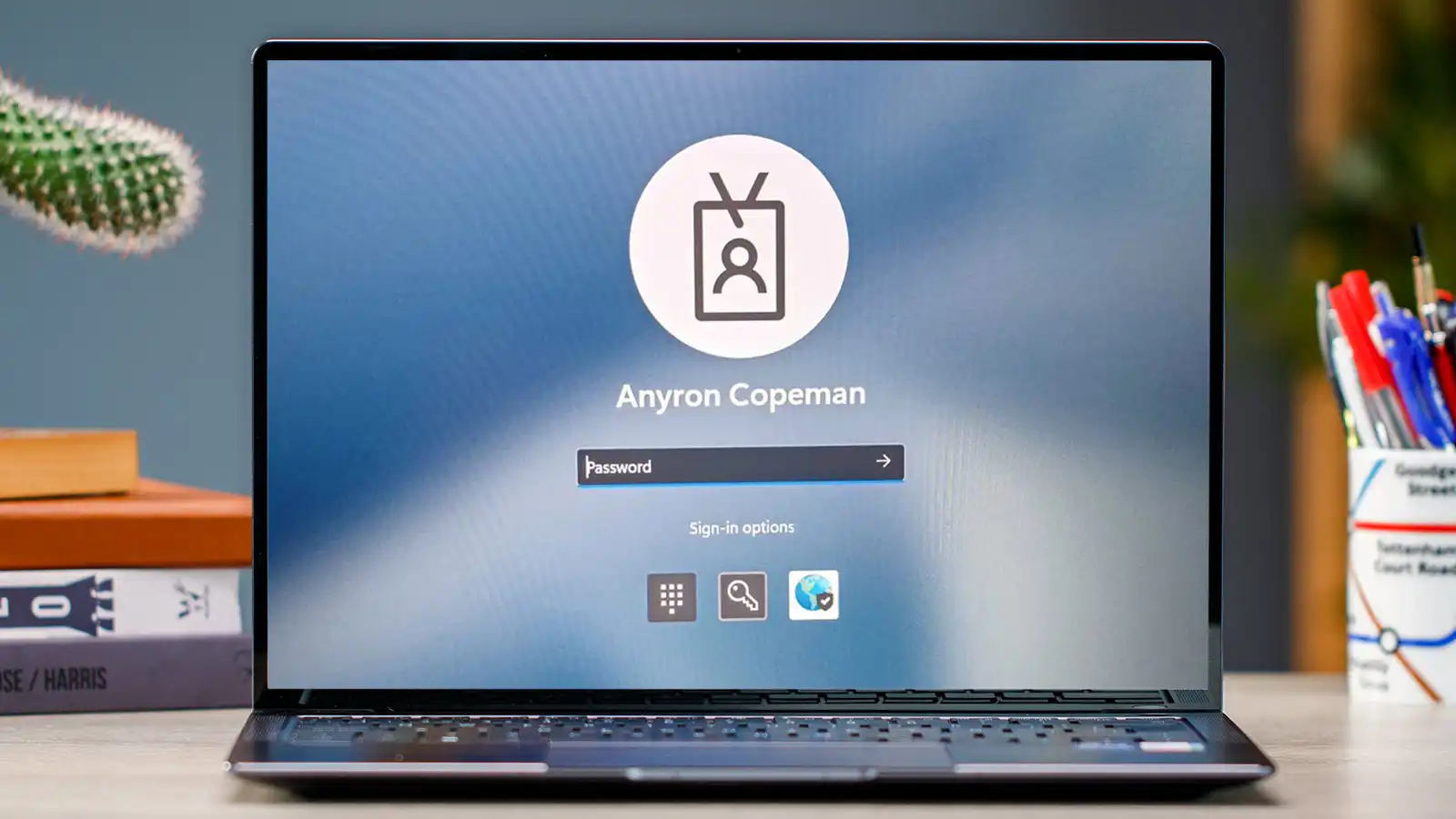
How to Remove Password From Pc: A Comprehensive Guide
Are you tired of typing your password every time you want to access your computer? Do you want to remove the password from your PC but don’t know how? Look no further! In this article, we will guide you through the process of removing passwords from various versions of Windows, Mac, and Linux operating systems.
Why Remove Password From Pc?
Removing the password from your PC can be beneficial in several ways. Firstly, it can save you time and effort by eliminating the need to type a password every time you want to access your computer. Secondly, it can improve your productivity by allowing you to quickly log in and start working on tasks without any delay.
Removing Password From Windows 11
If you have Windows 11 installed on your PC, removing the password is a relatively straightforward process. Here’s how:
- Click on the Start button and select Settings.
- Click on Accounts and then select Sign-in options.
- Click on Password and then click on Remove password.
- Confirm that you want to remove the password by clicking on OK.
Removing Password From Windows 10
If you have Windows 10 installed on your PC, removing the password is also easy. Here’s how:
- Click on the Start button and select Settings.
- Click on Accounts and then select Sign-in options.
- Click on Password and then click on Change password.
- Select the option to remove the password by clicking on Remove password.
Removing Password From Windows 8/8.X
If you have Windows 8 or 8.X installed on your PC, removing the password is also relatively easy. Here’s how:
- Click on the Start button and select Settings.
- Click on Accounts and then select Sign-in options.
- Click on Password and then click on Change password.
- Select the option to remove the password by clicking on Remove password.
Removing Password From Windows 7 And Vista
If you have Windows 7 or Vista installed on your PC, removing the password is also easy. Here’s how:
- Click on the Start button and select Control Panel.
- Click on User Accounts and then select Manage my spaces.
- Click on Change password and then click on Remove password.
Removing Password From Mac
If you have a Mac, removing the password is also relatively easy. Here’s how:
- Click on Apple logo and select System Preferences.
- Click on Users & Groups and then select Login Options.
- Click on Password and then click on Turn off password protection.
- Confirm that you want to remove the password by clicking on OK.
Removing Password From Linux
If you have a Linux operating system installed on your PC, removing the password is also easy. Here’s how:
- Click on the start menu and select Settings.
- Click on Users and then select Login Options.
- Click on Password and then click on Remove password.
Conclusion
Removing passwords from PCs can be beneficial in several ways, including saving time and improving productivity. In this article, we have guided you through the process of removing passwords from various versions of Windows, Mac, and Linux operating systems. By following these steps, you can remove the password from your PC and enjoy a more convenient and efficient computing experience.
Faqs
- What is The Purpose of Removing Password From Pc?
The primary purpose of removing password from PC is to save time and improve productivity by eliminating the need to type a password every time you want to access your computer. - How do I Remove Password From Windows 11?
To remove password from Windows 11, click on Start button and select Settings, then Accounts, and then Sign-in options, and finally Password and Remove password. - Can I Remove Password From Mac?
Yes, you can remove password from Mac by clicking on Apple logo and selecting System Preferences, then Users & Groups, and Login Options, and Turn off password protection. - How do I Remove Password From Linux?
To remove password from Linux, click on the start menu and select Settings, then Users, and Login Options, and finally Password and Remove password. - What Are The Benefits of Removing Password From Pc?
The primary benefits of removing password from PC include saving time and improving productivity by eliminating the need to type a password every time you want to access your computer. - Can I Recover my Lost Password?
Yes, you can recover your lost password using various methods such as password recovery software or contacting the system administrator. - How do I Prevent Others From Accessing my PC Without Password?
To prevent others from accessing your PC without password, make sure to set a strong password and enable two-factor authentication whenever possible. - Can I Remove Password From All Versions of Windows?
Yes, you can remove password from all versions of Windows, including Windows 11, Windows 10, Windows 8/8.X, Windows 7, and Vista.


